
Bulk Job Import
Edited
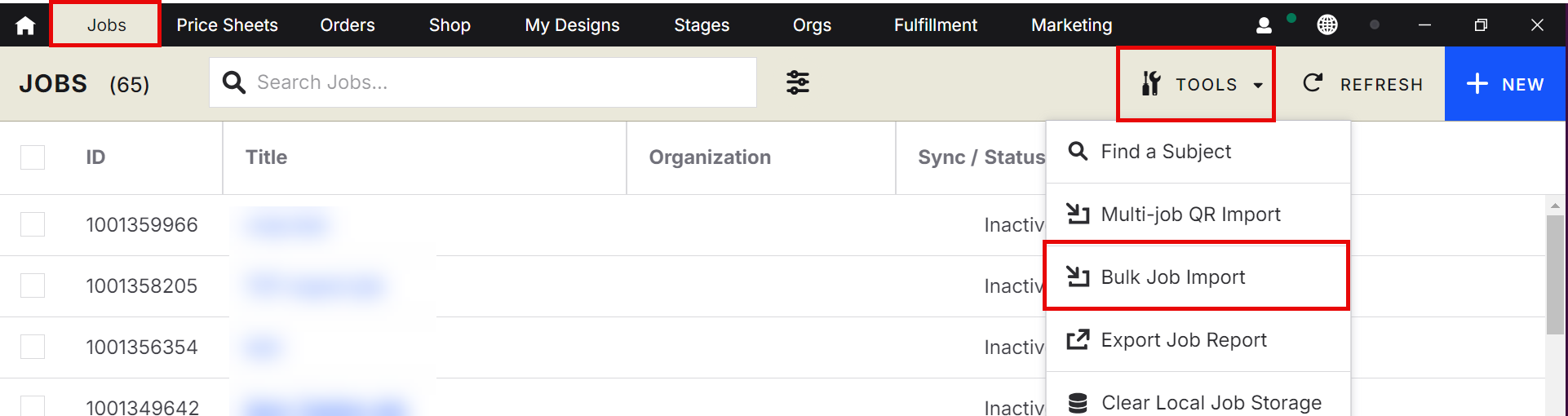
1. Open the Jobs tab
Select the Jobs tab to access job‑related tools.
2. Click on Tools
Inside the Jobs tab, locate and click Tools.
3. Select Bulk Job Import
Choose Bulk Job Import from the available options.
4. Upload your CSV file
Find your prepared CSV file and upload it.
6. Add a Welcome Image (optional)
If you have a Welcome image file, upload it during this step.
Below are the required CSV column headings. Refer to the attached example to see the type of information that needs to be entered for each field.
CSV Column Headings
GalleryType
GalleryDate
JobType
PreOrder
GreenScreen
ManualOnlineCodes
Keyword
Password
Title
ExpirationDate
ExpirationTime
ExpirationTimezone
VandoSettingID
PriceSheetID
CustomDataSpecID
MarketingCampaignID
WelcomeMessage
WelcomeImage
Reference
status
shopBetaOptIn