
Designer: Backgrounds
Overview
Background Sets allow you to offer multiple backdrop choices within your Green Screen workflows. Customers can preview and select their preferred background during ordering, creating a simple upsell opportunity that can increase average order value.
What Are Background Sets?
A Background Set is a collection of .jpg background images used behind your PNG poses in Green Screen workflows. Sets are typically grouped by theme, season, sport, or style to help customers easily find the look they want.
Getting Started
Navigate to:
Home → Designer → Backgrounds
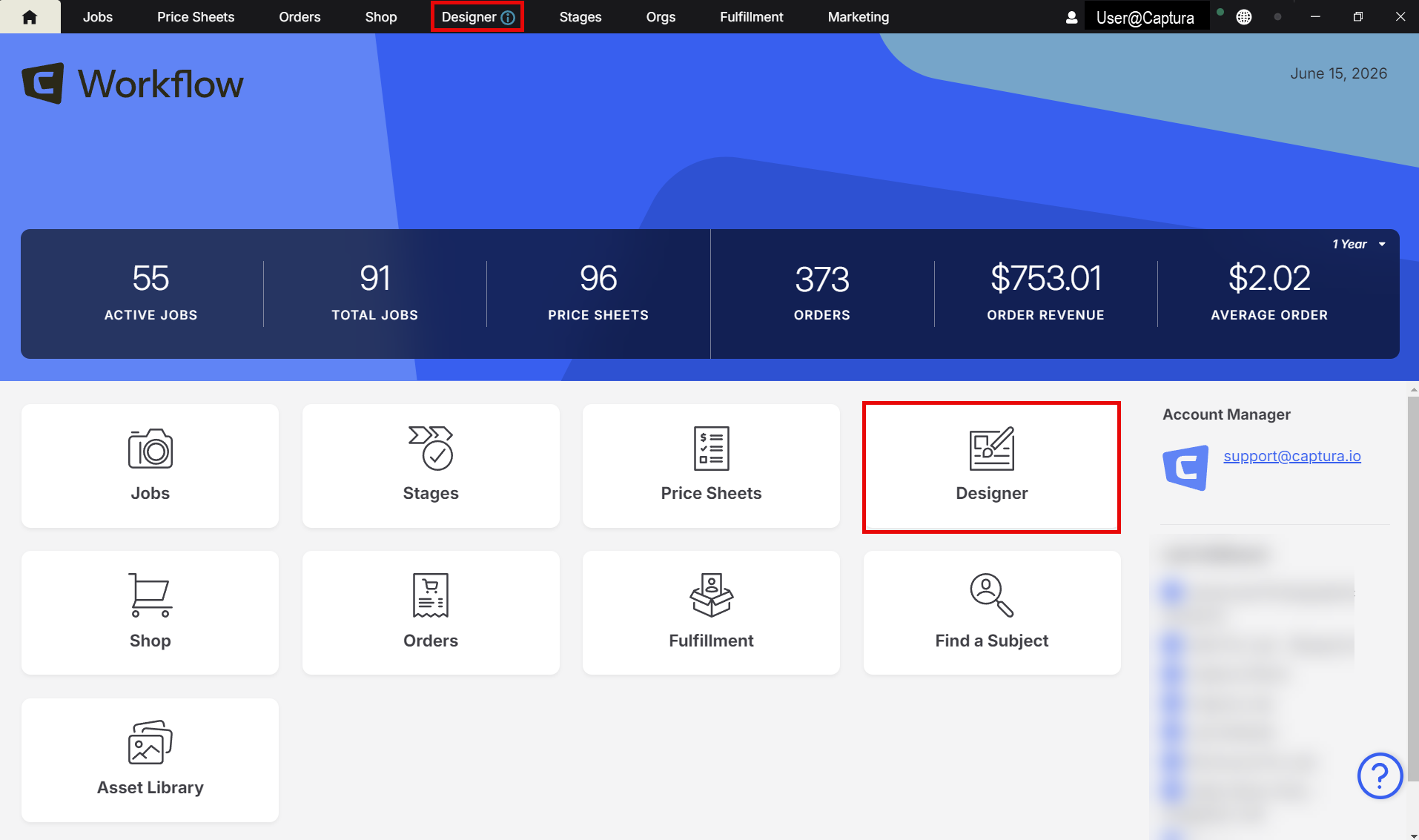
Here you’ll see your Background Categories, which are used to group multiple Background Sets together.
Current page
📝 Common category types include:
Seasons
Sports
Standard (free)
Abstract
Premium
Location‑specific
Current page
❗ You must create at least one Background Category before you can create a Background Set.
Click + Add Category to create one.
Current page
How to Create a Background Set
Open a Background Category.
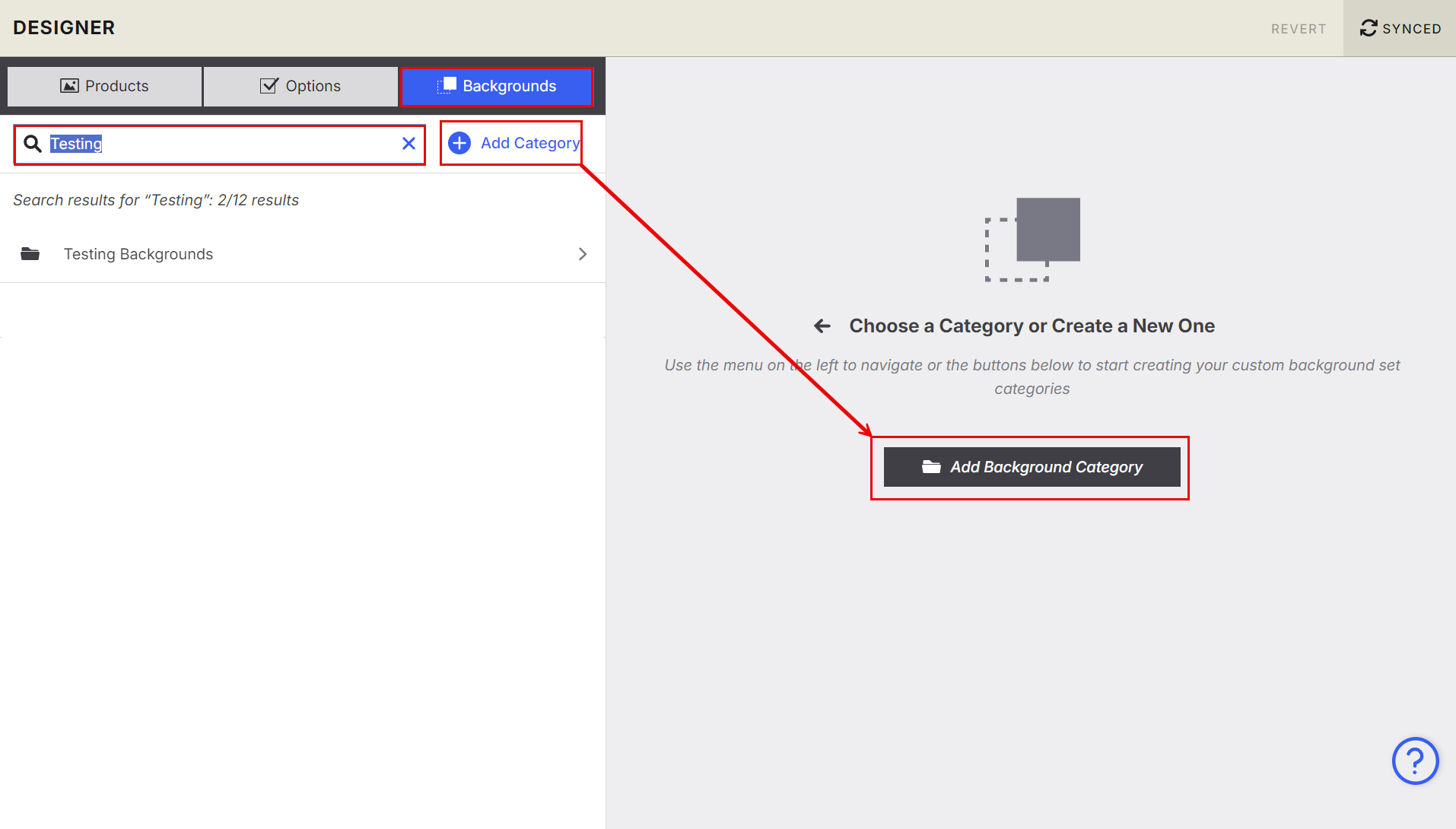
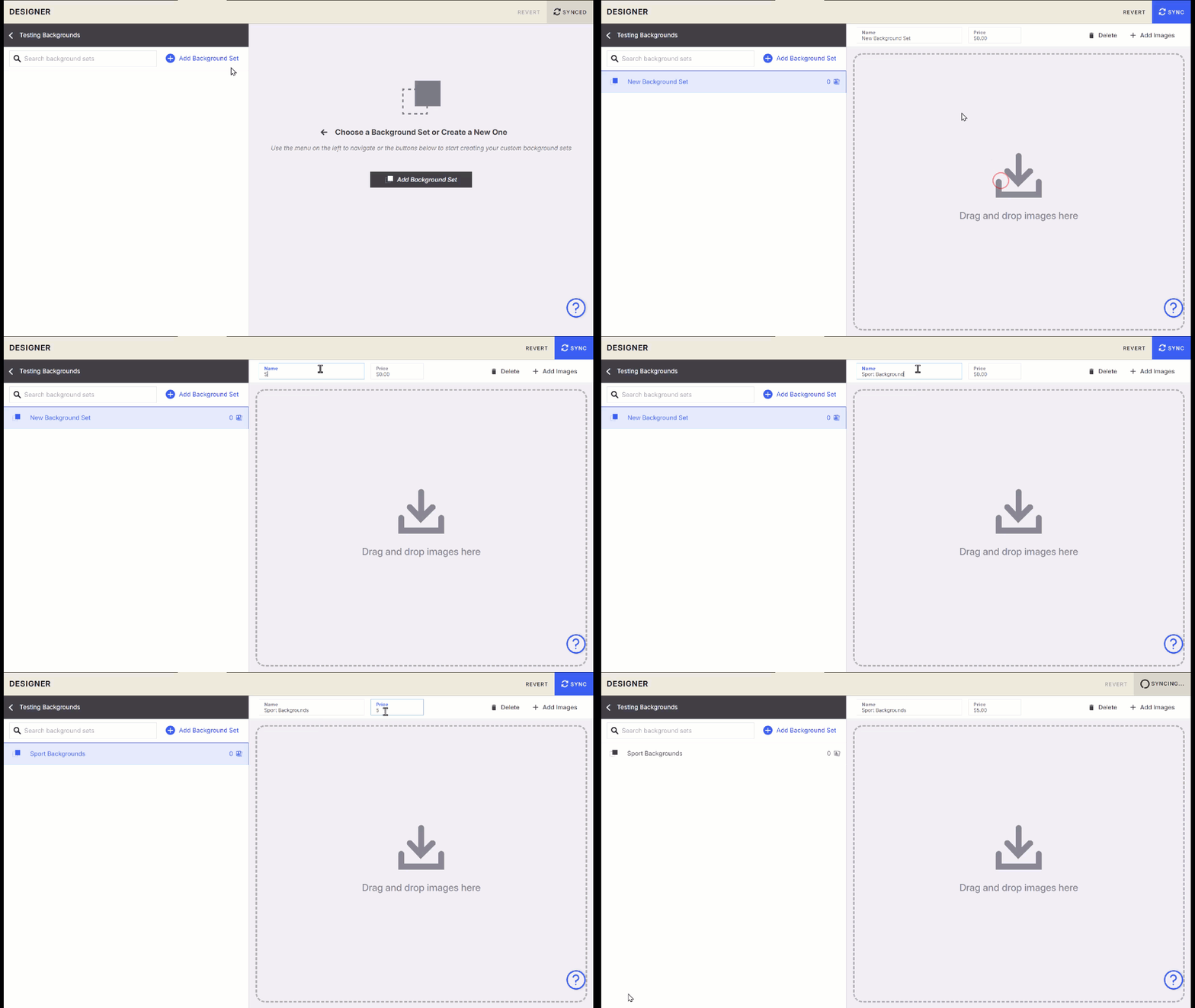
Click Add Background Set.
Enter a Name and optional Price. The default name will appear when the Background Set is added to a Price Sheet.
This name can always be changed later.
Add your images by dragging and dropping or clicking + Images.
Current page
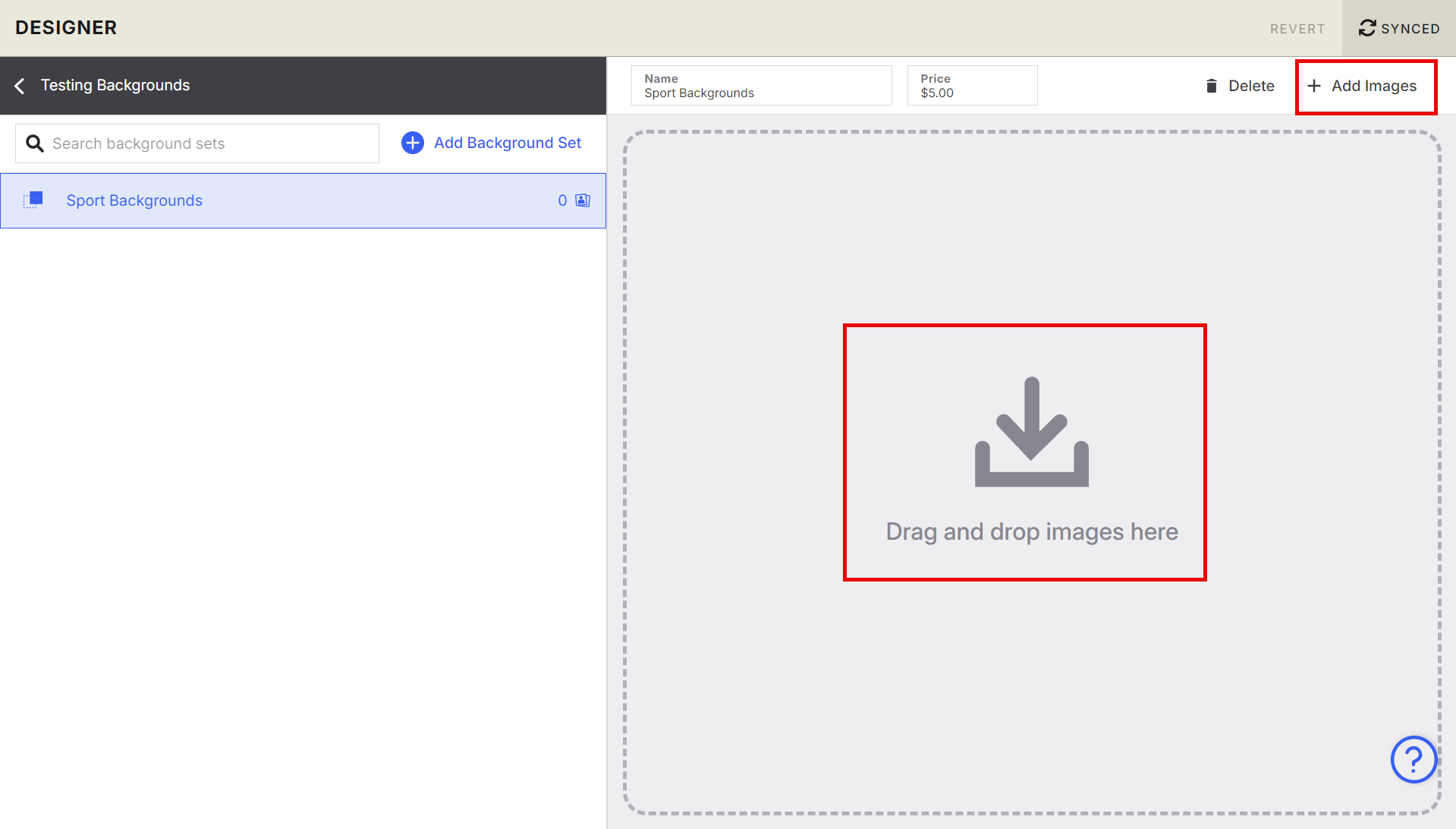
💡 Tip: Use clear, descriptive names to help customers quickly identify the style (e.g., “Fall Leaves,” “Studio Blue,” “Premium Metallic”).
You can also attach custom names and prices to differentiate premium or location‑specific designs.
Current page
Price
Set the default price for the Background Set.
A default of $0 is acceptable, and pricing can always be adjusted on the Price Sheet. If backgrounds should have a cost associated then including a minimum in the design area is good to have a fall back in case it gets forgotten at the price sheet creation stage.
Images
You can add as many .jpg images to a Background Set as needed.
Current page
Background Set Requirements
Before uploading backgrounds, ensure:
Files are .jpg
The .jpg extension is lowercase
Color profile is RGB or sRGB
Current page
❗ PhotoLynx Flow users:
You must include the same background files, with identical filenames, in:C:\ProgramData\Flow\Backgrounds\
Current page
File Limitations
Do not upload background files that:
Contain special characters (only -, _, and spaces are allowed)
Exceed 6000px on the longest side
Current page
How to Use Background Sets
Inside a Price Sheet:
Click the + button to open your Background Sets
Select the sets you want to offer
Click Add Sets
Click Sync
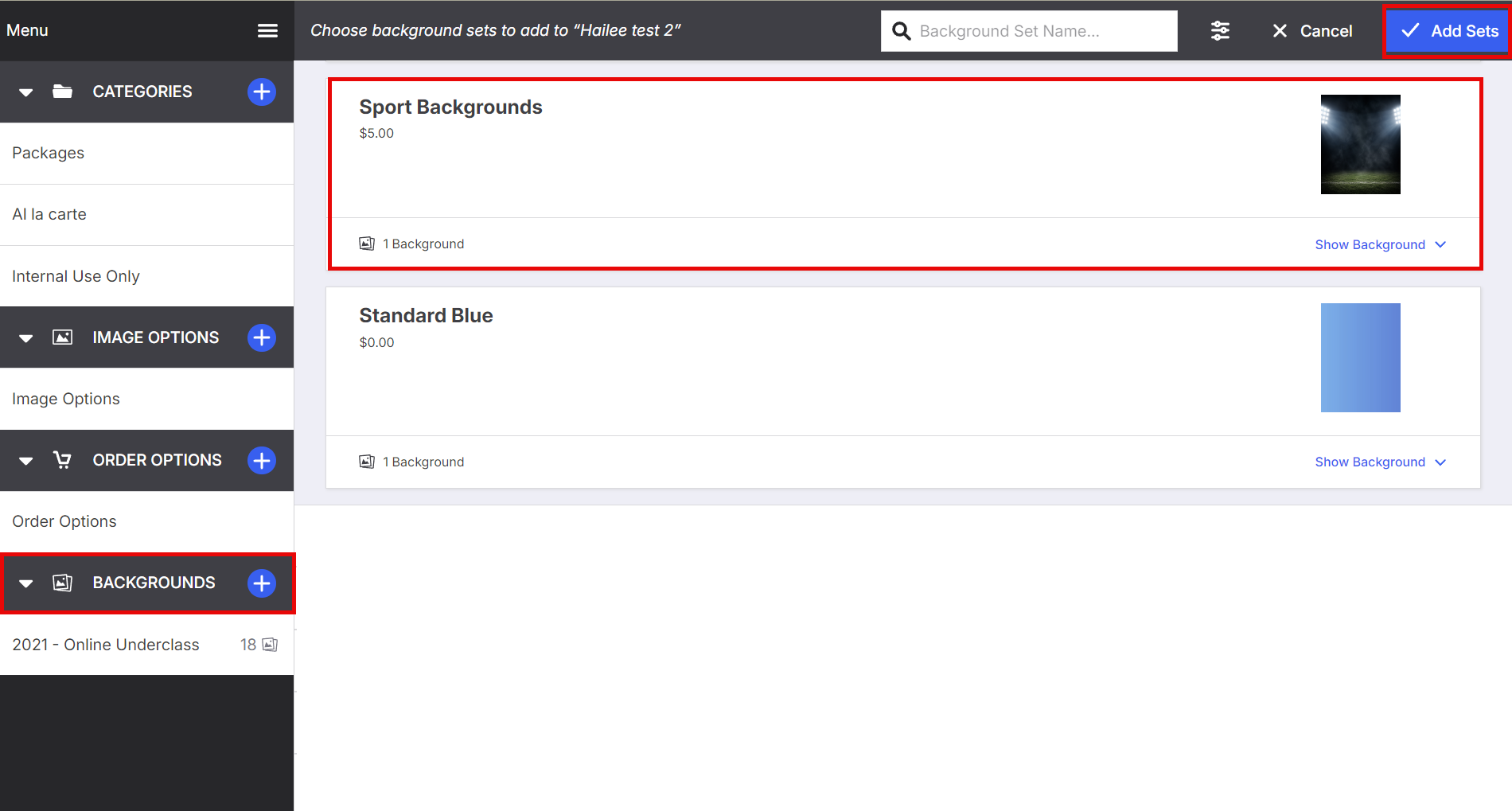
💡 You can hide individual backgrounds within a set by clicking the eye icon.
Current page
How Backgrounds Are Applied
When a customer selects a background:
Captura centers the background to the pose’s image size
The pose is flattened onto the background
The final image is scaled to the ordered print size
The lab receives a flattened, cropped, print‑ready file
Current page
FAQs
Does Captura Workflow support vertical and horizontal backgrounds?
Yes — but it’s recommended to create separate Background Sets for each orientation and label them clearly.
Current page
Can I upload both free and premium backgrounds?
Yes. Use categories and pricing to differentiate them.
How many images can I add to a set?
As many as you need.