
Designer: Image Options
Brief Overview
Image Options allow you to offer additional services tied to a specific image — such as retouching, or premium edits. These options appear during ordering and require the customer to opt in before the service is applied.
Overview & Objective
In this article, you’ll learn how to create Image Options inside Designer, understand the two available option types, and configure attributes for each choice. You’ll also learn how the Download Original Image for Fulfillment setting supports Green Screen workflows.
Setup / Configuration
1. Navigate to Image Options
Go to Designer.
Click Options → Image Options.
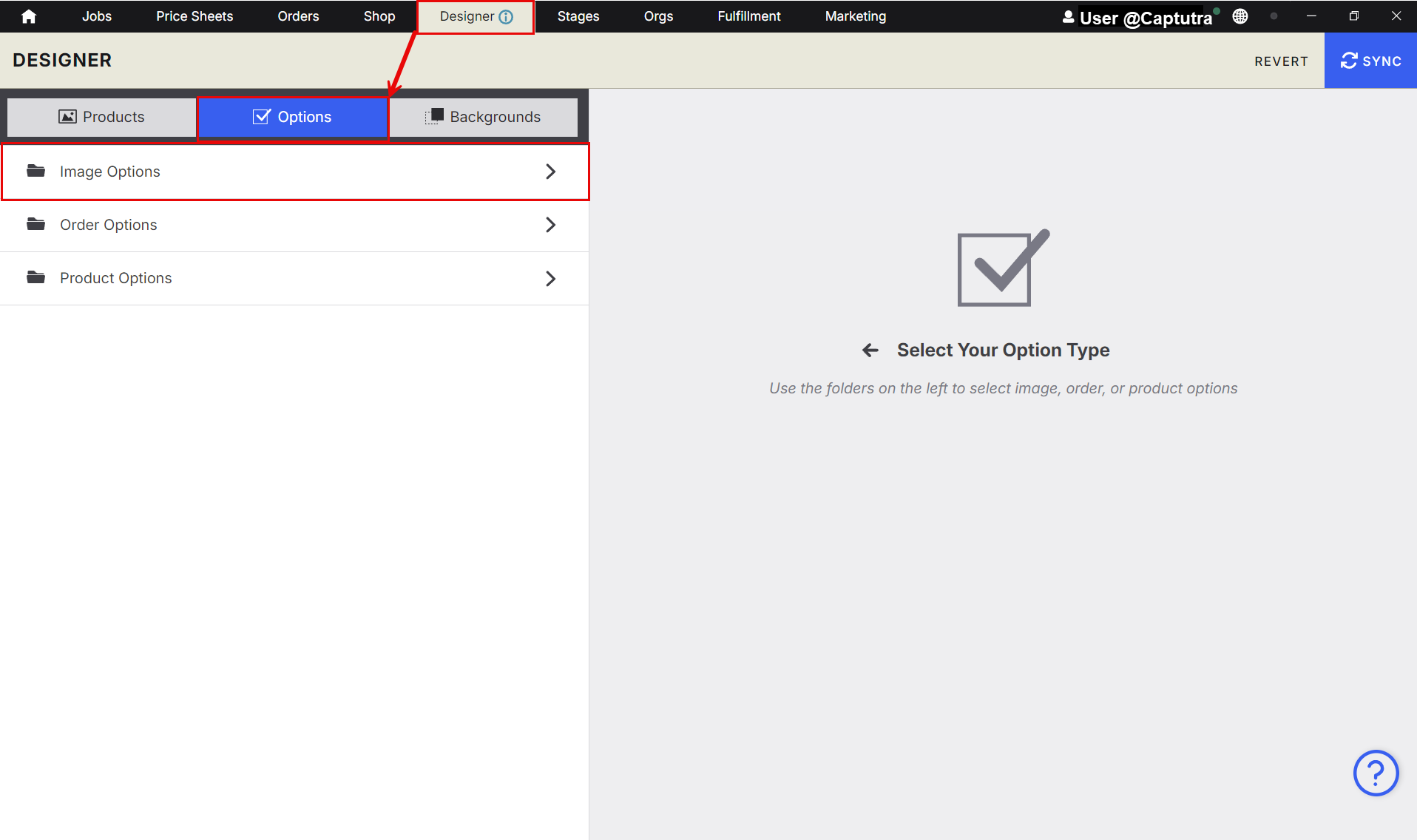
Open an existing category or create a new one.
Inside the category, click Add Image Option.
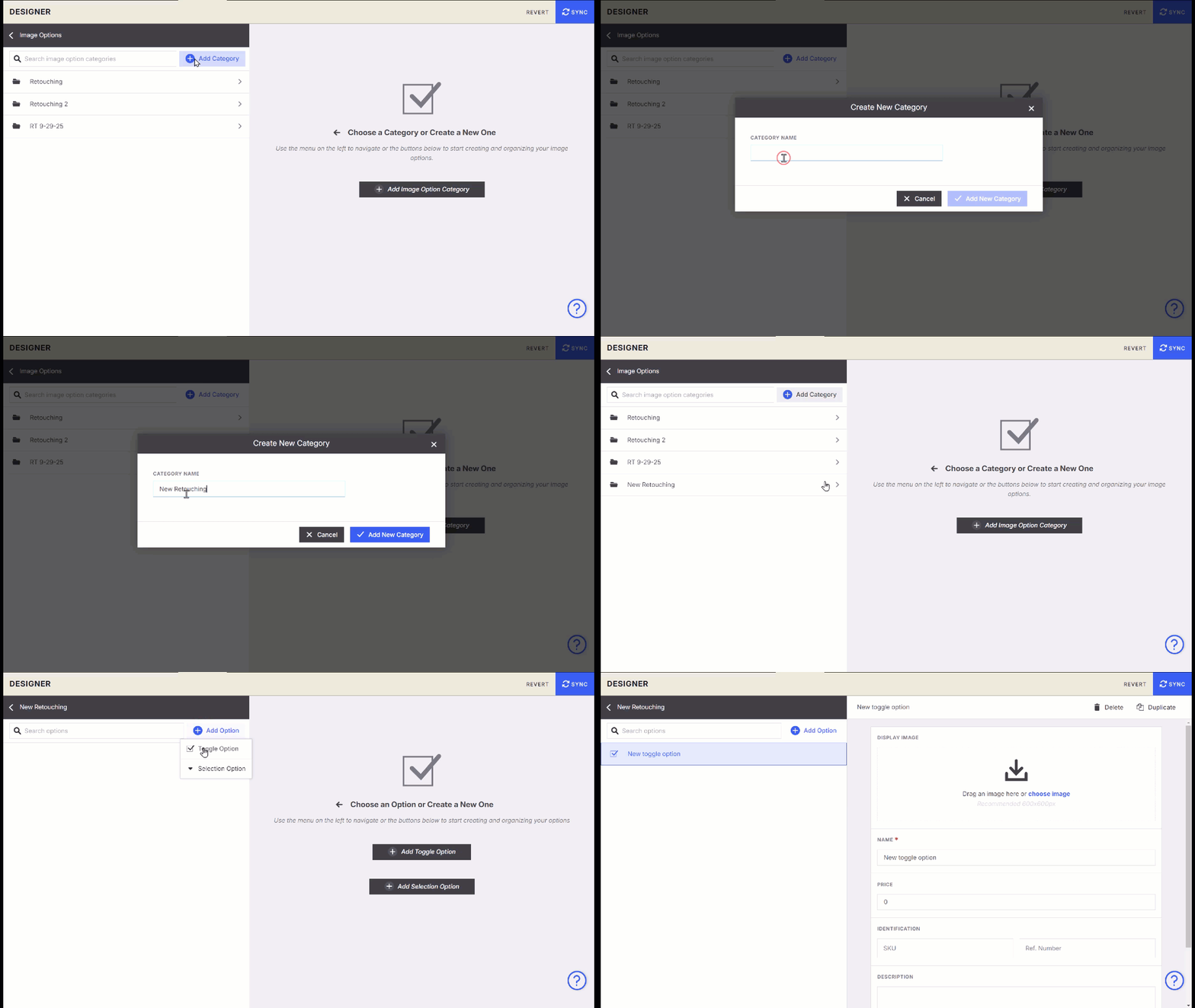
💡 TIP: Image Options must live inside a category. If you don’t see the option to create one, make sure you’re inside a category first.
Types of Image Options
There are two Image Option types, each designed for different workflows.
1. Toggle Option
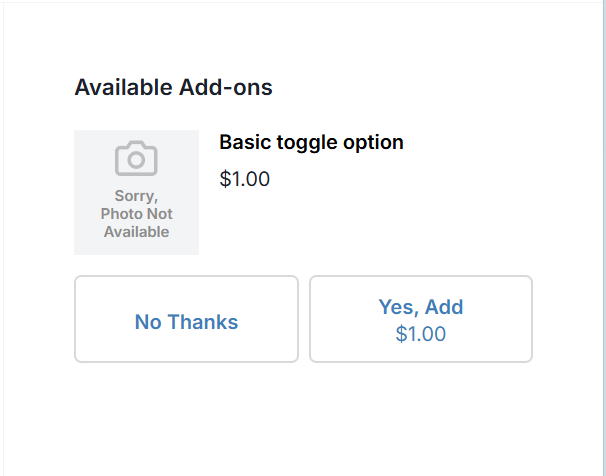
A simple No Thanks/Yes, Add opt‑in.
Customer chooses whether they want the service.
Perfect for single‑service add‑ons.
Example: Retouching – No Thanks/ Yes, Add.
How to build your toggle options
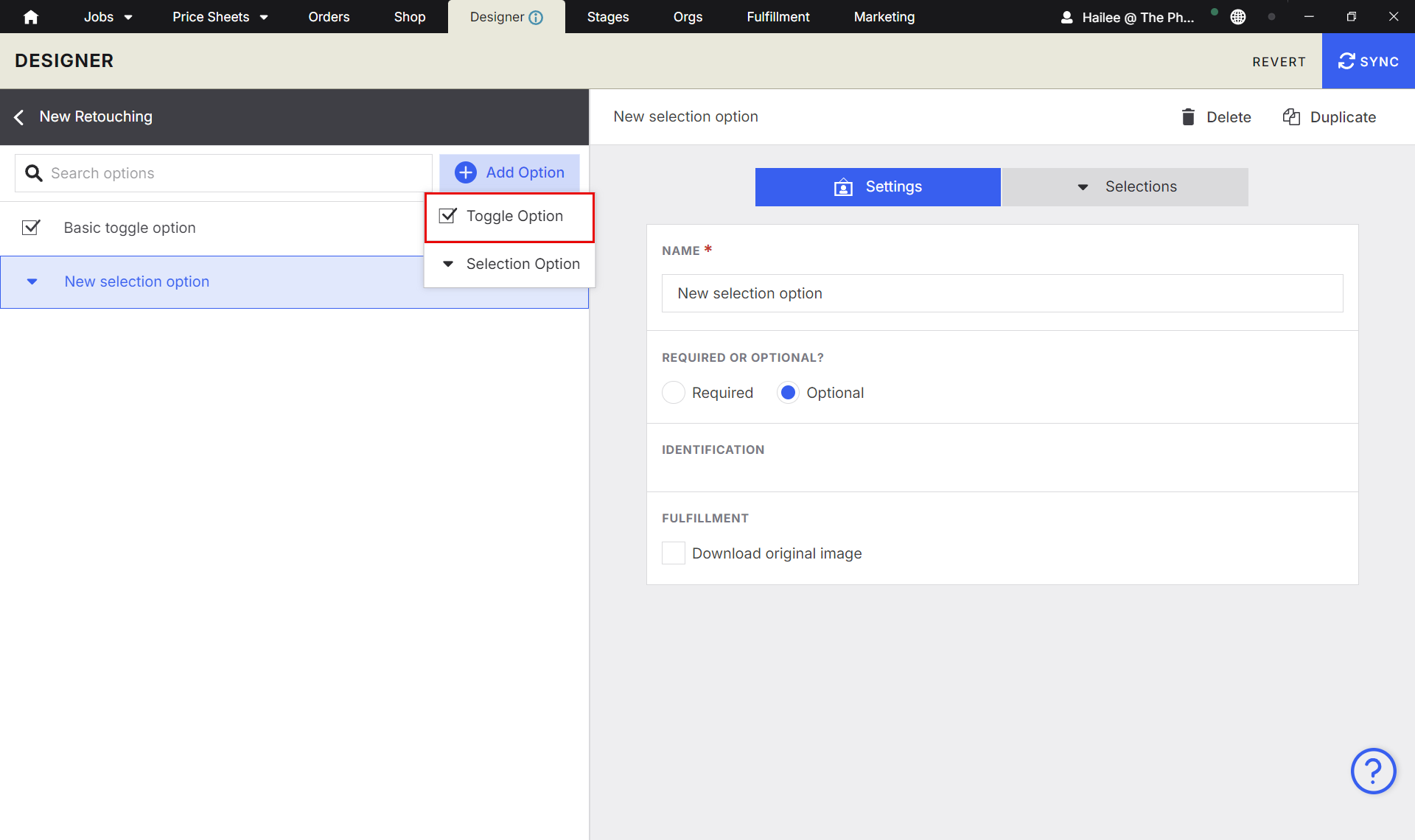
Click Designer → Options → Image Options → Choose or add your category → Add Option → Toggle Option
Name Toggle Option
Select if Required or Optional
2. Selection Option
A drop‑down list of multiple choices.
Customer must choose one option.
A decline option is automatically created — no need to add one manually.
Ideal for tiered services.
How to build your Selection Option
Click Designer → Options → Image Options → Choose or add your category → Add Option → Selection Option
Name your Option
Select if Required or Optional
Add Identification
Add Description
Download Original Image - See more information below
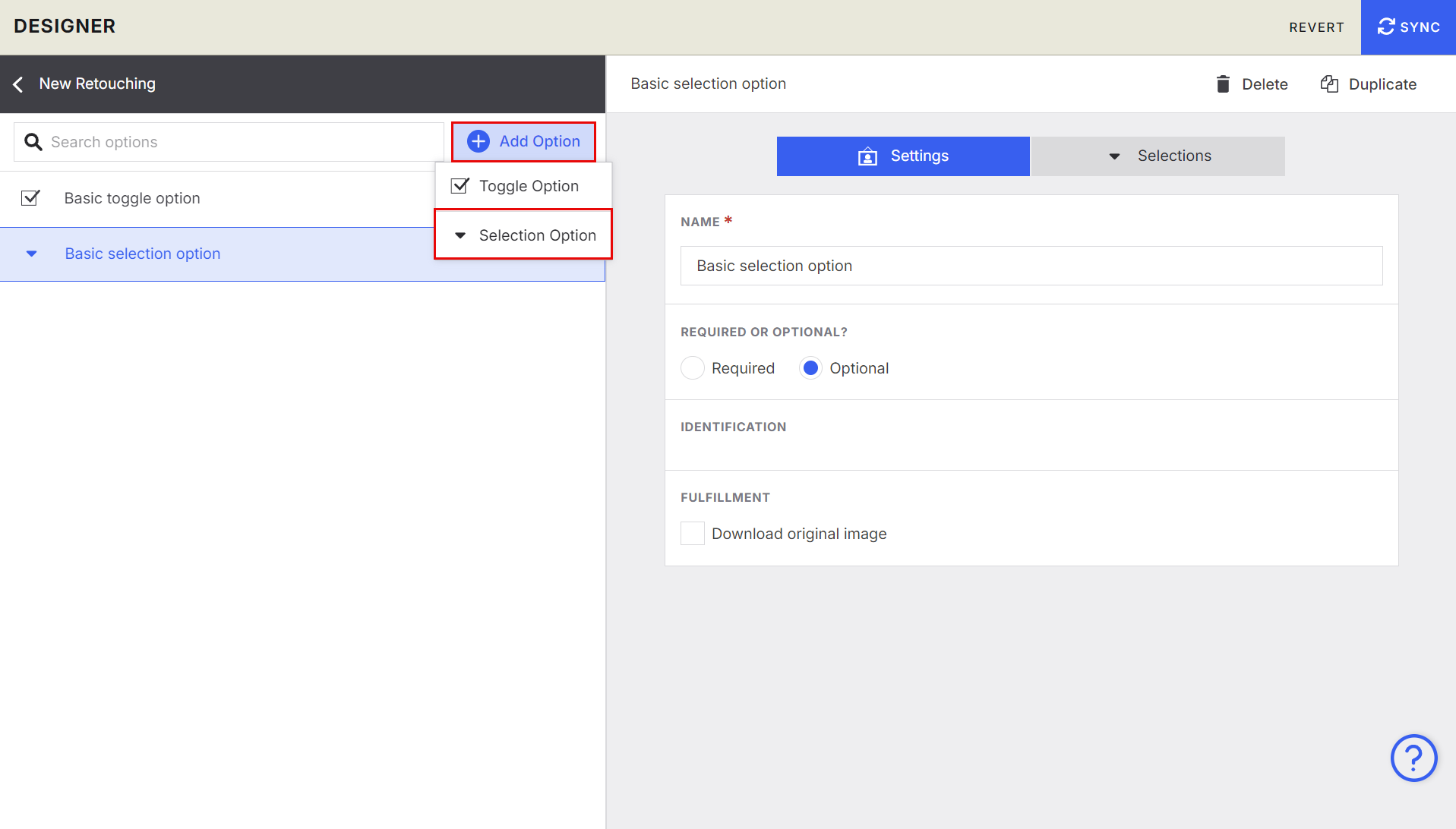
Example:
Retouching
Basic
Advanced
Supreme
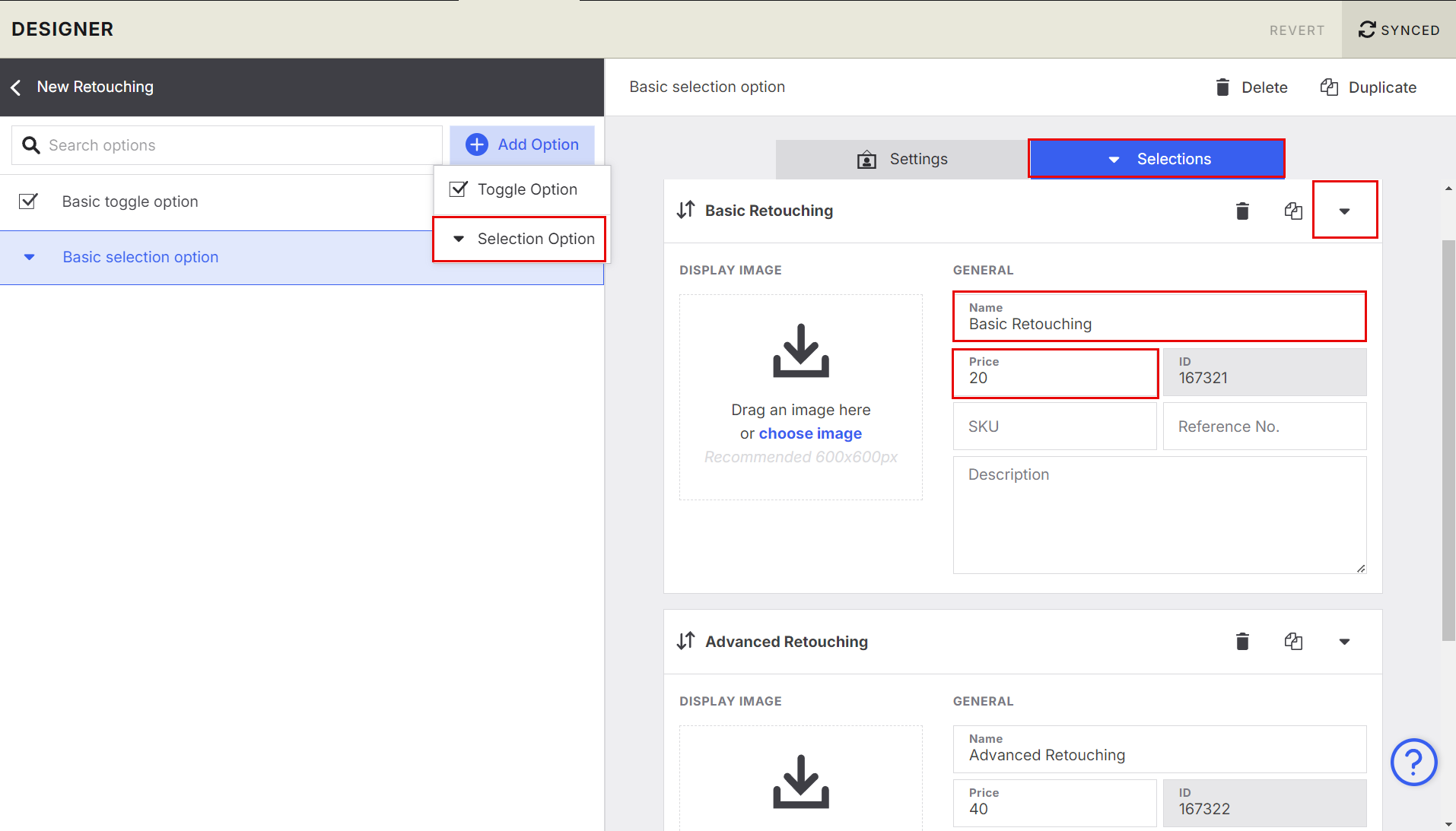
Each selection choice can have its own attributes.
Add Selections
Click Selections
Name your Selection
Set Price
(Optional) Add display Image
(Optional)Add Description
(Optional) Add SKU and reference (for PLIC Labs / Riplynx)
Download Original Image for Fulfillment
Both Toggle and Selection Options include a setting for:
Download Original Image for Fulfillment
This is especially useful for Green Screen workflows.
How it works:
Customer orders a knocked‑out PNG.
The system sends the original JPG to the image service.
Retouching is completed on the original.
The final image is knocked out again for a cleaner, higher‑quality result.
This ensures the best possible output for Green Screen retouching and background replacement.