
Dynamic Display Images
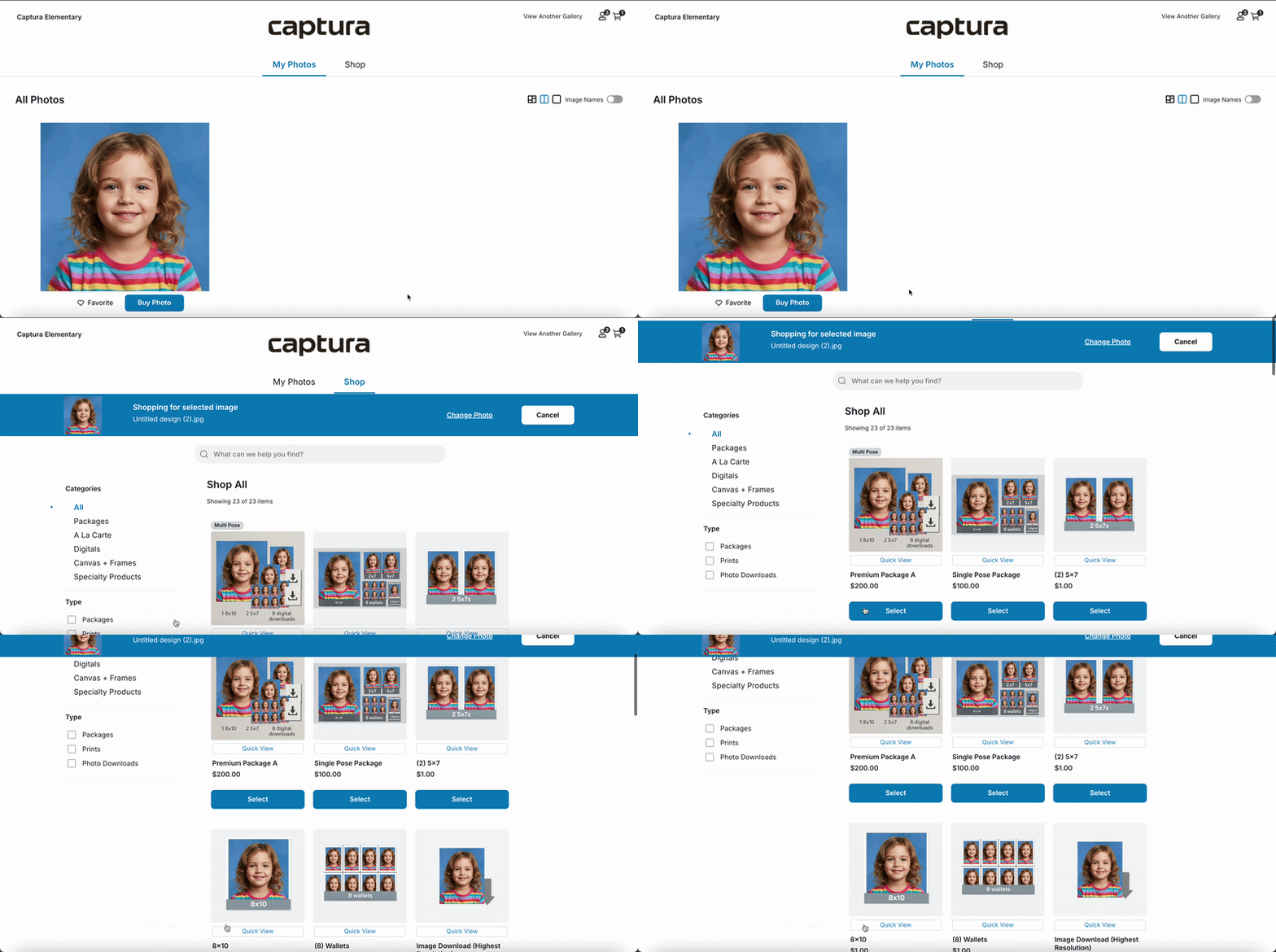
Dynamic Display Images personalize your shop by automatically displaying each shopper's own photo on eligible product and package previews. Rather than seeing generic placeholder images or another subject's photo, parents see realistic previews with their child's image already displayed on prints, packages, and other products.
Important: Do not use your fulfilment products as dynamic displays. Instead, duplicate your design and use the duplicate as the dynamic display.
Changes made to the dynamic display will not affect your fulfilment products. The dynamic display is for display purposes only and is not the version that will be printed.
Why Use Dynamic Display Images?
Reduce confusion: Parents immediately understand what they are buying.
Increase purchase confidence: Personalized previews feel more real than generic placeholders.
Boost conversion and order value: Shoppers are more likely to add products when they can visualize the final product.
How Dynamic Display Images Work
Dynamic display images use a display template you create in Designer. You then assign that Designer product as the dynamic display image for a product or package on your price sheet. When a shopper views that item in the shop, their photo is placed into the image node automatically.
Which Shopper Image Is Used?
The shop uses the following priority when rendering a dynamic display image:
Selected image — If the shopper chose a specific photo (for example, by clicking Buy Photo from My Photos), that image is used.
Primary image — If no image is selected, the subject’s primary image is used.
Fallback — If no suitable shopper image is available, the shop falls back to your custom or default display image instead of rendering dynamically.
Note: If the image node in your display template is mapped to Primary Image, the display will always use the subject's primary image. If you want the displayed photo to change based on the image the shopper selects from My Photos, update the image node mapping to None instead.
If your display template’s image node is mapped to a specific image type (for example, Yearbook 2), the shop uses that mapped image when available. If the subject does not have that image type, the shop falls back to your custom or default display image.
If you have products on your price sheet that do not have a dynamic display image or a custom display image set - the shop will render the product preview as the display image assuming the subject’s gallery has an appropriate image for the product.
Pre-order jobs: Dynamic display images are not shown on the main Shop All thumbnail during pre-order. In pre-order, the shop uses your custom display image if one is uploaded; otherwise it uses your catalog default or system placeholder. Dynamic previews appear once images are available and the job is no longer in pre-order.
How to Set Up Dynamic Display Images
Setup happens in two places in Workflow: Designer (create the template) and your Price Sheet (assign it to a product).
Step 1: Create a Display Template in Designer
In Workflow, open the Designer tab.
Create a new print product or open an existing one you want to use as a display template.
Add an image node to the design if one is not already added. This defines where the shopper’s photo will appear (for example, inside a frame, on a product surface, or within a package layout).
Size and position the image node to match the aspect ratio you want rendered (for example, 8×10).
Add any supporting design elements around the image node — frames, backgrounds, text, or branding.
Save the product in Designer.
Tip: You can use the same Designer products you already use for designed products. Display templates are simply Designer print products built with image nodes intended for shop previews.
Step 2: Assign the Dynamic Display Image on Your Price Sheet
Go to your Price Sheet in Workflow.
Select the product or package you want to update.
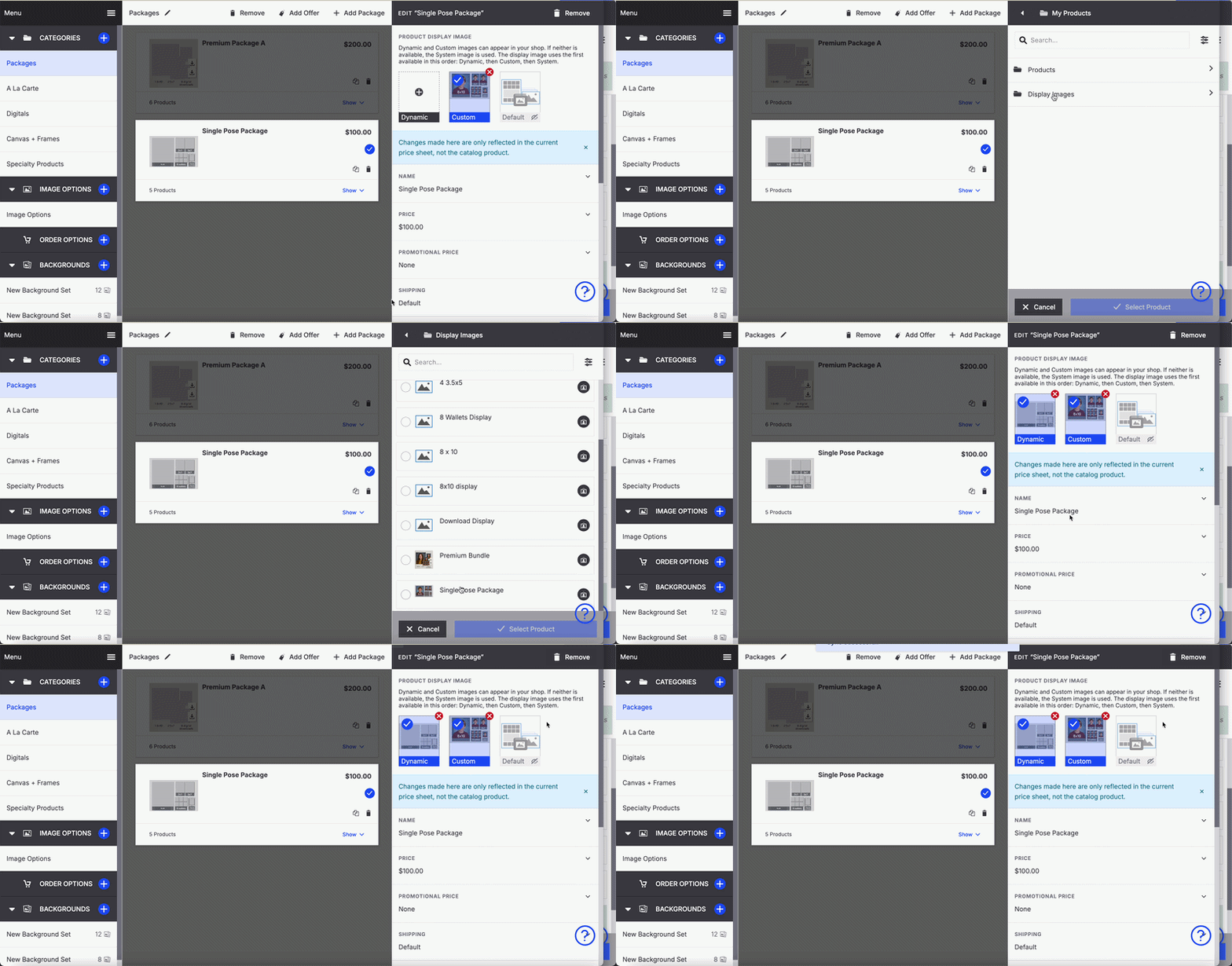
Open the display image settings for that line item.
Choose Dynamic as the display image type.
Select the Designer product you created as your display template.
Sync and save your price sheet.
Repeat for each product or package where you want shoppers to see a personalized preview on Shop All.
Supported Product Types: Dynamic display images can be assigned to all products/packages but are not currently compatible with image options or product options or Digitals.
Frequently Asked Questions
What happens if a shopper hasn’t selected an image yet?
The shop uses the subject’s primary image to render the dynamic display image. If no primary image is available, the shop falls back to your custom or default display image.
Will dynamic display images appear during pre-order?
During pre-order, the shop shows your custom display image if one is uploaded, or your catalog default / system placeholder if a custom image is not available.
Can I use one display template for multiple products?
Yes. Create a display template once in Designer, then assign it as the dynamic display image on as many price sheet products or packages as you like.
Need Help?
Reach out to support at support@captura.io or connect with your CSM for advice on how to implement dynamic display images on your price sheets today.