Advanced Editor Settings

Edited

Editor Settings

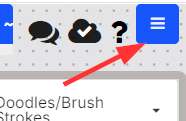
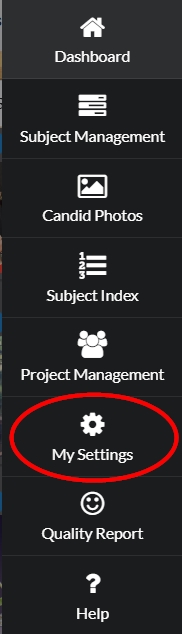
Find the My Settings options in the the editor's top-right menu.  

Settings options enable control over the editor canvas options.

  • how candid images behave when dropped onto the canvas

  • grid lines to help placement on the canvas

  • alignment and positioning guides

  • candid image stats

  • toolbar placement

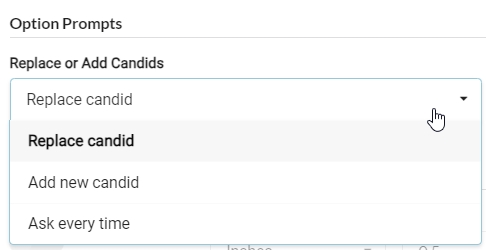
Replace or Add Candids

Images can behave in two different ways when dropped onto a frame that already holds an image.


Replace candid will remove the existing image from the frame to replace it with the new image. 

Add new candid will place the new image into a new frame on top of the existing image.

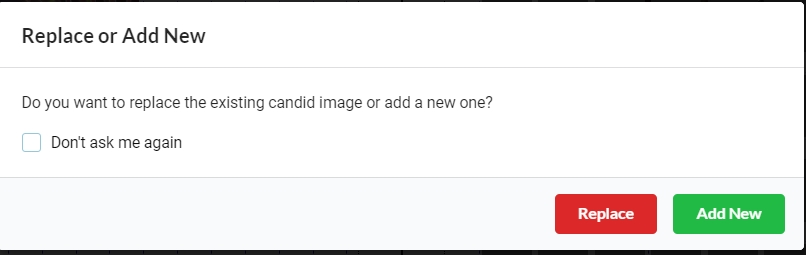
The Ask every time checkbox will offer a prompt to make the selection at the time the image is dropped.

Grid Lines

Enable a grid on your canvas to assist with image placement.

Set the units (inches or centimeters) and the spacing between the lines, as well as the color of the lines themselves. 

Turn on Alignment Grid lines to magnetically snap frames to the grid.

Alignment Lines


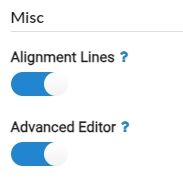
Turn this option on to enable magnetic snapping to the page margins.

Advanced Editor


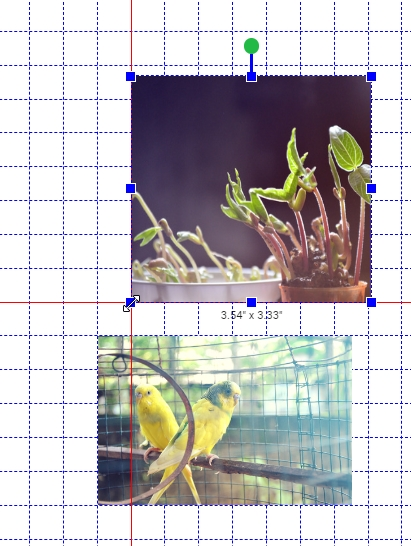
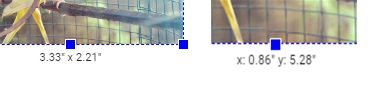
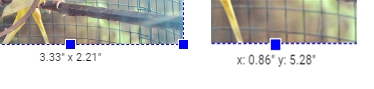
Turn this option on to enable the size and position of elements as you resize or move them on your page.

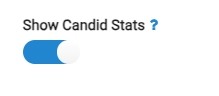
Show Candid Stats


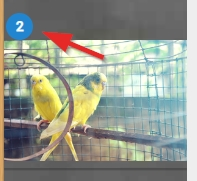
Turn this on to see the number of time each candid image has been used in your book. If no number shows on the image preview, the image has not been used. 

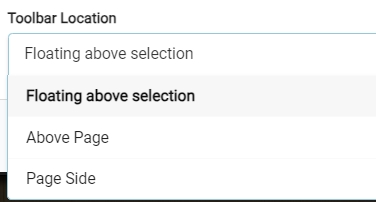
Toolbar Location


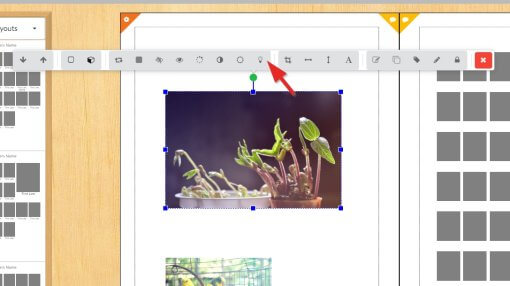
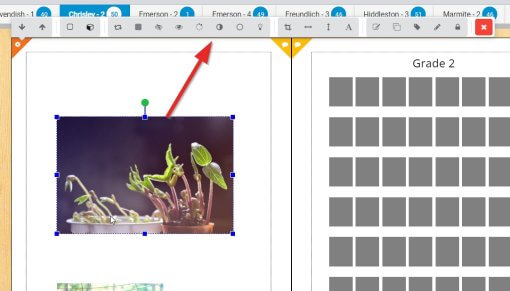
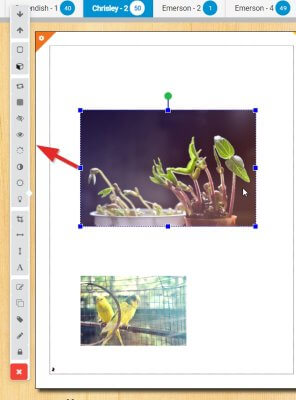
A selected frame causes a floating toolbar will appear on the canvas to offer edition options to apply to it.

The toolbar may appear above the selected frame itself, docked to the top of the page, or docked to the page side.

Was this article helpful?

Sorry about that! Care to tell us more?

Thanks for the feedback!

There was an issue submitting your feedback
Please check your connection and try again.