Indexes and Coverage Reports
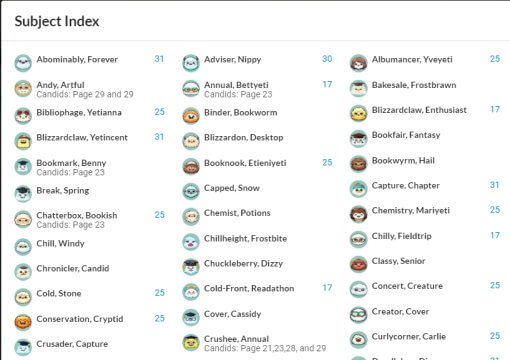
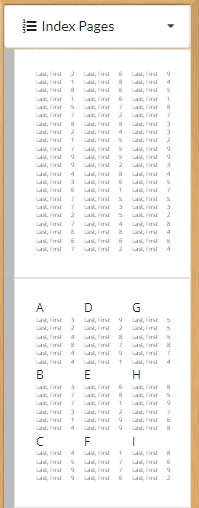
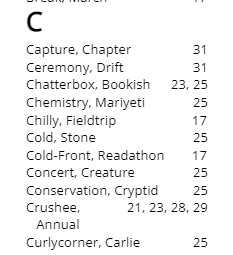
Index pages list all the names of people in your school and a list of all the pages their photos appear on. This includes portrait grid(s) and tagged candid images. Indexes may be generated if your candid images have been tagged to indicate who is in the photo.
Tagging Candid Photos
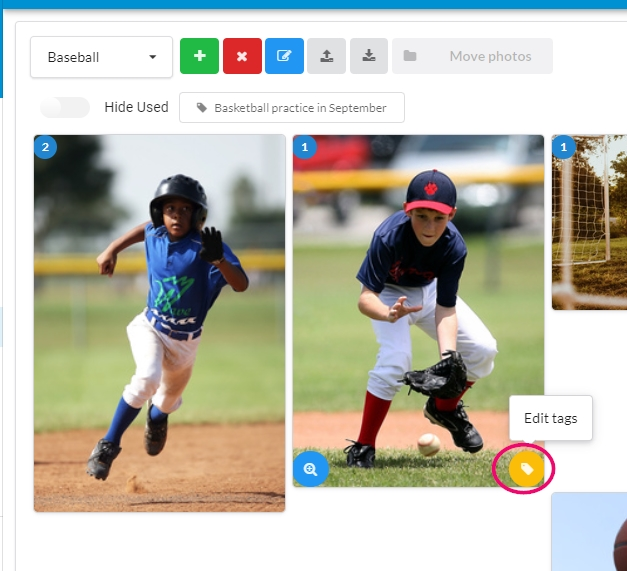
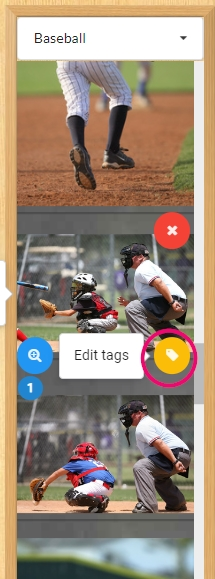
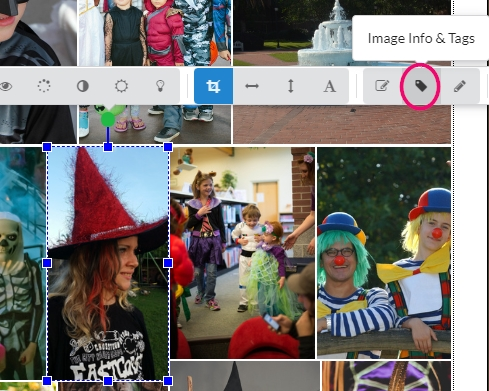
Candid photos may be tagged with the name of the person(s) appearing in the photo. The list of names is pulled from the portrait database. Tagging candids may be done in one of three places.
In the candid photo manager Access images in their folders under the Candid Photos area of your Dashboard. Hover over any image to access the tag icon, then click it to add names from your portrait database. |
|
In the editor’s right-side pane Open a candid folder on the right-side pane of the editor. Hover over any image to access the tag icon, then click it to add names from your portrait database. |
|
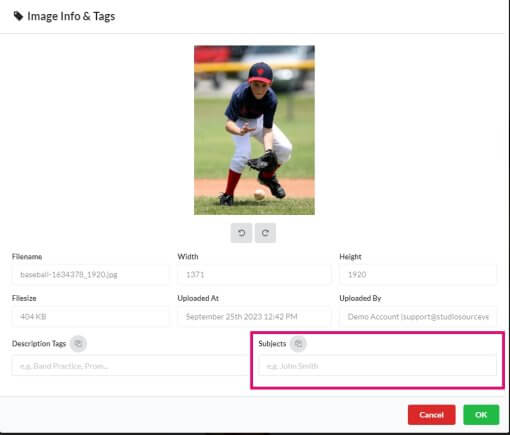
Directly on your page Select any photo on your page. On the toolbar, choose the Image Info and Tags button. Add names from your portrait database. |
|
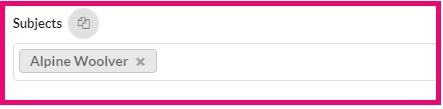
The Image Info & Tags window will appear. Type the name of the person(s) in the photo into the Subjects box.
|
|
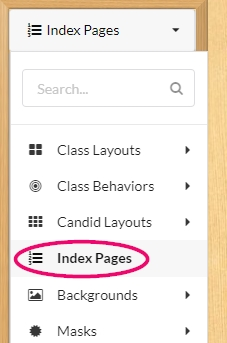
Adding an Index Layout to Your Book
Navigate to an empty page.
|
|
|
As more images are tagged, the index will automatically update to include additional page number references. |
|
Generating a Coverage Report without an Index
To view a list of all persons in the portrait database and their tagged candid page numbers, access the main menu icon on the top right corner of the page editor then choose Subject Index.
|
|
A full list of all the portraits and the page references for each person will be displayed, for reference purposes only, alerting you if there are people with too few or too many photos in the book. |
|