Designing with Layouts
Layouts may be added to your page using the Candid Layouts collection, the grid splitter tool, and/or with the collage tool. You can save layouts from any page you have designed and manage your own layout collections.
Candid LayoutsCandid layouts add arrangements of empty image and text frames to candid pages. Candid layouts may be completely customized – add images and text, and tweak the size and arrangement of frames on your page You can try out new layouts on the same page, even after adding photos & text to the page.
|
|
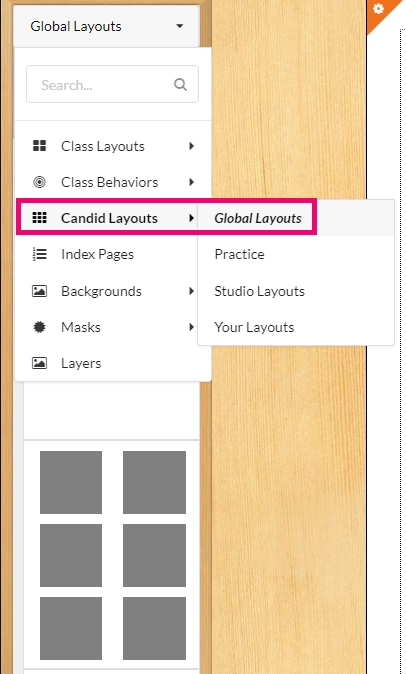
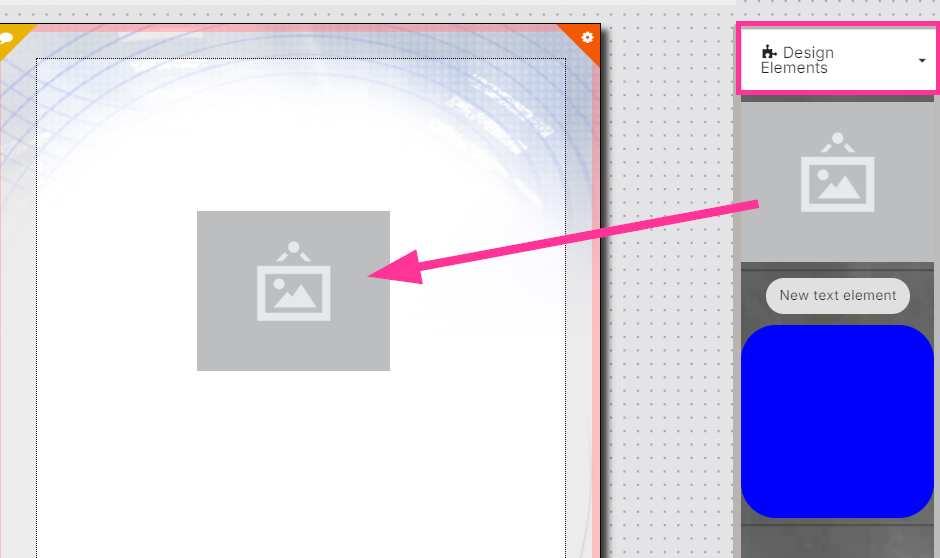
Grid LayoutsCreate a grid of empty frames on a page to use a a template.
|
|
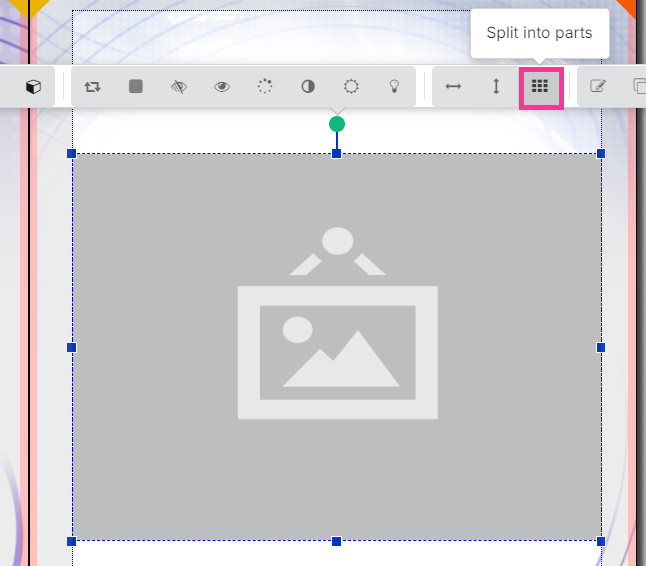
Resize the image frame to fit the area where you would like the grid to appear. Click on the Split into parts button on the image frame toolbar. |
|
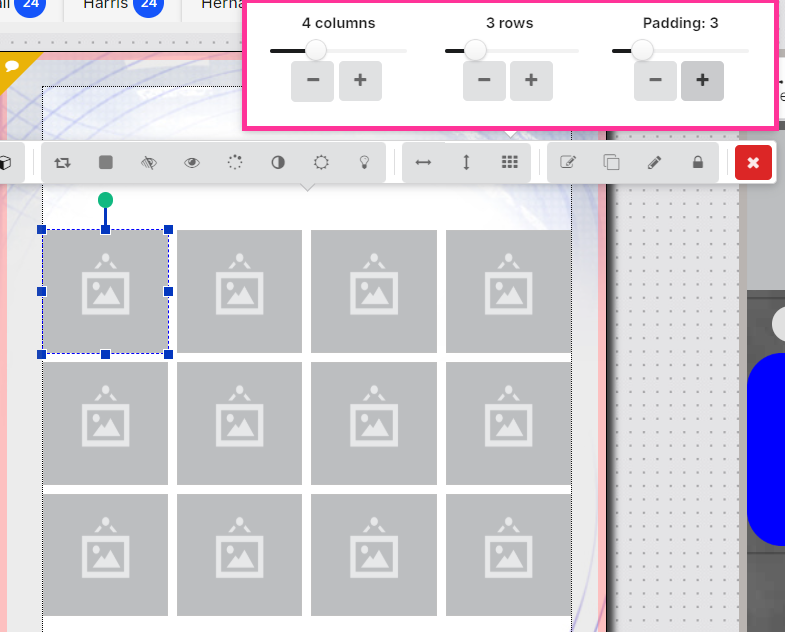
Customize your grid by selecting the number of rows, columns and spacing. The image frame will break apart as your selections are made. |
|
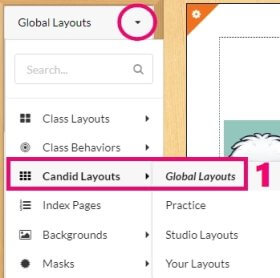
Collage LayoutsQuickly add many images to a full-page layout with this feature.
|
|
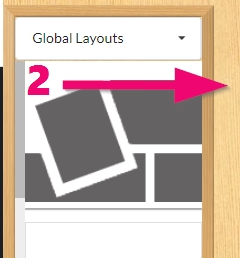
2) Drag the collage layout to your page (1st layout from the top). |
|
3) Confirm that you would like to replace the current candid page |
|
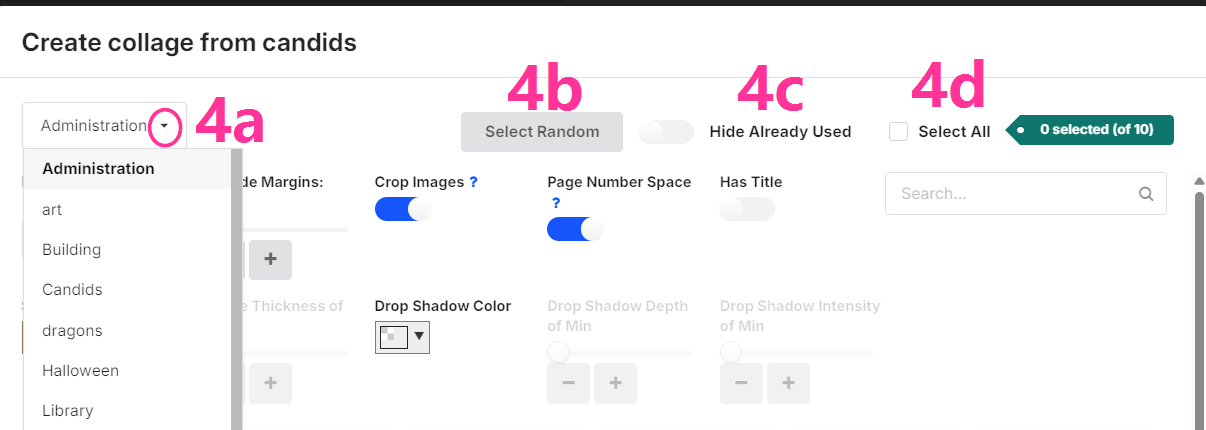
The collage window will open. 4a) Choose the folder of images to use in the collage. 4b) Optionally choose a random assortment of images within the folder. 4c) Hide used images so they will not be included in the collage. 4d) Optionally choose all images within the folder. |
|
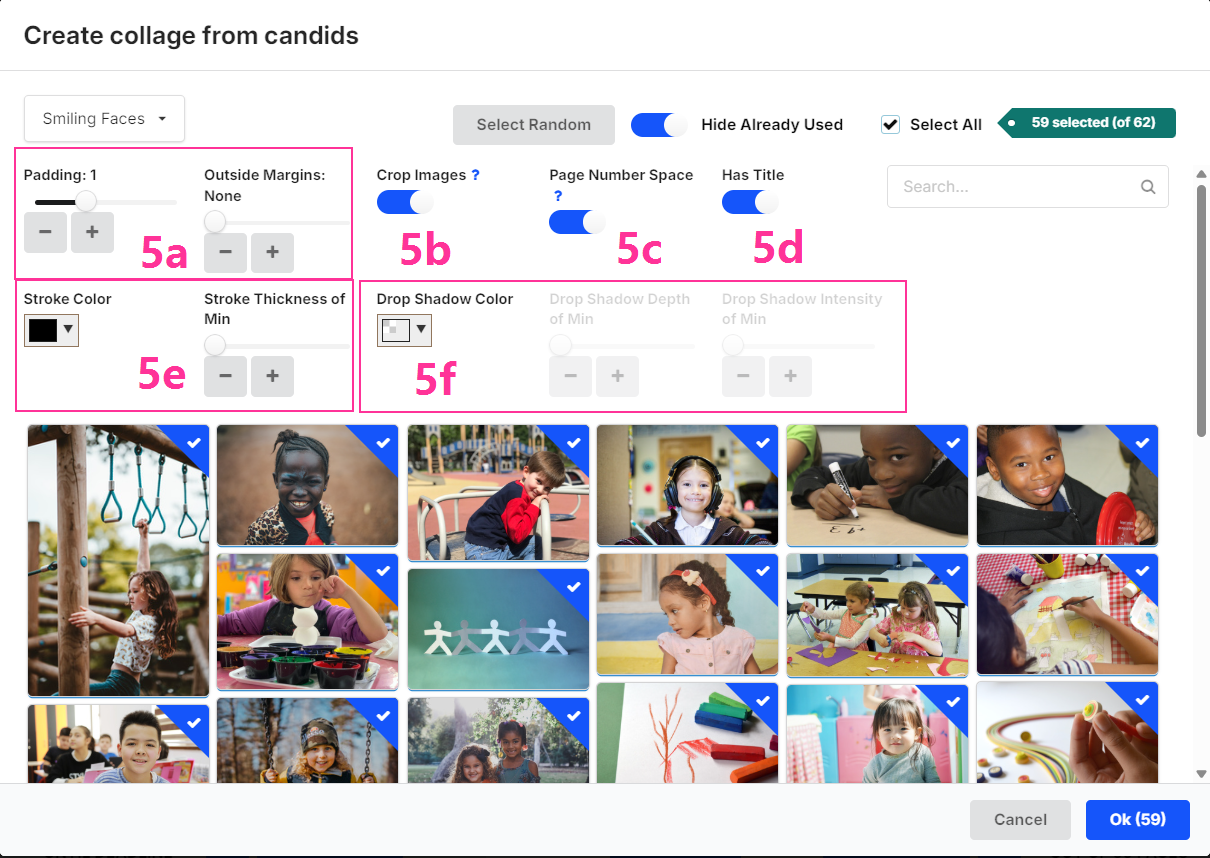
Make choices on how your collage will be styled. 5a) Configure the spacing between images (padding) and the page outside margins. |
|
6) Click OK to generate the collage. The number of images included in the collage is displayed on the button. Collages may be adjusted after their creation. Drag on the edge of any image frame to resize the width or height of all images aligned to the selected image or select an individual image to access its cropping tool, to reposition an image within its frames. |
|
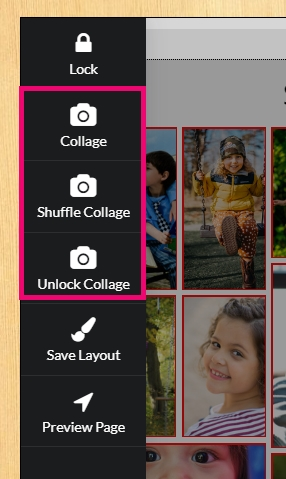
Related tools are available in the page settings menu: Click Collage to redo the current collage arrangement with new images and/or settings. Click Shuffle Collage to reconfigure the arrangement. Click Unlock Collage to select individual images reposition images within the grid. |
|

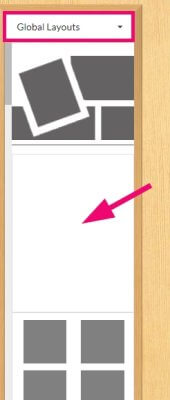
Deleting a layout from a pageTo remove all images, text and shape frames from a candid page, access the Candid Layouts > Global Layouts folder on the right-side pane
All content will be removed from the page. |
|

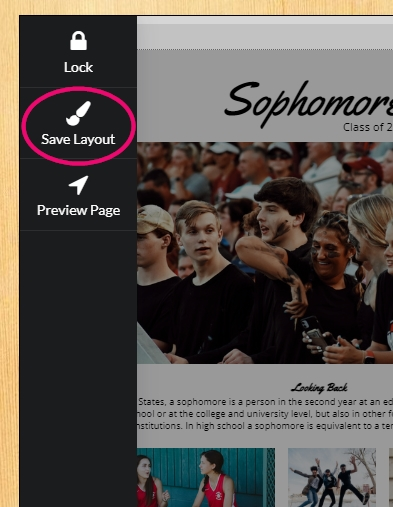
Saving a custom layoutIf you have created a custom page design that you would like to reuse on other pages of your book, you may save the layout.
Choose to save the layout with or without candid images retained. Click Ok. |
|
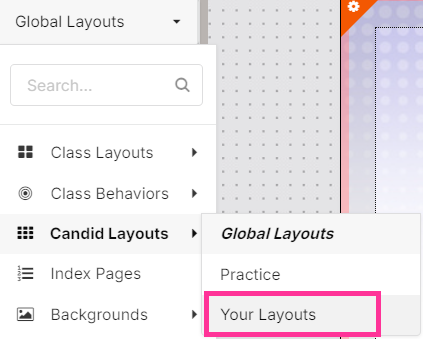
Your layout will now appear under the Your Layouts option of the left-side pane's layout menu. |
|
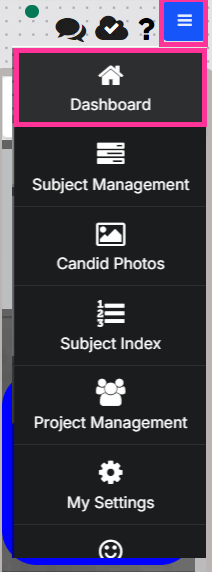
Managing Saved LayoutsTo manage saved layouts from the editor, click on the top right burger menu, then choose Dashboard. Review saved content in your category folders. |
|
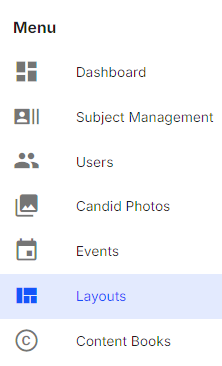
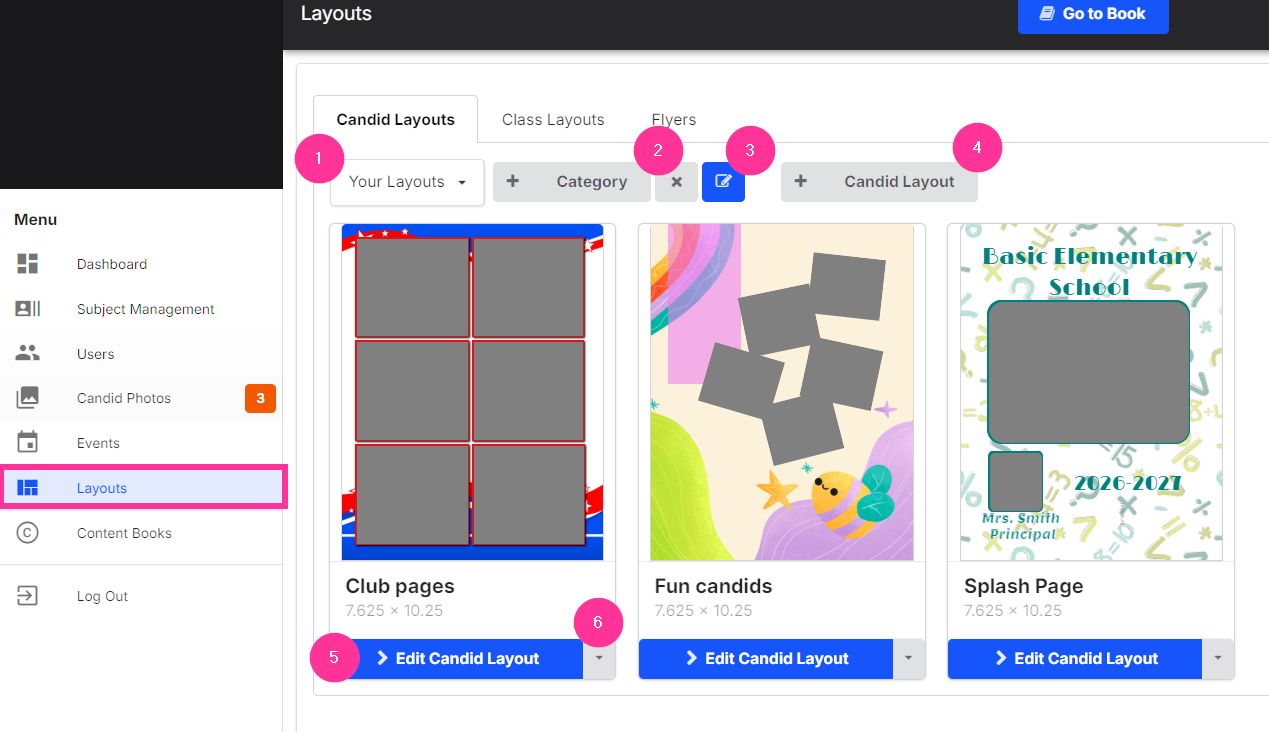
In the Dashboard, click on the Layouts option on the left-side menu. |
|
|
|
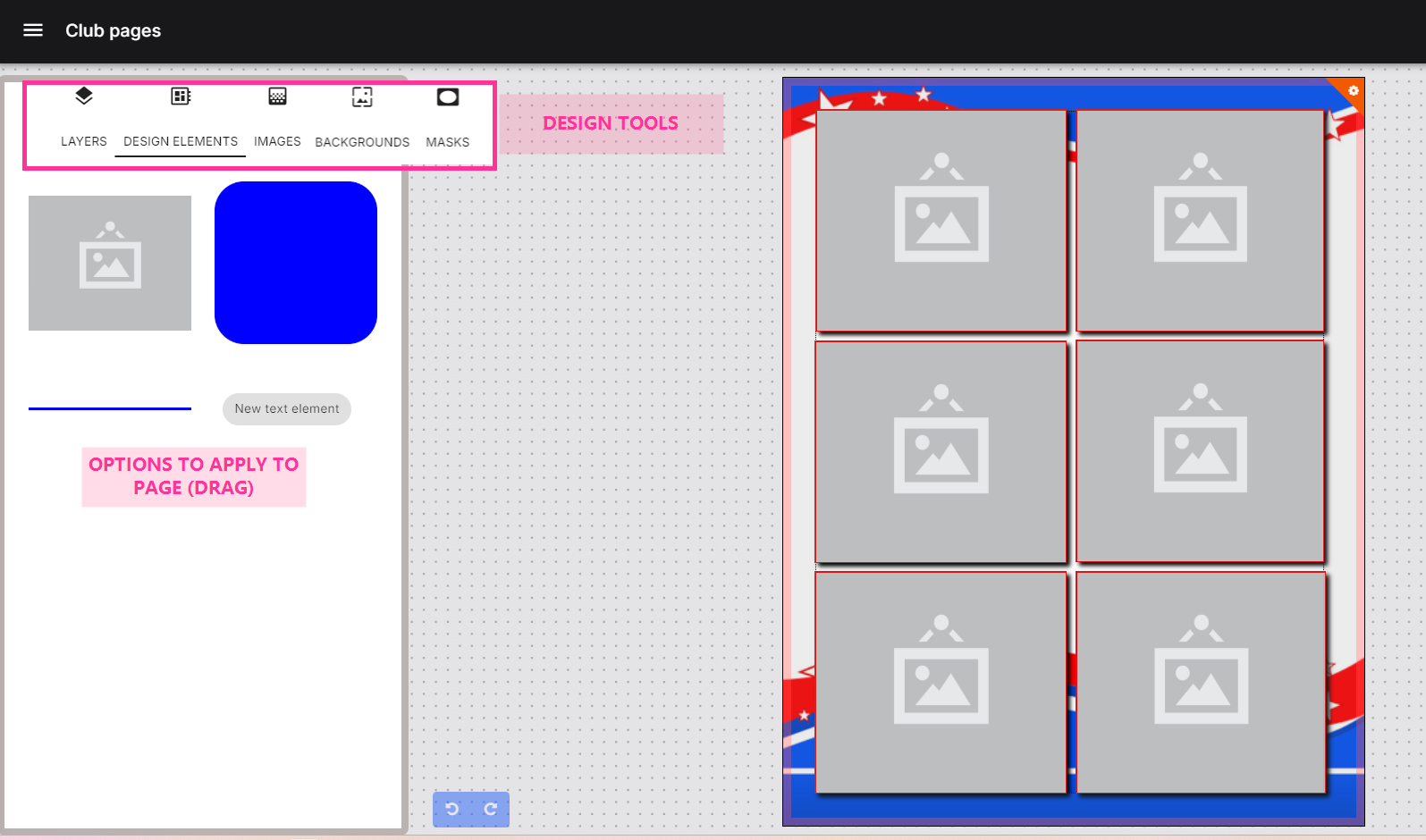
The layout editor provides a simplified interface with all options provided on the left side of the pane. |
|