
Connect SnapShield to Your Captura Shopping Cart
Protect the value of every image you create. SnapShield adds an extra layer of protection to your online proofing experience, helping discourage screenshotting and sharing before images are purchased.
This article explains what SnapShield does and how to connect it to your Captura Workflow account.
What is SnapShield?
Your images are your intellectual property. Every proof represents time, talent, and revenue potential for your studio.
SnapShield helps protect subject images in supported areas of your Captura Shop by deterring unauthorized screen capture and making protected images harder to copy before purchase. Customers can still browse, select, and buy photos as usual.
How to connect SnapShield to Captura
Email support@getsnapshield.com to request a SnapShield account.
Sign up for your SnapShield account using the instructions they provide.
Sign up for a Captura account (if you do not already have one).
In Captura Workflow, open Preferences and go to Shopping Cart.
Paste your SnapShield Shop Key into the SnapShield Shop Key field.
Select Update to save.
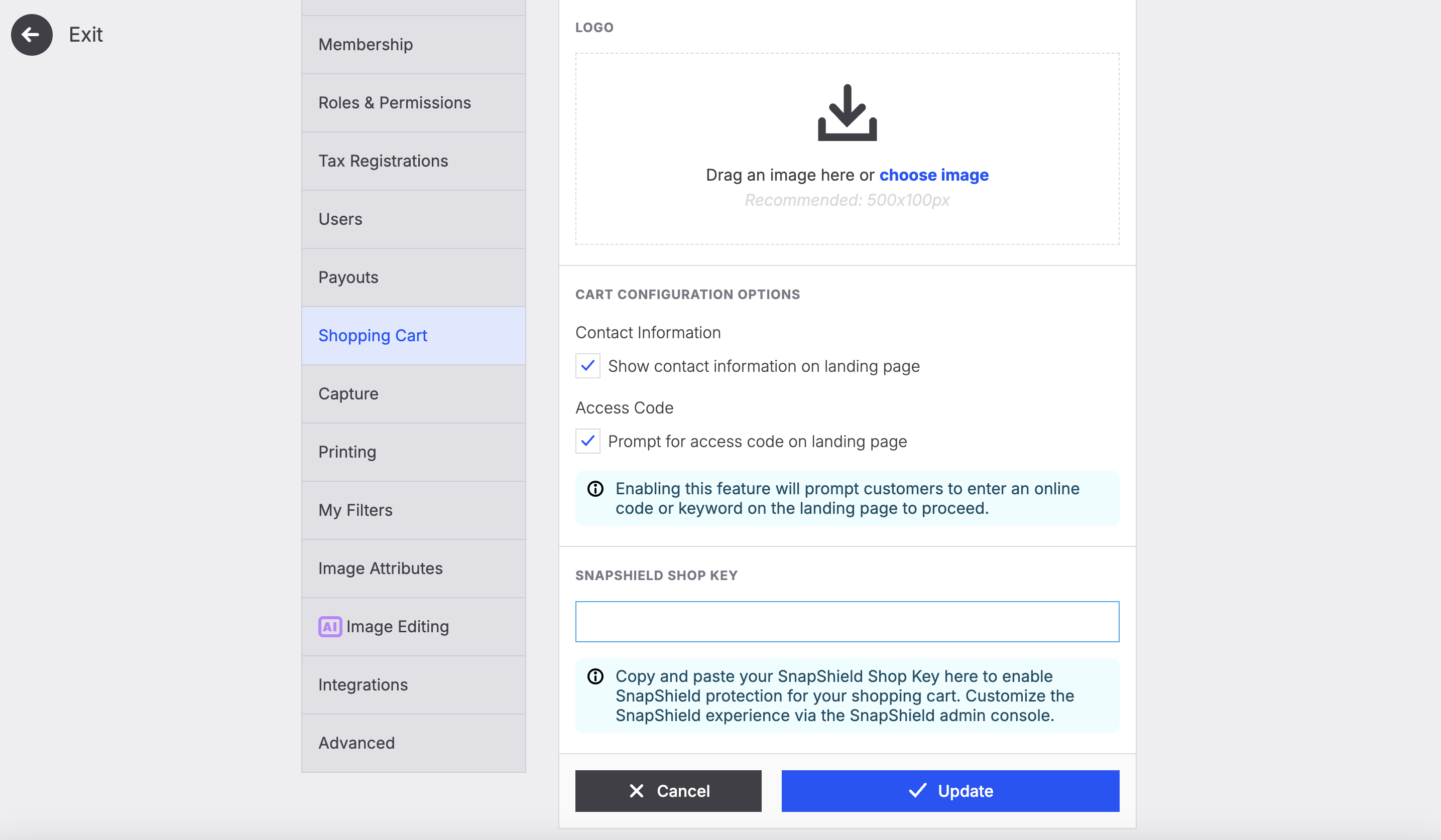
Once the key is saved, SnapShield protection is enabled for your shopping cart. You can customize the SnapShield experience in the SnapShield admin console.
What to expect when SnapShield is active
When SnapShield is connected, you and your customers may notice:
Screenshot protection on desktop and iOS — Protected images black out when supported screen-capture activity is detected. Together, desktop and iOS account for the majority of Shop traffic.
Right-click protection — Right-clicking a protected image triggers a protection message.
The same shopping experience — Customers can continue browsing, selecting, and purchasing photos as usual.
No lockout — Buyers will not lose access to their gallery.
A “Protected Content” message when returning to the browser — Photos may be hidden while the customer is away, with a Continue Shopping option to return.
Where images are protected
SnapShield protects subject images in supported areas of your Shop, including:
My Photos
Product and package configuration
Protection does not apply to:
Pre-order galleries
Side cart
Cart summary
Checkout
Mobile support
iOS: Blackout protection is available.
Android: Protection includes long-press disablement and reporting.
Does SnapShield prevent every screenshot?
SnapShield is designed to deter unauthorized screen capture and make it more difficult to capture protected images. Like any screenshot-protection technology, it is an additional layer of protection—not a guarantee against every possible method of capturing an image.
Reporting and customization
SnapShield provides reporting so you can see visibility into capture attempts and related activity. After your SnapShield account is set up, use the SnapShield admin console to review activity and customize your protection experience.
If you need help with your SnapShield login or account setup, contact support@getsnapshield.com and include your Workflow Account ID.
Questions?
Topic | Contact |
|---|---|
SnapShield within your Captura Shop | |
SnapShield account setup, features, or customization |