
Getting Started: Stripe + Captura Workflow
Use Stripe Express with Captura Workflow to securely process customer payments and manage payouts for your studio.
Stripe powers key payment features in Workflow, including:
Fast payouts
In-app refund management
Automatic chargeback dispute handling
And more
Note: Existing Stripe accounts cannot be linked to Captura Workflow. A new Stripe Express account must be created during setup.
Set up Stripe in Captura Workflow
If your studio hasn't completed Stripe setup yet, you'll see a "Stripe Account Not Setup" notification on the Workflow homepage.

📢 A Stripe account is required before your studio can access The Shop.
Creating a Stripe Express account
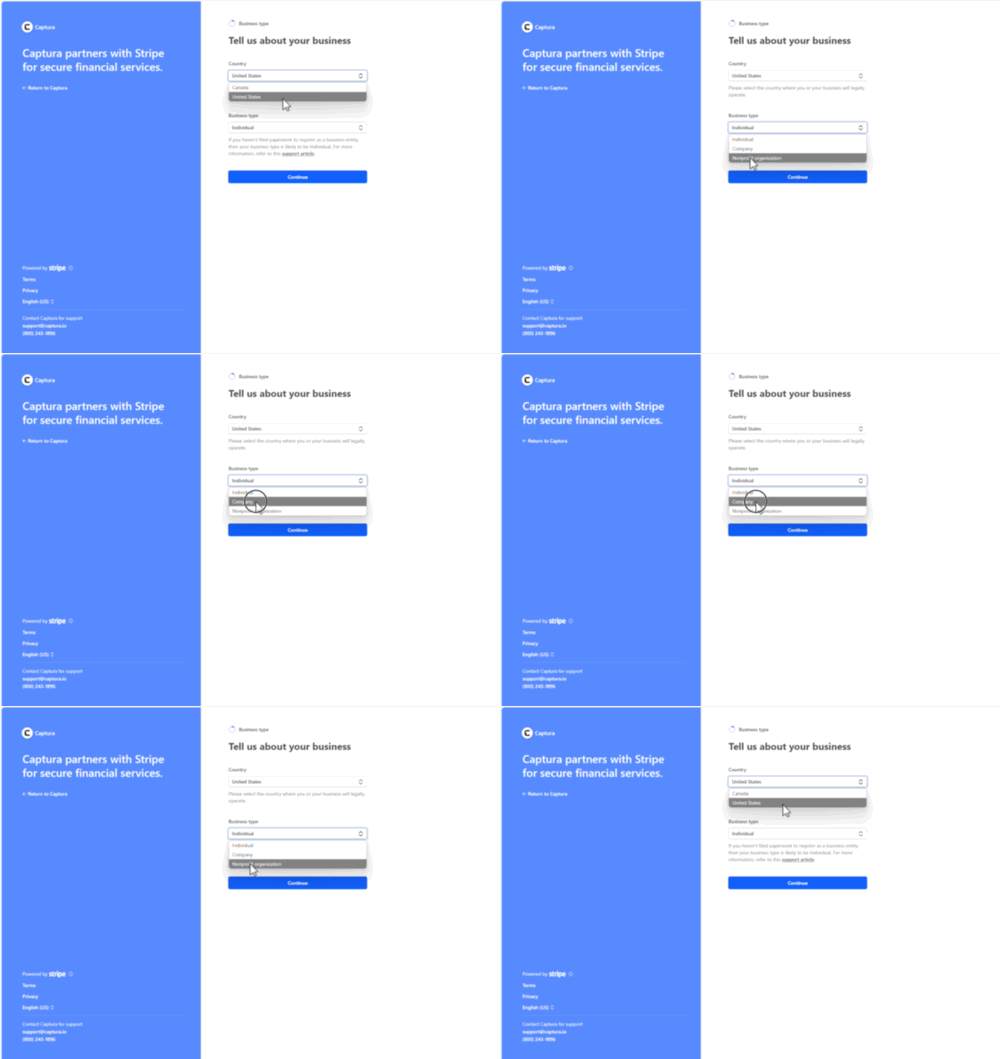
Select Create Account to open the Stripe setup form.
Complete all required fields, then submit your application.
Before you submit
Keep these tips in mind to help avoid delays during the verification process:
Take your time and make sure all information is accurate before submitting.
If you're adding additional team members to Stripe, include as much information as possible during setup.
Stripe may request additional information or ask you to complete further verification before your account is approved.
If additional information is required, Workflow will notify you within the application.
Stripe verification process
After you submit your application, your Stripe account will enter the verification process.
Stripe typically completes verification within 7 business days as part of its fraud prevention and security process.
Once your account has been successfully verified, your studio will be able to begin accepting orders through The Shop.