
Exporting Data with Captura Workflow
Learn about the different exports available in a job using Captura Workflow
How do I make export data or make common exports like PSPA, PowerSchool, Synergy, etc.?
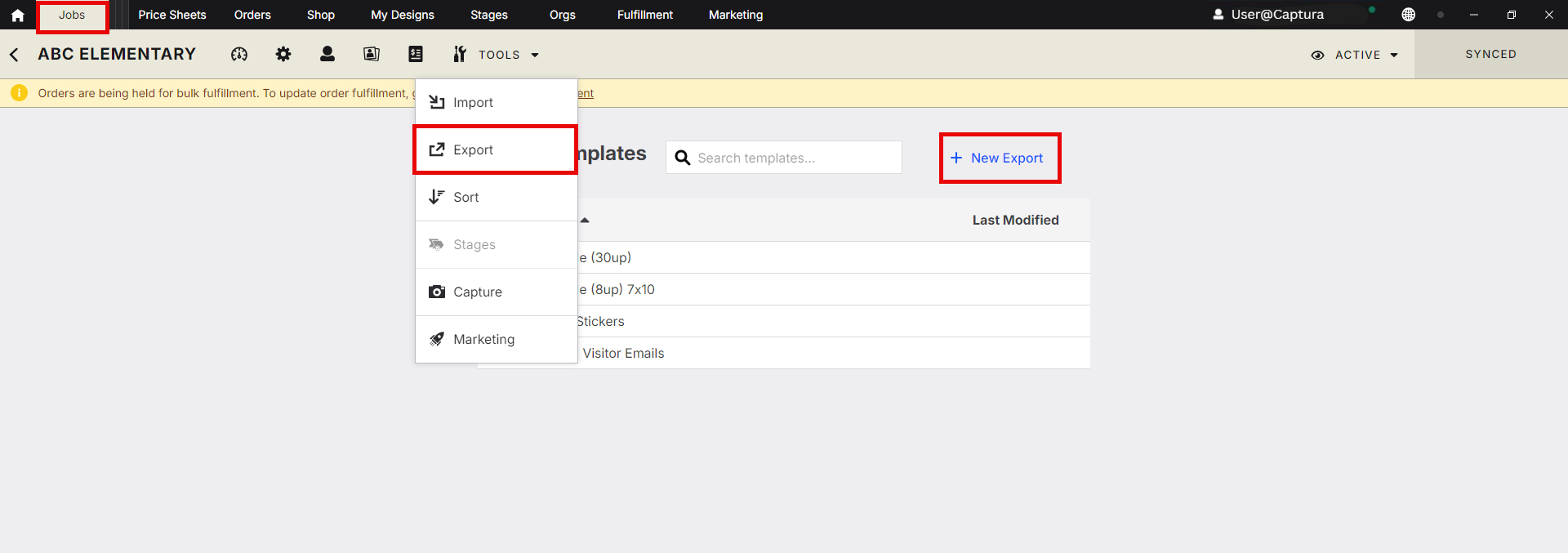
In a job, click on Tools > Export and click +New Export to get started:
Using a Subject Data & Images export, you'll configure various settings in different sections of the export to meet your needs.
❗Unsure what settings are needed? Start a chat with us for assistance❗
How do I save my custom export?
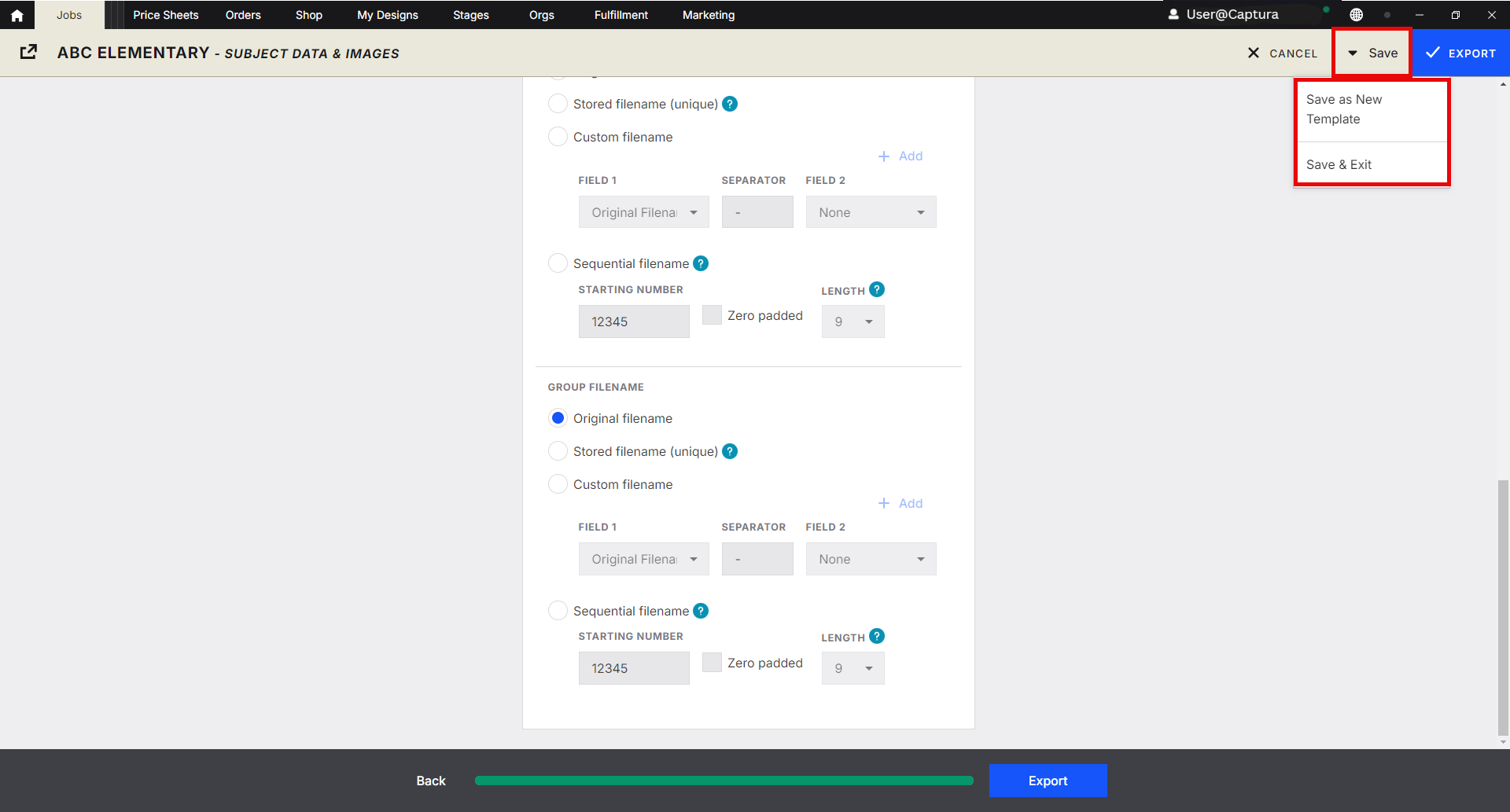
At the final section, click Save in the top-right corner apply a name to the export:
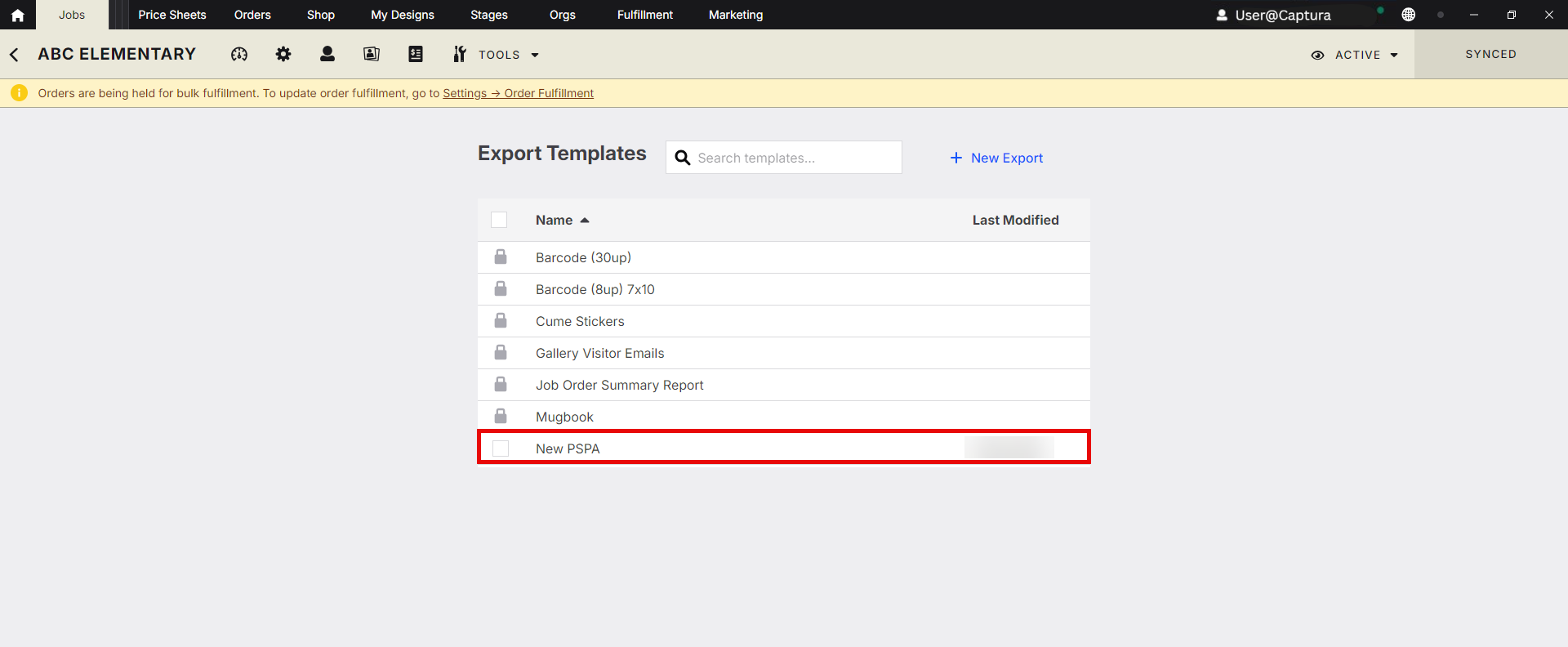
The named export is now available in the export selection menu:
Step-by-Step Custom Export
Go to the Export Tool
Navigate to Job > Tools > Export.
Choose Export Type
Select Subject Data and Images Export.
Click the radio button for Subject Data and Images.
Set Export Destination
Enter the folder path where you'd like to save your exported files.
Name Your Files
Provide relevant information for the file name and file type.
Select Subjects
Choose to export all data and images, or click Filter Subjects to select specific groups.
Sort Your Export
Choose how you'd like the images to be sorted (e.g., by name, ID, or date).
Filter Images (Optional)
On the Images page, apply additional filters to narrow down your selection
Click Modify Images.
Adjust:
Size
Zoom
Crop
Color Correction
Add a Background
Check the Add Background box.
Choose the folder where your background is stored.
Note: Green screen must be enabled to see this option.
Finalize Naming
Choose how you want your images to be named (e.g., subject name, ID, custom format).
Export
Click Export to complete the process.
Does Captura Workflow come with any pre-built templates?
Captura Workflow comes with different pre-built exports based on your membership:
Shopping Cart Only Members:
QR Code export (used for promoting online ordering)
Subject Data & Images
Gallery Visitor Emails
Smart Workflow Members:
QR Code export (used for both sorting images and promoting online ordering)
Subject Data & Images (flexible export to create, save and run custom exports)
Barcodes (30up)
Barcodes (8up) 7x10
Cume Stickers
Mugbook
Gallery Visitor Emails
Need more help?
Start a chat or book a meeting with Captura Product Support for export help!