
Using the Subjects Tab in a Job
Brief Overview
The Subjects tab in Captura Workflow brings your subject data, images, and orders together in one place.
Whether you need to find a subject, correct information, organize images, or update hundreds of records at once, the Subjects tab gives you tools to keep your job accurate and organized—without spending hours making changes one record at a time.
Overview & Objective
The Subjects tab contains the subject information for a Job. From here, you can add, edit, filter, and delete subjects, manage images, review orders, and make individual or bulk updates to subject data.
To open the Subjects tab, click the Subject icon in the Navigation Bar.

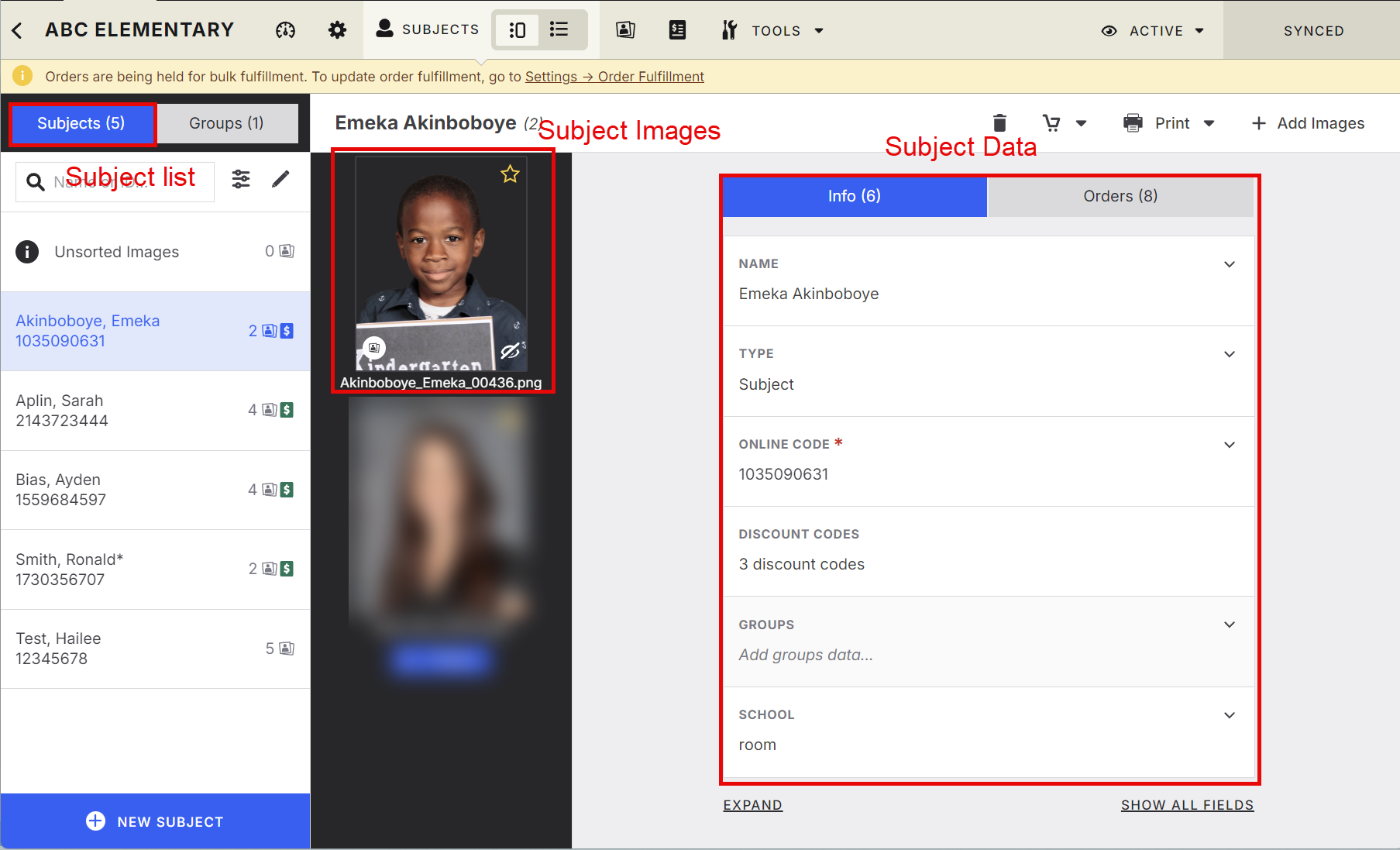
Once inside, you'll see subject Images, Data, and Orders together in one view.
The Subject List
The Subject List appears on the left side of the screen.
From here, you can:
Scroll through subjects and groups
Search for a specific subject
Apply filters using subject data and image metadata
Select a subject to view their information
Add new subjects
Delete subjects
When you select a subject, their information appears on the right side of the screen.
💡 PRO TIP: Need to update a larger set of subject data? Filter your Subject List first, then export the results as a CSV. You can make your updates in the CSV and merge the updated file back into the Job.
Setup / Configuration
There isn't a separate setup process for managing subjects. Start by opening the Job you want to work with and selecting the Subjects tab.
The right tool depends on what you're trying to accomplish.
Tool / View | Best For |
|---|---|
Detail View | Reviewing and updating an individual subject, their images, data, and orders |
Sheet View | Viewing and editing subject data in a spreadsheet-style grid |
Quick Edit | Making targeted updates to a selected group of subjects |
Find & Replace | Making consistent changes across larger sets of subject data |
Sort & Filter | Narrowing your Subject List based on subject data or image metadata |
Using these tools together can save time when you're working with larger Jobs while still giving you control over individual records.
Step-by-Step Instructions
1. Find and View a Subject
Use the Subject List on the left side of the screen to find the subject you need.
You can scroll through the list, search for a subject, or apply filters to narrow down your results.
Click a subject to display their information on the right.
From the subject record, you can switch between:
Info — View and edit Subject Data
Orders — View the subject's orders
You can add, edit, or remove subject data as needed.
2. Add a New Subject
Need to add one subject—or create placeholders for many?
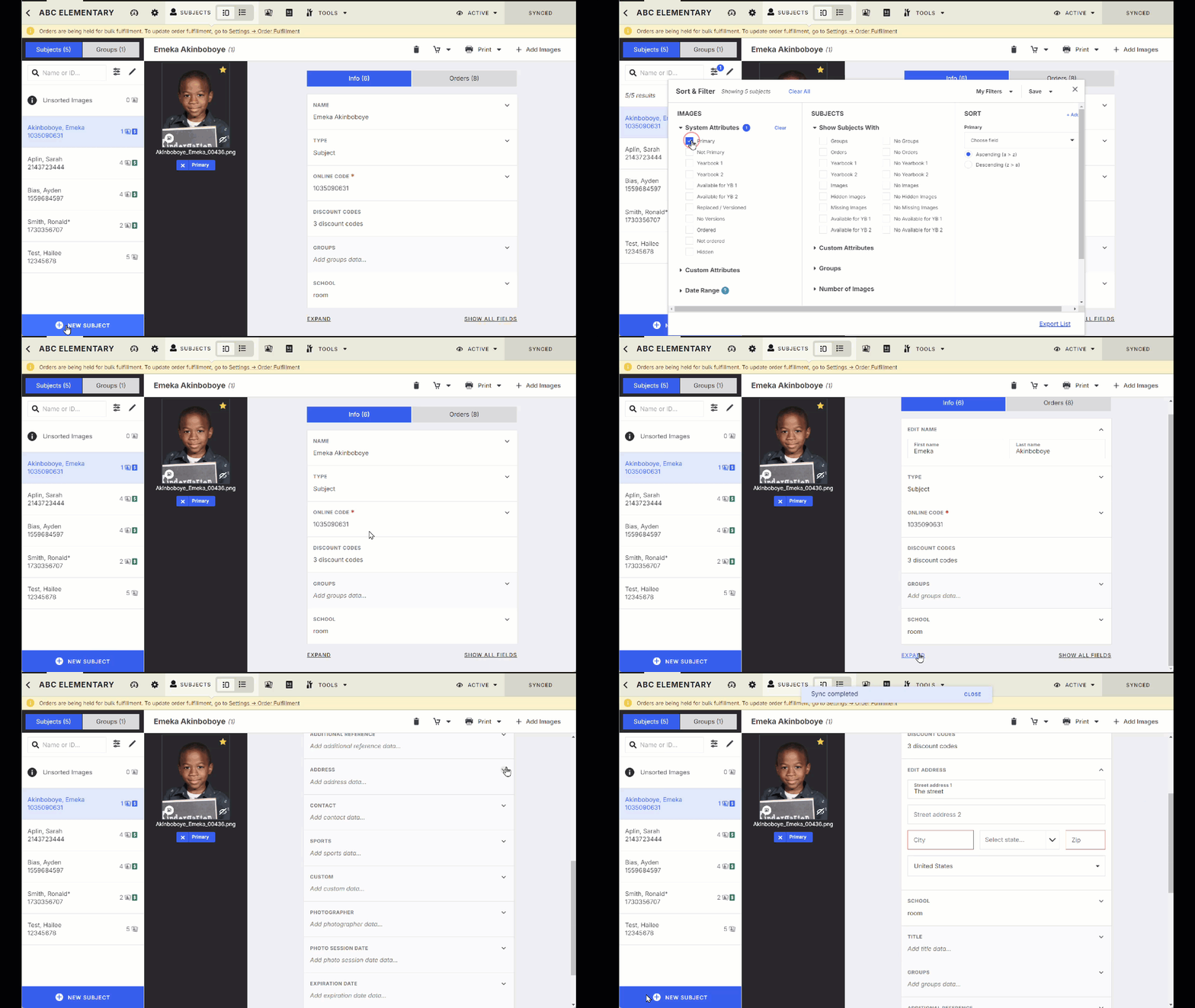
Click + New Subject at the bottom of the Subject List.
You can:
Enter information for an individual subject
Add a custom range of blank subjects to use as placeholders
3. Delete a Subject
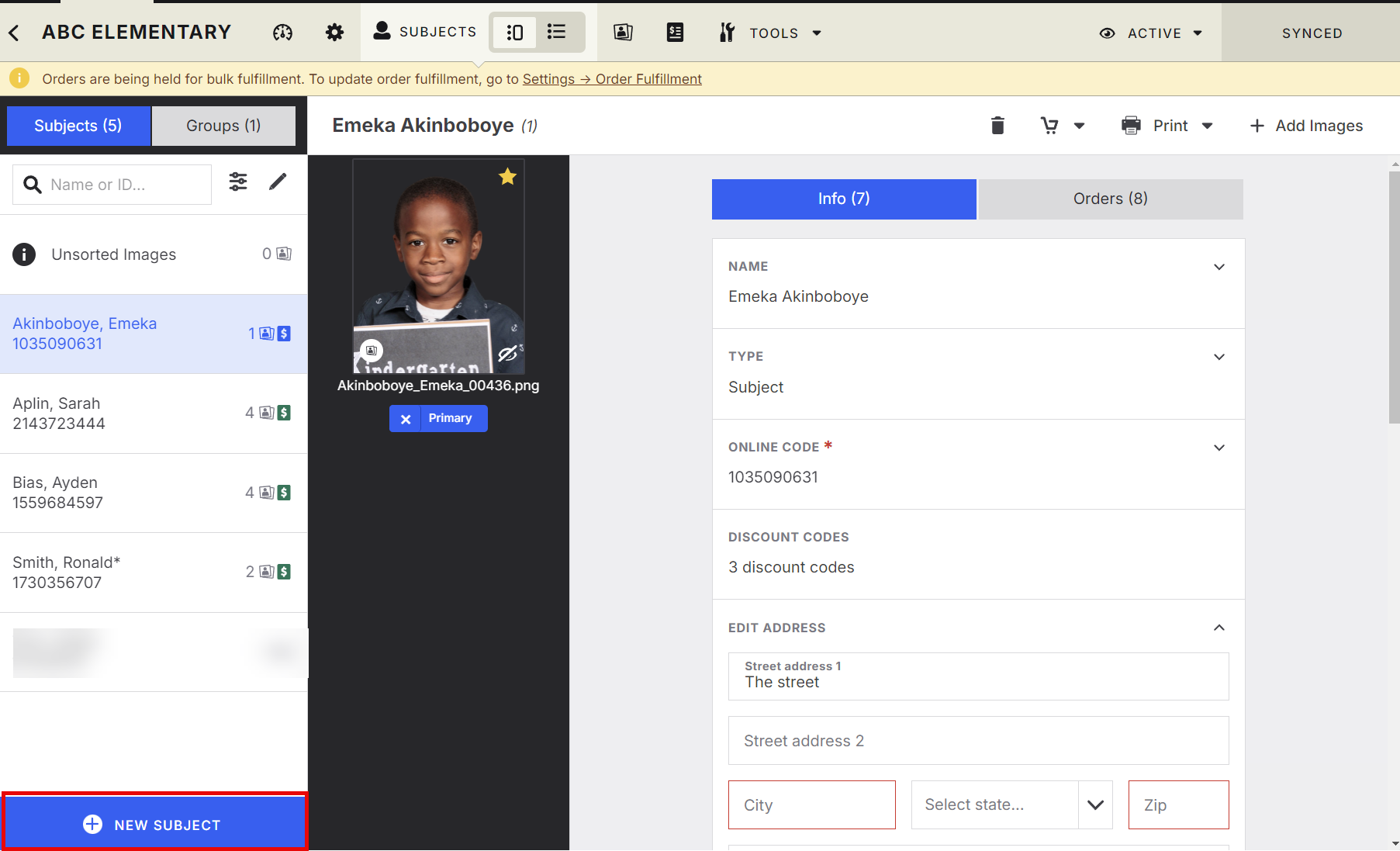
Click the Pencil icon next to the filter button.
This displays the delete option next to your subjects.
Select the appropriate subject and delete it as needed.
Managing Subject Data
Workflow gives you several ways to manage subject information depending on the size and type of change you're making.
Using Sheet View
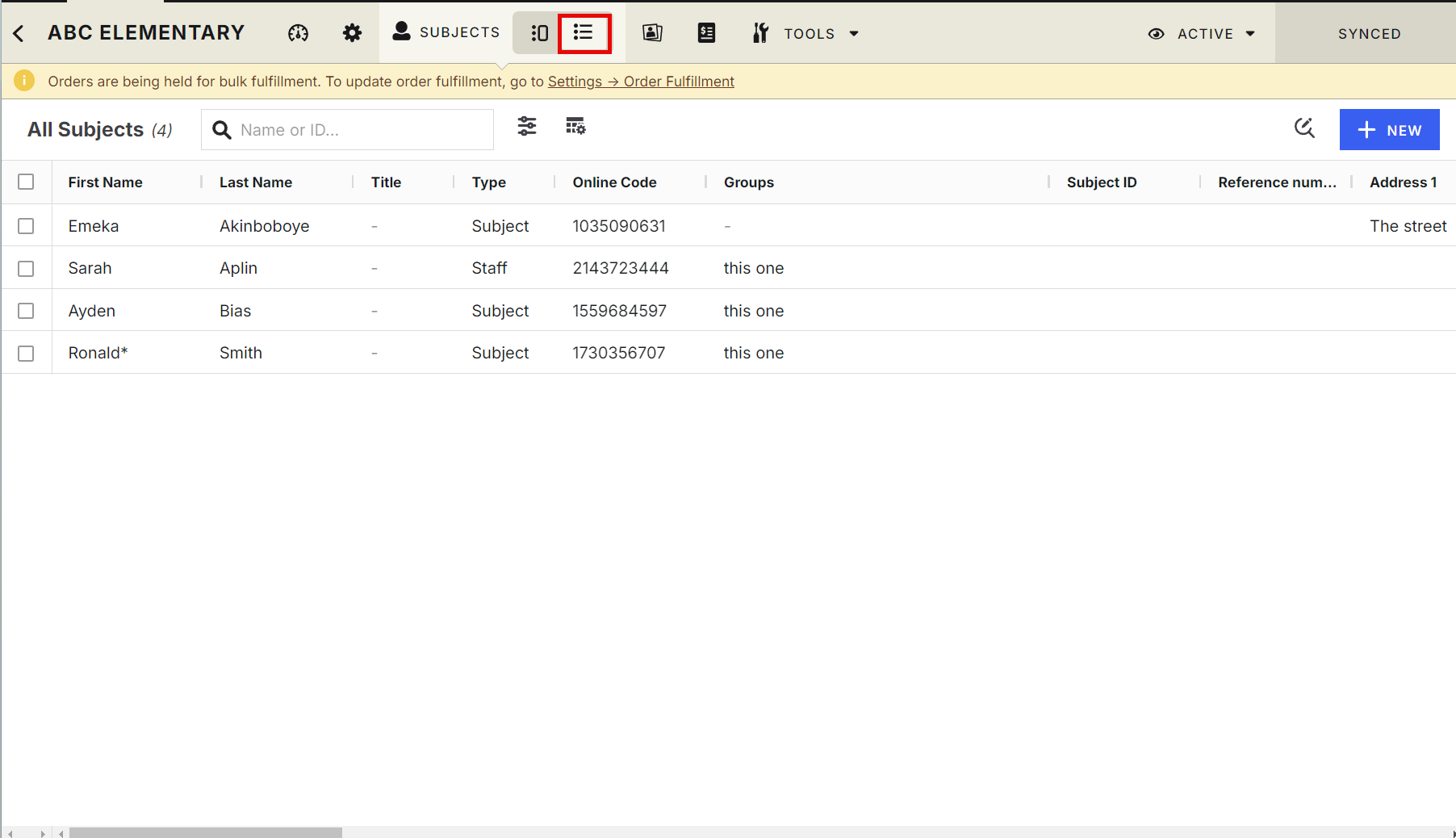
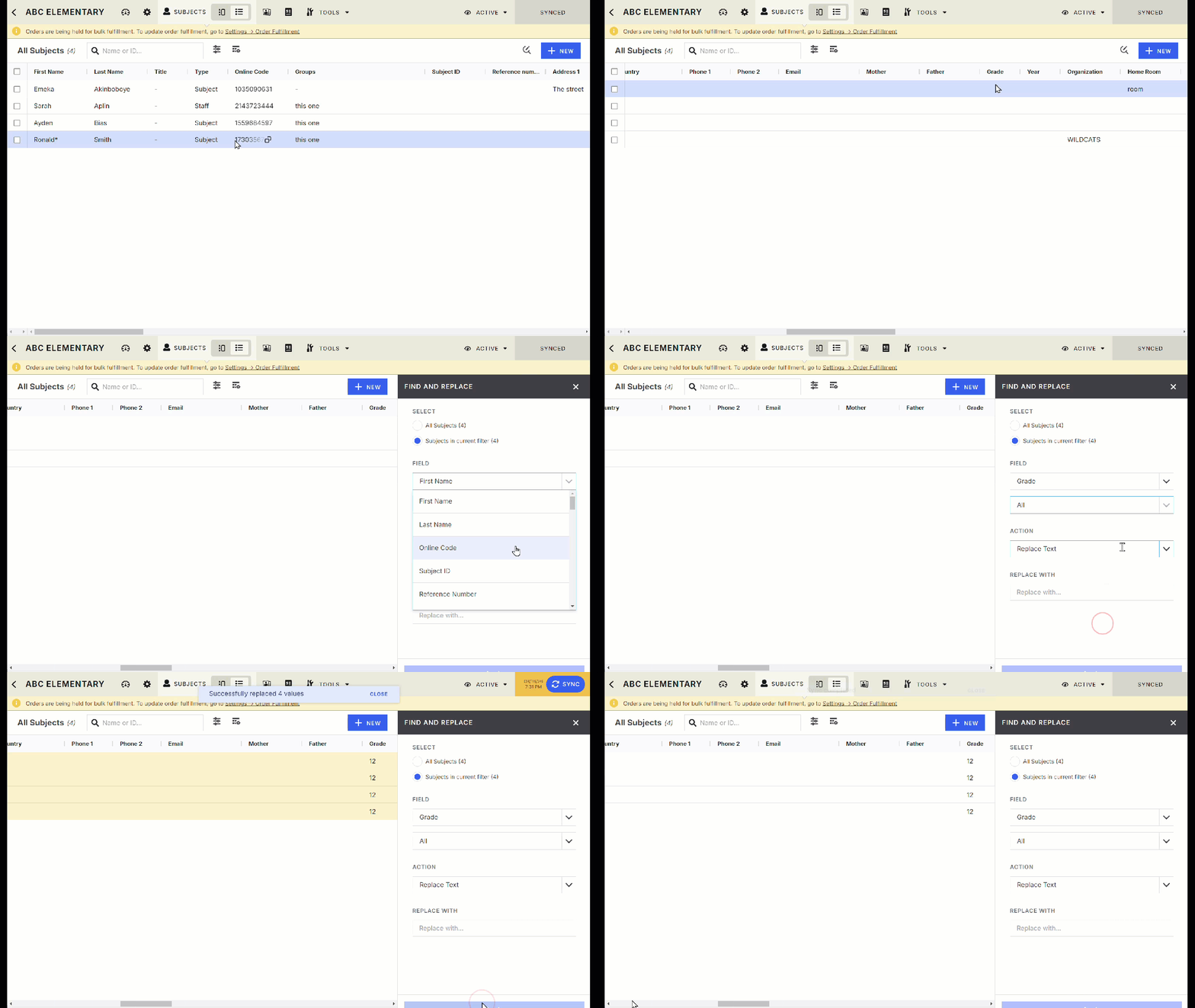
Sheet View displays your subjects in a spreadsheet-style grid, making it easier to see and edit larger amounts of data at once.
With Sheet View, you can:
Switch between Detail View and Sheet View
Edit fields directly in the grid
Select multiple subjects
Apply Quick Edit or Find & Replace
Manage large subject lists with pagination
How to Open and Use Sheet View
Open a Subject Gallery.
Click the arrow next to Subjects in the navigation.
Select Sheet View.
Click directly into a cell to edit its value.
Use the checkboxes to select multiple rows when you need to apply bulk actions such as Quick Edit or Delete.
Click Sync to save your changes.
Important: Keep an eye on the sync status indicator to confirm your changes have saved.
Using Find & Replace
Find & Replace lets you search for subject data and make changes across multiple matching records at once.
Instead of correcting the same information subject by subject, you can find matching values and update them together.
You can use Find & Replace to:
Search across subject fields
Replace matching text
Add text before or after existing values
Standardize formatting
Apply changes to the entire dataset or filtered results
Available search operators include options such as:
Includes
Equals
Starts with
Ends with
All
How to Use Find & Replace
Open Sheet View.
Click the Find and Replace icon in the header.
Select the field you want to search, such as First Name, Grade, or Organization.
Choose the appropriate search operator.
Select an action, such as:
Replace Text
Add Text
Format
Enter the replacement text, additional text, or formatting rule.
Click Apply.
Review the updated records.
Click Sync to save your changes.
Using Quick Edit
Quick Edit is useful when you know exactly which subjects need to be updated and want to change common fields across that selected group.
With Quick Edit, you can:
Select multiple subjects
Update names
Update contact information
Update addresses
Update grades
Update custom fields
Standardize grade formatting
Use country/state dropdowns for address information
For example, Quick Edit can standardize a grade value such as “9th” to “9.”
Which Data Tool Should I Use?
If You Need To... | Use |
|---|---|
Review or change one subject | Detail View |
See and edit many records in a grid | Sheet View |
Change a specific group of selected subjects | Quick Edit |
Find and update matching information across many subjects | Find & Replace |
Narrow down which subjects you're working with | Sort & Filter |
💡 PRO TIP: Combine these tools when you're working with a large Job. For example, filter your subjects by grade in Sheet View, then use Find & Replace to standardize the grade values across those results.
Managing Subject Images
The Subjects tab also gives you control over the images connected to each subject.
You can add images, move images between subjects, assign image types, hide images, and delete images.
Adding Images from Outside Workflow
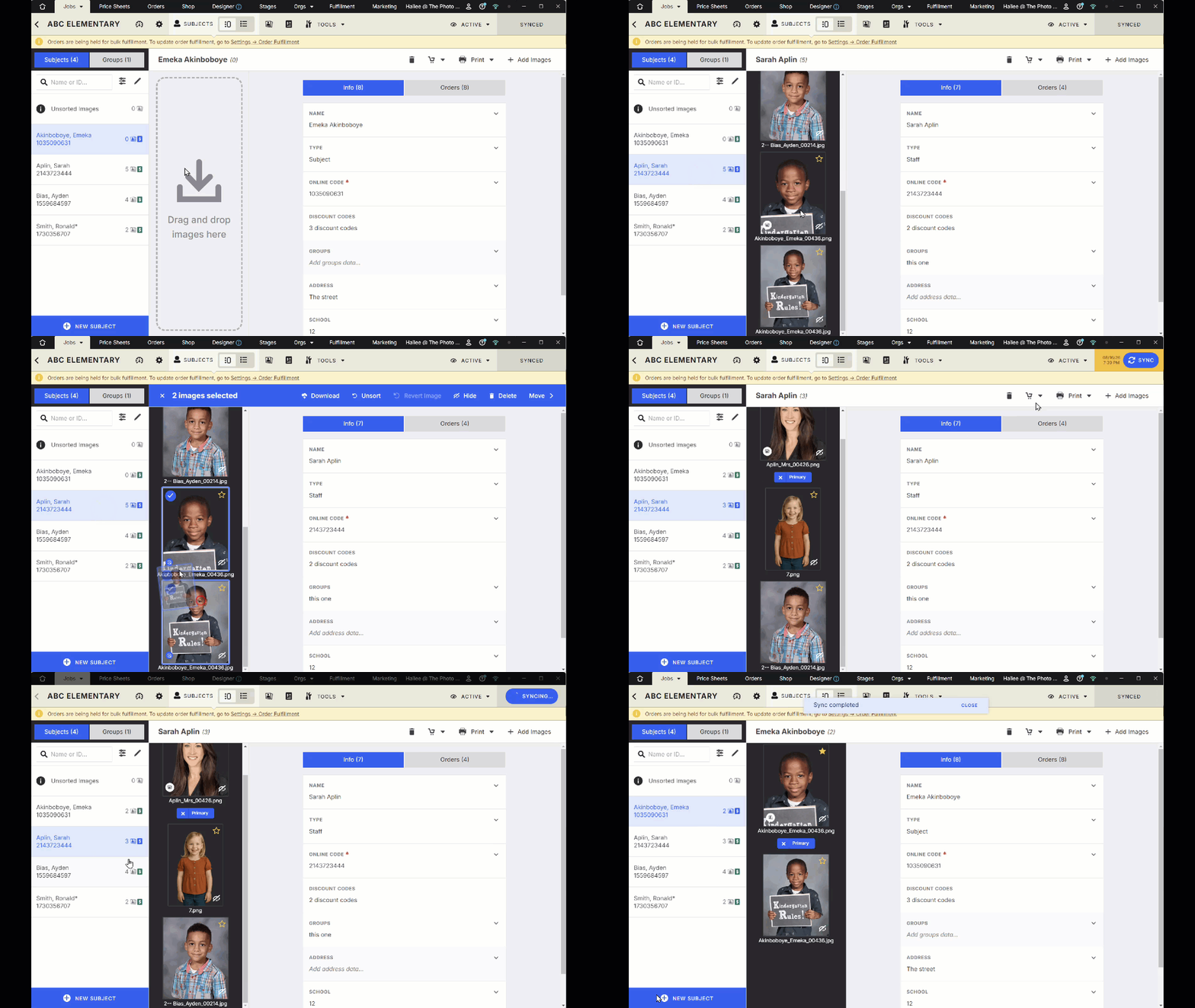
To add an image stored on your computer, drag and drop the image into the Image List between the Subject List and Subject Data view.
You can also click + Add Images and browse to the image location on your computer.
💡 PRO TIP: When selecting images from a folder, you can use keyboard commands such as Ctrl + A to select all images and upload them together.
Moving Images Between Subjects
If images have been assigned to the wrong subject, you can move them without re-uploading them.
Select the image or images you want to move.
Click Move in the Menu bar.
Select the correct subject.
Moving Multiple Images
You can also move multiple selected images using drag and drop.
Select the images you want to move.
Drag one of the selected images.
Drop the selection onto the correct subject.
The full selection will move together.
Primary, Yearbook, and Hidden Images
Images can be assigned different types depending on how they should be used.
Click the ellipsis (...) on an image to access the available image options.
Image Type | How It Works |
|---|---|
Primary | Identifies the subject's Primary Image. A full gold star appears in the top-right corner. |
Yearbook | Marks the image as the subject's Yearbook Selection. |
Hidden | Prevents the image from appearing online. Hidden images appear lighter so they're easy to identify. |
You can also toggle the Primary Image by clicking the empty star in the top-right corner of an image.
The Yearbook Selection, Primary, and Hidden tags appear underneath the selected image.
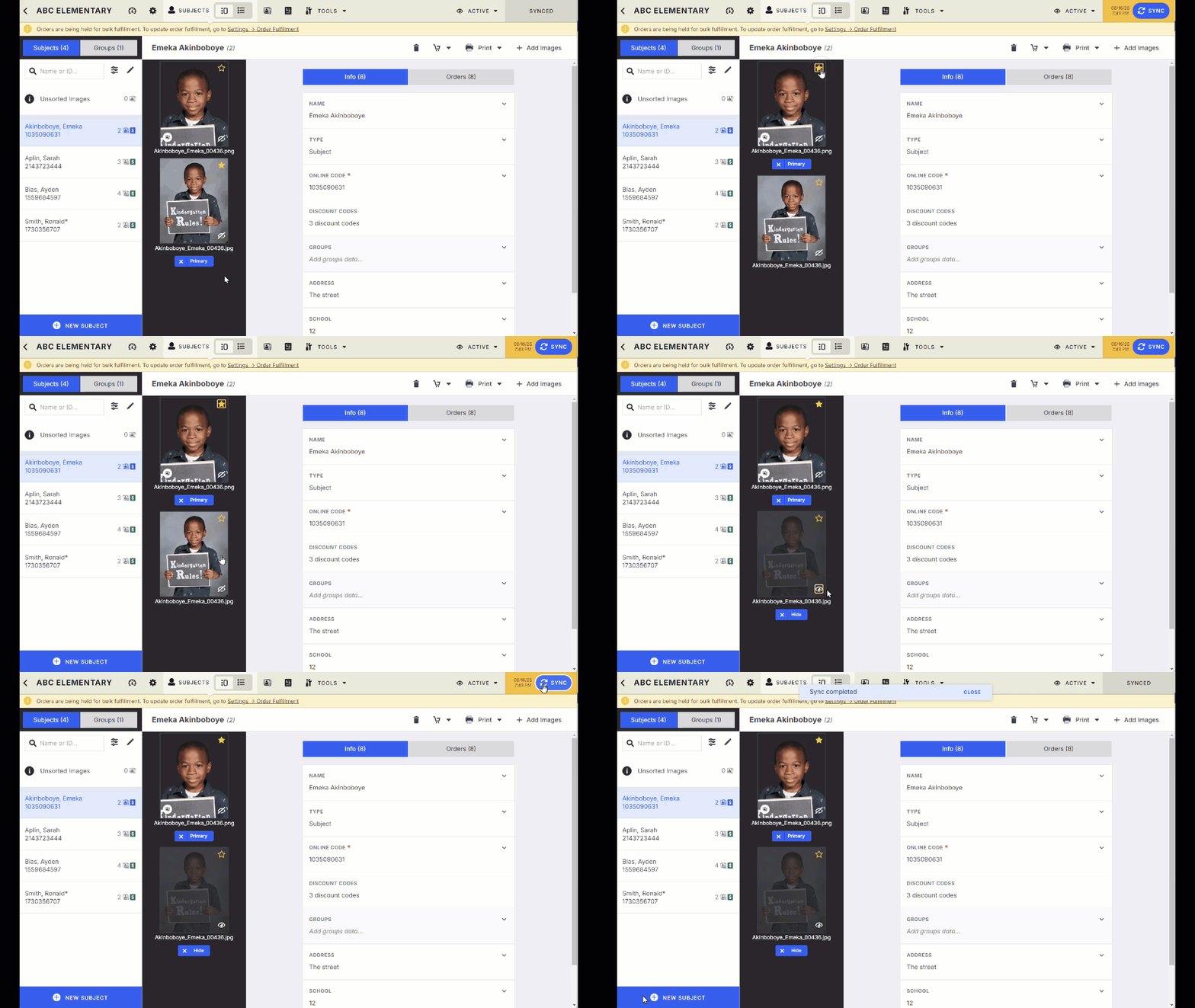
Important: An image can be both a Primary and Yearbook image. A Hidden Image is only a Hidden Image.
Deleting an Image
To remove an image from Workflow:
Select the image or images you want to delete.
Click Delete from the Menu bar.
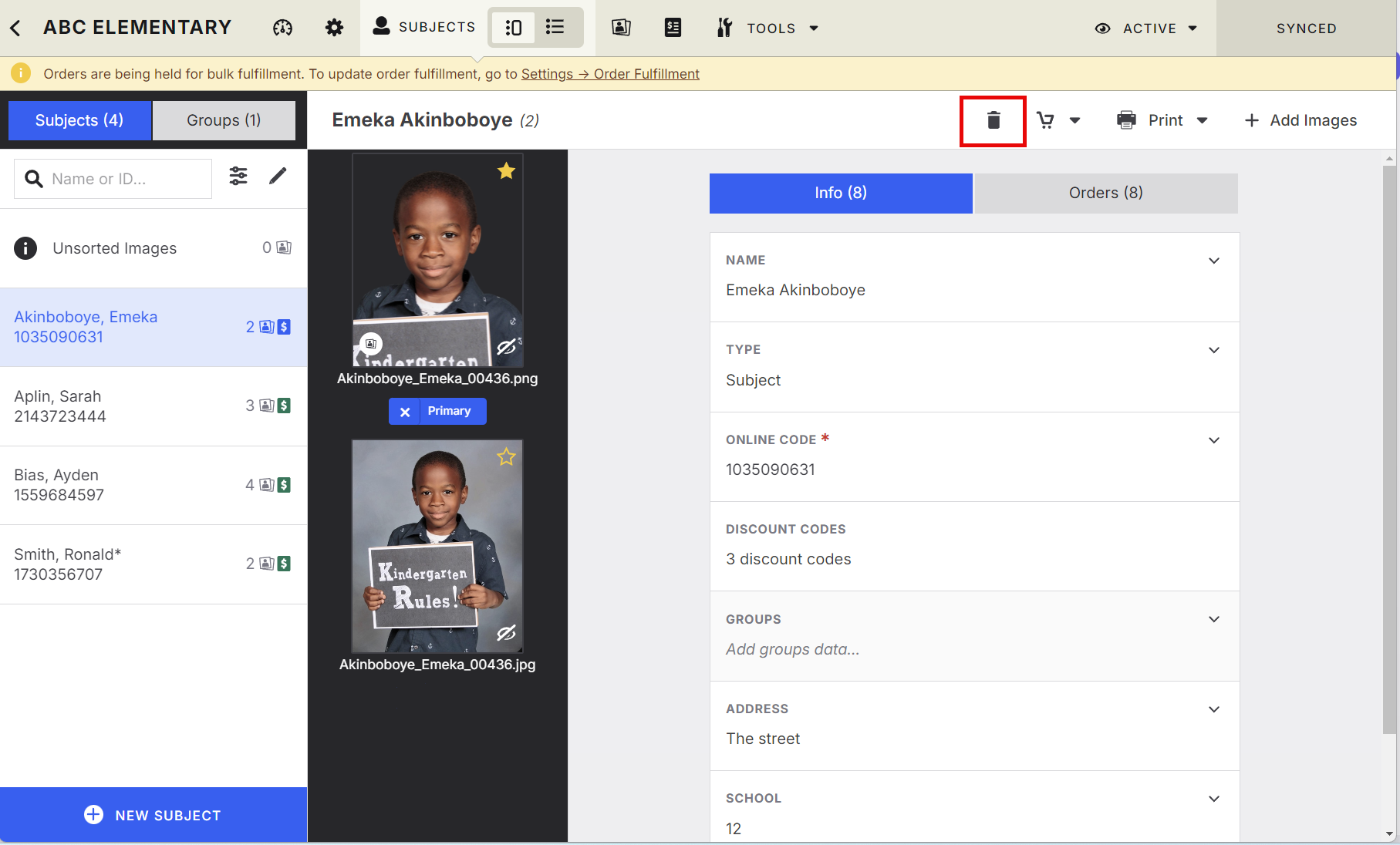
After making changes, remember to Sync so your updates are available across the machines you use with Captura Workflow.
Advanced Options/Additional Rules
Working with Filtered Subject Data
Filters can help you focus on exactly the records that need attention before making bulk changes.
For example, you can:
Open Sheet View.
Use Sort & Filter to narrow the list.
Use Find & Replace for consistent changes across those results.
Use Quick Edit for smaller, targeted adjustments.
Click Sync when you're finished.
Archived and Expired Galleries
Archived or expired galleries remain read-only, including when you're using Sheet View.
Exporting and Updating Subject Data
Filtered Subject Data can be exported as a CSV.
You can make necessary changes to the exported Subject Data and merge the updated CSV back into the Job.
Remember to Sync
Changes made to subject data or images need to be synced to the cloud.
Syncing makes those changes available across the machines you use with Captura Workflow.
Common Questions
Q: What's the difference between Detail View and Sheet View?
A: Detail View is useful for working with an individual subject and seeing their data, images, and orders together. Sheet View displays subjects in a spreadsheet-style grid and is better suited to editing larger amounts of subject data.
Q: When should I use Quick Edit instead of Find & Replace?
A: Use Quick Edit when you have a specific selection of subjects you want to update. Use Find & Replace when you need to search for matching data and make the same type of change across a larger dataset.
Q: Can I edit data directly in Sheet View?
A: Yes. Click into a cell and type your change directly into the grid.
Q: Can I export filtered Subject Data?
A: Yes. You can export the Subject Data from your filtered results as a CSV, make updates, and merge the updated CSV back into the Job.
Q: Can I move several images to another subject at once?
A: Yes. Select multiple images and use Move, or drag one of the selected images onto the correct subject to move the entire selection.
Q: Can an image be both the Primary and Yearbook image?
A: Yes. An image can be both Primary and Yearbook. A Hidden Image, however, is only considered Hidden.
Q: Why can't I edit subjects in an archived or expired gallery?
A: Archived and expired galleries are read-only, including in Sheet View.
Q: Do I need to sync after editing subject information?