
Post Checkout Customer Feedback
Brief Overview
Post Checkout Customer Feedback gives your studio a simple way to understand how customers feel about their shopping experience while the experience is still fresh.
After completing an order, shoppers can rate their experience, tell you what influenced their rating, and provide additional feedback. Their responses are connected directly to their order and included in your order export data, helping you identify trends and make more informed decisions about pricing, products, and the overall shopping experience.
Overview & Objective
Customer feedback can help you understand more than whether a shopper had a positive or negative experience—it can help identify why they felt that way.
When Post Checkout Customer Feedback is enabled, shoppers are prompted to provide feedback directly from the order confirmation page.
The feedback process captures:
Sentiment — How the shopper rated their experience
Impact category — What influenced their rating
Open-ended feedback — Additional comments from the shopper, when provided
Each response is linked to the shopper’s order and automatically included in your single-row order export.
This gives your studio structured feedback alongside your sales data, helping you identify what’s working, where customers are experiencing friction, and where there may be opportunities to improve.
Setup / Configuration
Post Checkout Customer Feedback is not enabled by default.
To activate the feature for all of your galleries, contact your Customer Success Manager (CSM).
Once enabled, the feedback experience becomes part of the existing post-order flow. Shoppers will see the feedback prompt after placing an order and reaching the order confirmation page.
💡 PRO TIP: Before enabling the feature, make sure your studio’s contact email and phone number are current in your account preferences. If a shopper selects “I Need Order Support,” this is the contact information they’ll see so they can reach your studio for help.
Step-by-Step Instructions
1. Shopper completes an order
After placing an order, the shopper reaches the order confirmation page.
The Customer Feedback prompt appears as part of the post-order experience.
[Insert screenshot: Customer Feedback prompt on order confirmation page]
2. Shopper rates their experience
The shopper selects the smiley face that best represents their shopping experience.
The available responses represent:
Positive
Neutral
Negative
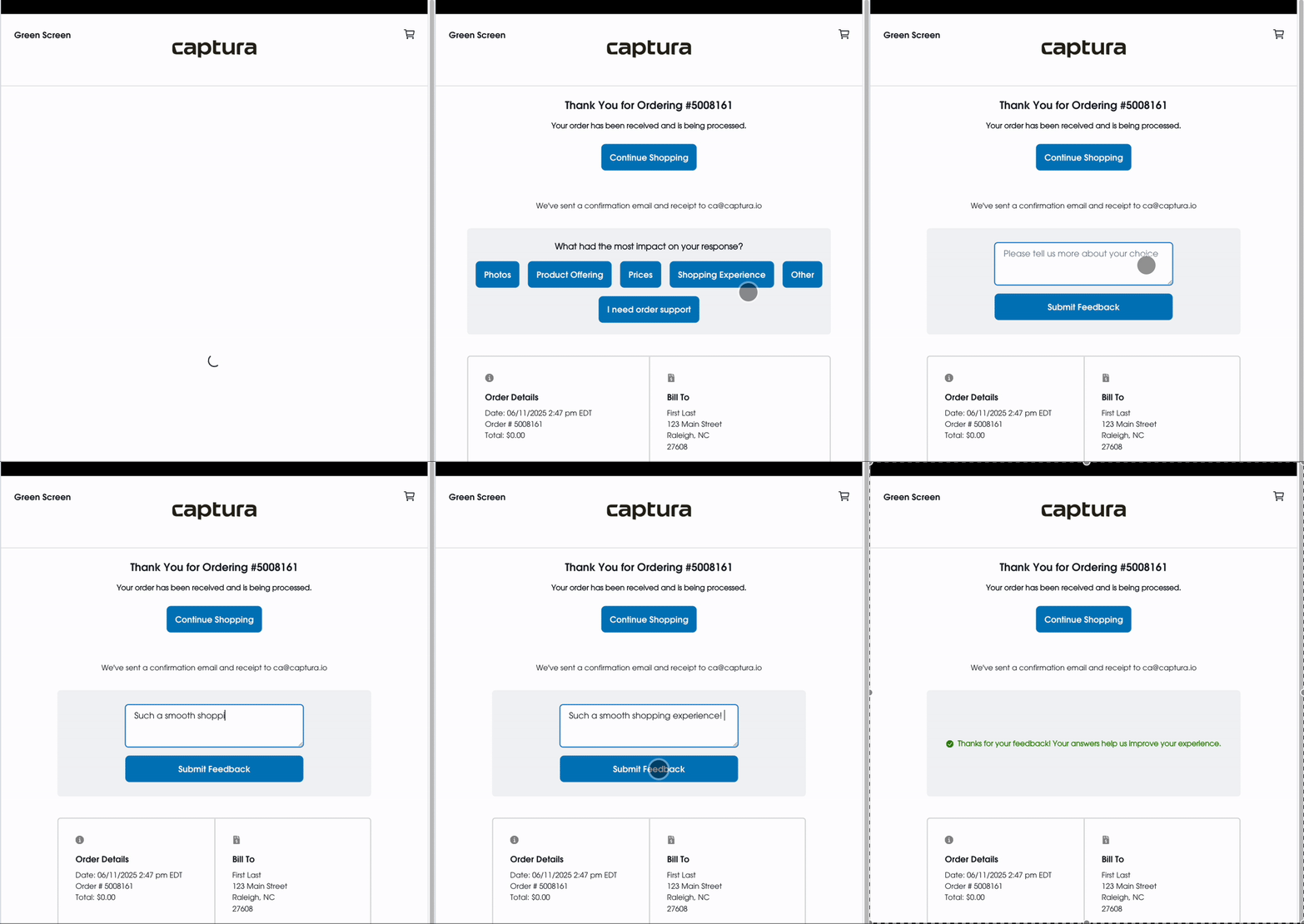
3. Shopper selects what influenced their rating
Next, the shopper is asked what impacted their response the most.
They can select from:
Photos
Product Offerings
Prices
Shopping Experience
Other
I Need Order Support
4. Captura displays the appropriate follow-up
What happens next depends on the option the shopper selects.
If the shopper chooses anything other than “I Need Order Support,” a text box appears asking them to provide more information about their response.
This gives the shopper an opportunity to explain their experience in their own words.
If the shopper selects “I Need Order Support,” your studio’s contact email and phone number are displayed so the shopper can contact your team directly.
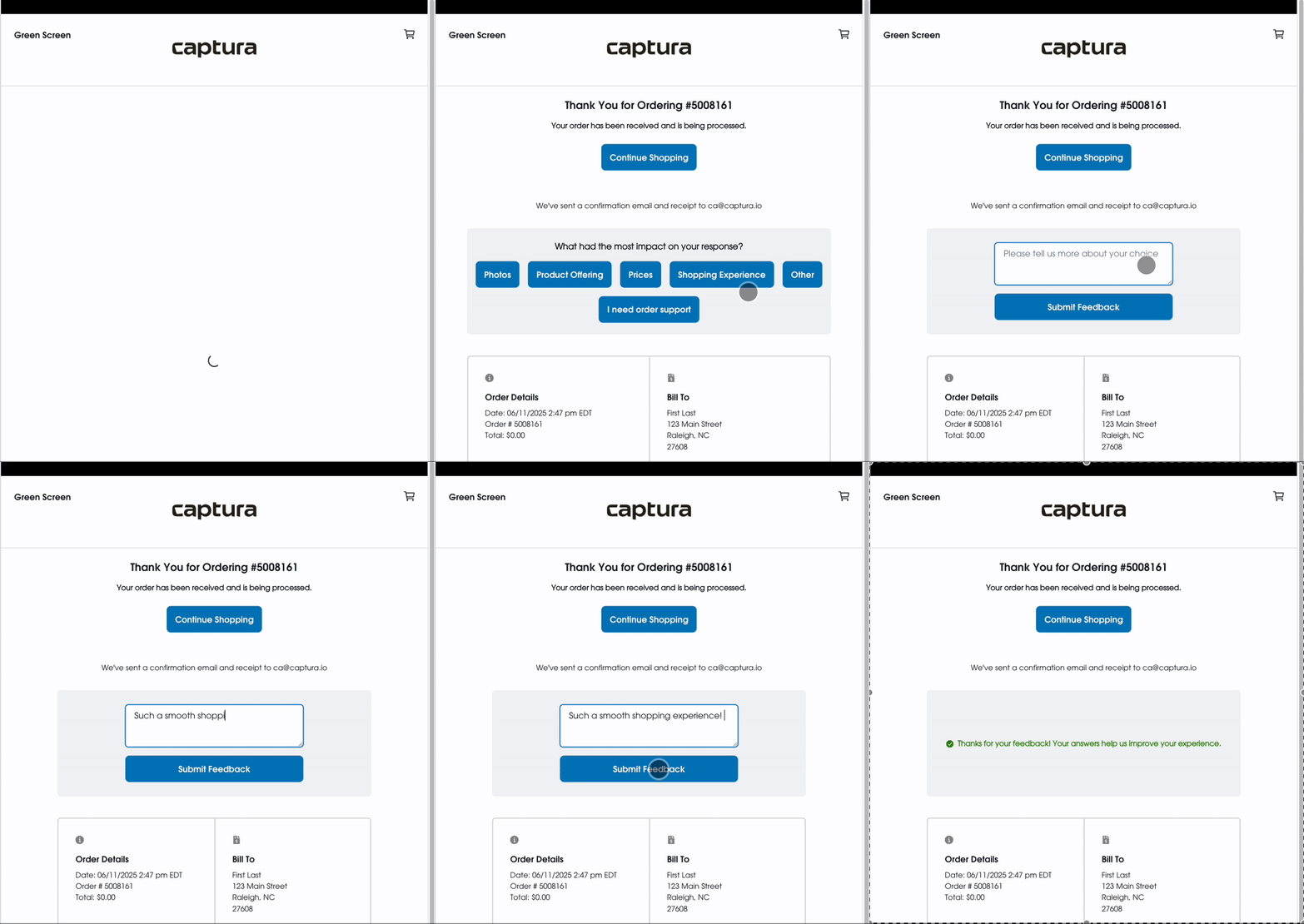
5. Review feedback with your order data
Customer feedback is linked directly to the shopper’s order and automatically included in your single-row order export.
The export includes:
Sentiment score
Impact category
Open-ended feedback, when provided
This allows your team to review customer feedback alongside your existing sales data without maintaining a separate feedback spreadsheet.
Advanced Options/Additional Rules
The experience automatically changes based on the type of feedback the shopper provides.
If the shopper selects Photos, Product Offerings, Prices, Shopping Experience, or Other:
A text box appears so the shopper can provide additional feedback.
If the shopper selects “I Need Order Support”:
Instead of asking for additional written feedback, Captura displays the studio contact email and phone number stored in your account preferences.
This gives shoppers who need help a direct path to your studio.
Using the Feedback Data
Because feedback is included with your order export data, your studio can use it to look for patterns across customer experiences.
For example, the data can help you better understand:
What influences customer satisfaction
How shoppers respond to your products and pricing
Where there may be friction in the shopping experience
When customers are looking for additional order support
These insights can help your team make more informed decisions based on what your customers are actually telling you.
Common Questions
Q: Is Post Checkout Customer Feedback enabled automatically?
A: No. The feature is not enabled by default. Contact your Customer Success Manager (CSM) to have it enabled for all of your galleries.
Q: When will customers see the feedback questions?
A: The feedback prompt appears after a shopper completes an order and reaches the order confirmation page.
Q: What information does Captura collect?
A: Captura collects the shopper’s sentiment score, the category that influenced their response, and any open-ended feedback they provide.
Q: What happens when a customer needs help with their order?
A: If the shopper selects “I Need Order Support,” Captura displays your studio’s contact email and phone number from your account preferences so the shopper can contact you directly.
Q: Where can I find the customer feedback?
A: Feedback is linked directly to the shopper’s order and included in your single-row order export.
Q: Can I use this feedback alongside my sales data?
A: Yes. Because the feedback is appended to your order export, you can review sentiment, impact categories, and written feedback alongside your sales data.