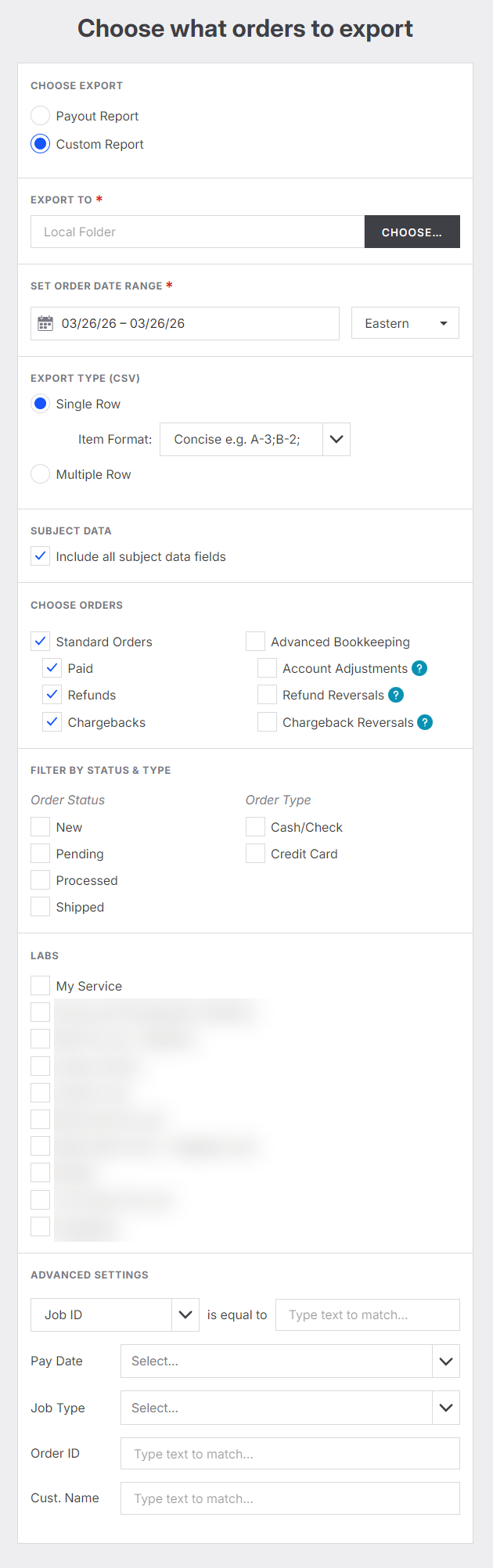
How do I export Order Data?
When exported, you'll receive a detailed spreadsheet with all order information—plus any customizations the customer added in their cart.
How to Export a Custom Order Report
Navigate to the Orders Page
Go to the main Orders page and click Export.Choose Report Type
Select Custom Report from the available options.Set Export Destination
Choose the folder where you'd like the report to be saved.Define Report Parameters
Date Range: Select the timeframe for the orders you want to include.
Row Format: Choose Multiple Row to include detailed line items.
Filter Order Criteria
Order Type: Select the types of orders to include (e.g., standard, reorders).
Order Status: Choose which statuses to include (e.g., completed, pending).
Lab Type: Specify the lab type if applicable.
Add Identifiers (Optional)
Job ID: Enter a specific Job ID to narrow results.
Order ID: If you're looking for a particular order, enter its Order ID.
Click Export