
Adding a “Need Help” Link for Online Code Assistance
Brief Overview
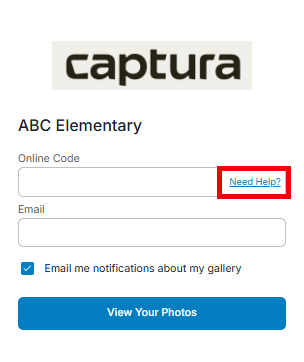
The Online Code Help Message lets you add a customizable Need Help? link next to the Online Code field in your online gallery. If customers can't find their Online Code, they can select the link to view instructions or contact information you've provided.
Providing clear guidance can help customers access their galleries more quickly while reducing support requests to your studio.
Overview & Objective
In this article, you'll learn how to enable and customize the Online Code Help Message within your Shopping Cart Template.
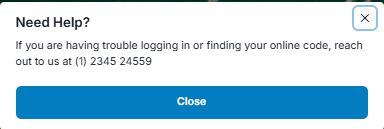
Once configured, customers will see a Need Help? link next to the Online Code field. Selecting the link displays your custom message, which can be used to:
Explain where customers can find their Online Code.
Provide your studio's contact information.
Share basic troubleshooting steps.
Answer common questions before customers need to contact your studio.
Because this setting is managed through your Shopping Cart Template, every job using that template will automatically display the same help message.
Setup / Configuration
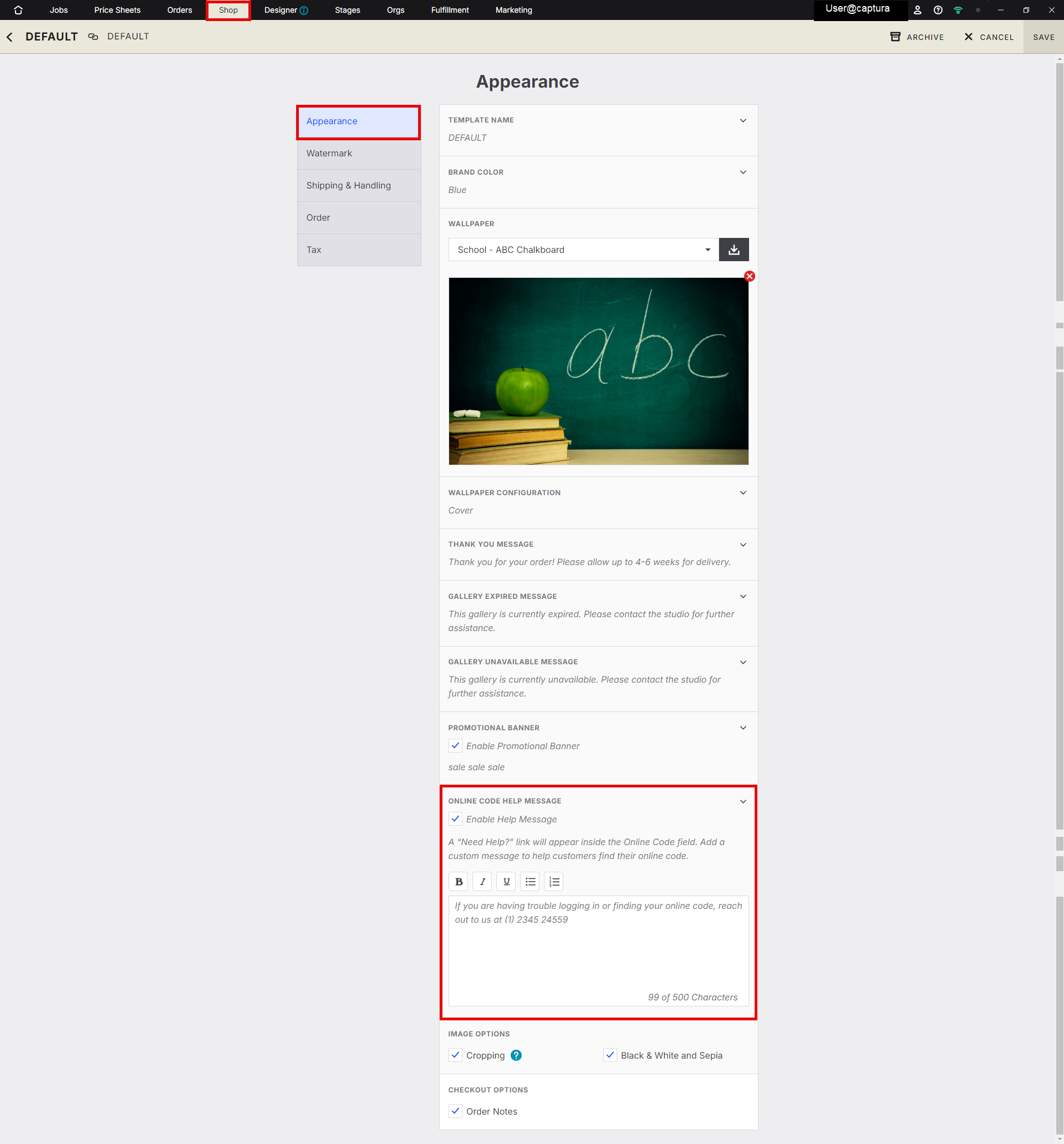
The Online Code Help Message is configured within your Shopping Cart Template.
To access it:
Open Shop.
Select Manage Cart Templates.
Open the Shopping Cart Template you'd like to edit.
Select the Appearance tab.
💡 PRO TIP: Keep your message short and easy to read. Most customers access galleries from their mobile device and are looking for a quick answer.
Step-by-Step Instructions
Edit the Online Code Help Message
Open Shop.
Select Manage Cart Templates.
Open the Shopping Cart Template you want to update.
Select Appearance.
Scroll to Online Code Help Message.
Enter the message you'd like customers to see.
Click Save Your changes will apply to all jobs using this template.
Example Messages
Here are a few examples you can customize for your studio:
"Check your order confirmation email for your Online Code."
"Contact our studio at 0800-123-456 if you need help locating your code."
"Email us at youremail@studio.com and we'll be happy to help."
Advanced Options / Additional Rules
The Online Code Help Message is configured at the Shopping Cart Template level.
Any job assigned to that Shopping Cart Template will automatically display the Need Help? link.
Updating the message automatically updates every job using that template.
Keep instructions concise so customers can quickly find the information they need.
Common Questions
Q: Where will customers see the “Need Help” link? A: In the online code field on your storefront. It appears as a blue clickable link labeled “Need Help.”
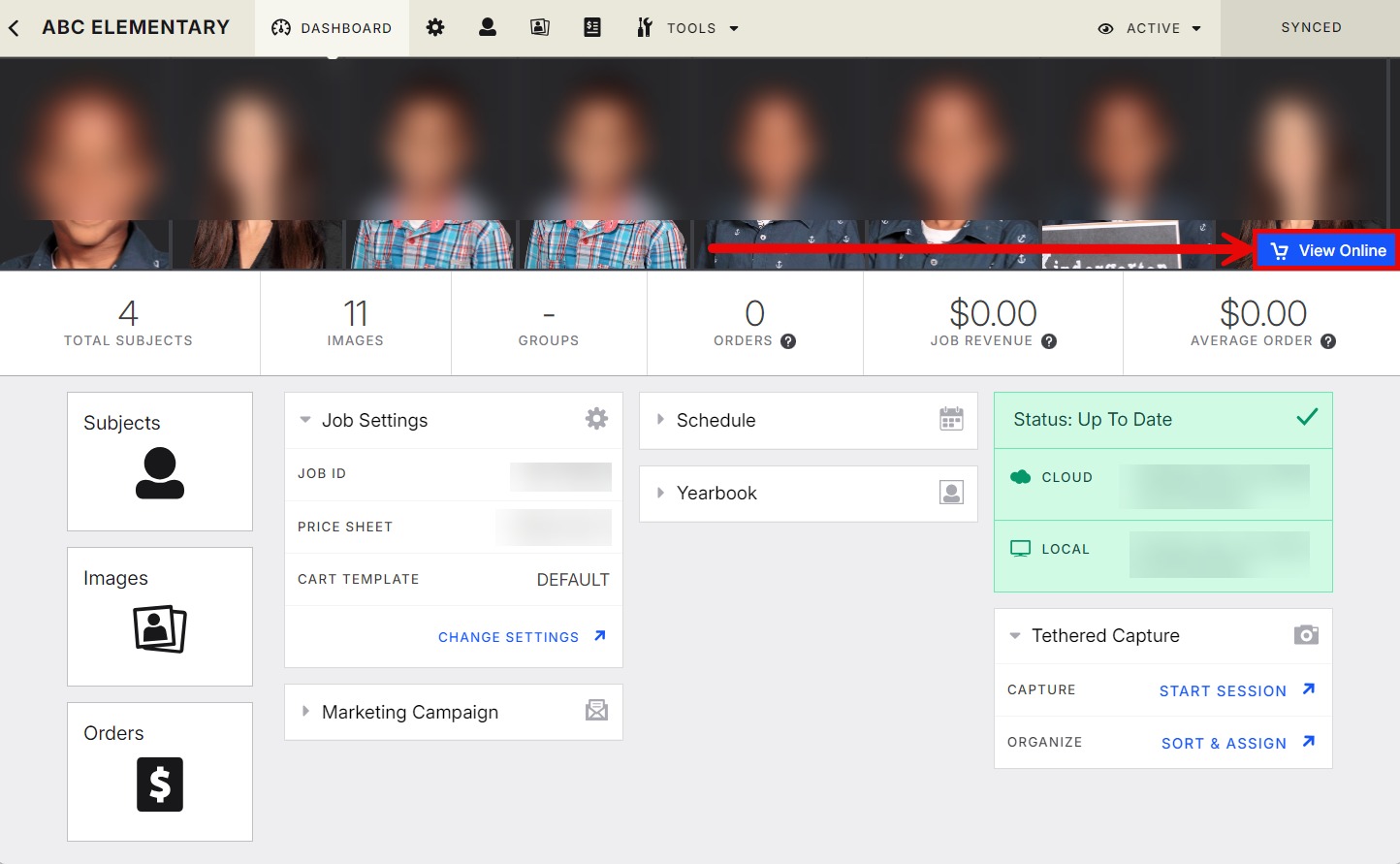
Q: How do I preview the message? A: Go to your job dashboard and click View Online. The “Need Help” link will appear in the online code field.
Q: Can I turn the link off? A: Yes—simply clear the message field in the cart template and save.
Q: Can I use different help messages for different jobs?
A: Yes. Create or assign a different Shopping Cart Template with its own Online Code Help Message for jobs that require different customer instructions.