Candid Pages: Text Frames
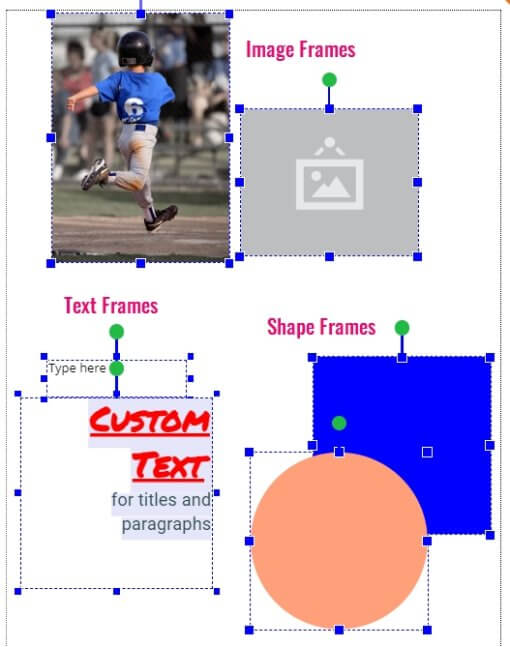
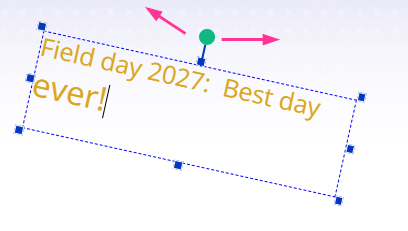
Understanding FramesPages are designed in the editor using images, shapes and text. Photos, clip art, shapes may be dragged from the preview pane on either side of the page to build your page composition. Once an element is added to the page, it appears in a frame that may be selected. Selected frames display a blue border with handles around them |
|
Text Size & Position
Add a blank text frame to your page by double-clicking on the page. A new frame will appear, ready to be customized.
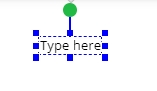
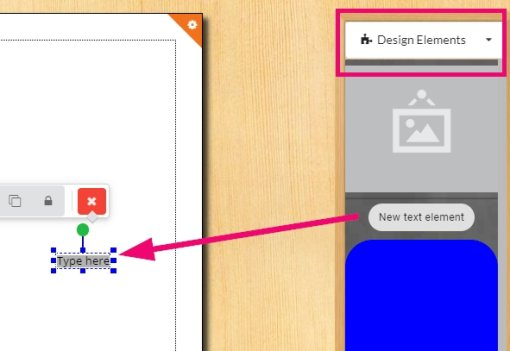
Alternatively, access the Design Elements folder on the right-side pane, then drag a new text element from the pane to your canvas.
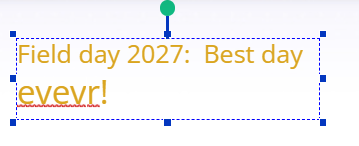
Click once on a text frame to edit its contents – start typing, or selecting text within the frame to apply options from the text toolbar. Auto-spellcheck will underline words that may be misspelled.
Click again on a text frame to select the frame itself. The frame can then be moved or resized.
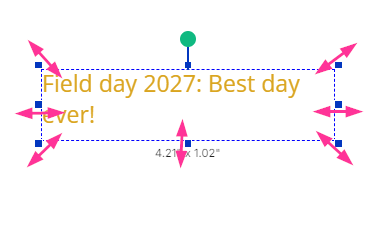
To rotate a text frame, select it then drag on the green handle to spin the frame.
To delete a text frame, select it. Click the red X icon at the end of the toolbar.
All elements are layers on your page in the order they were dropped. To move a text up or down the layer stack, click on the up or down arrows on the tool bar. Each click moves the image up/down one position.
To make a copy of a text frame, select it, then access the Duplicate button. Make a copy of the text frame on the current page or another selected page or move the selected frame to another page by adding a destination page number.
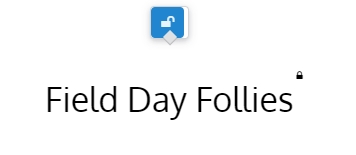
To lock a text frame in position and to prevent editing, click on the lock icon on the toolbar. The text frame will indicate that it is locked.
|
|
Text Attributes
When a text frame is selected, a toolbar will appear to offer editing options.

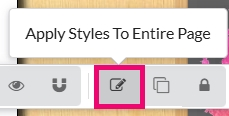
1. Font attributes (bold, italics, underline) | 5. Text and background color 7. Move frame up/down layer | 9. Apply style to entire page |
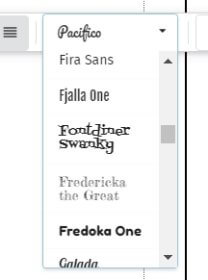
Fonts
Learn how to generate a catalog of all the fonts available in Captura Yearbook. |
|
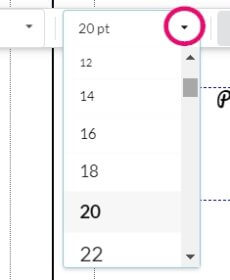
Select text within the frame to apply a preset font size. |
|
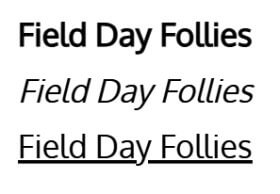
Select text within the frame to apply bold, italics or underline attributes.
|
|
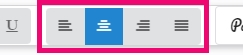
Alignment & SpacingSelect text within the frame to justify text to the left, center, right or to full alignment.
|
|
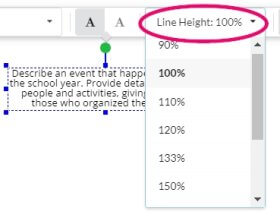
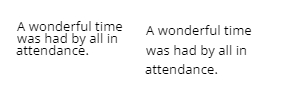
Select text within the frame to choose a preset line spacing height. |
|
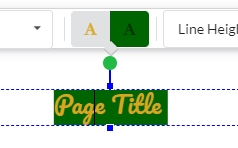
Color, Outline & ShadowTo add a color highlight to text, select the text within the frame. Add color to the text itself, and/or apply a background color behind the text |
|
Add a contrasting outline around your selected text in your choice of colors and thickness.
|
|
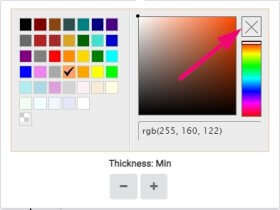
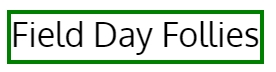
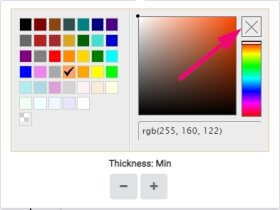
Add an outline around your text frame in your choice of color and thickness.
Turn off the outline by clicking the X in the top right corner of the border editor. |
|
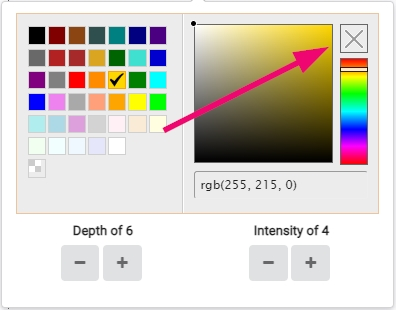
Add a drop shadow to selected text.
Turn off the shadow by clicking the X in the top right corner of the border editor. |
|
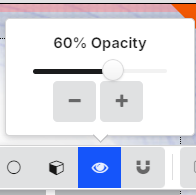
Change the opacity of the entire text frame.
|
|




Copying Text Attributes
Text effects may be copied to all elements on a page in a single click. Select a text frame then click Apply Effects to Entire Page to copy its attributes to all other text frames on the page.
Curved Text
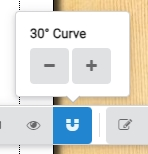
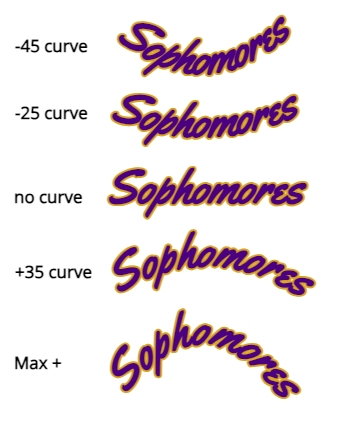
Apply a curve to selected text. Click on the curve icon, then use the – / + buttons to adjust the level of the curve for your text.
|
|