
Getting Started with Discount Codes
Brief Overview
Discount Codes give you a flexible way to offer promotions, reward customers, and encourage future purchases. Whether you're running a studio-wide sale, offering discounts for a specific job, or providing a coupon for a customer's next order, Discount Codes help you create promotions that fit your business.
Workflow supports several types of Discount Codes, allowing you to tailor promotions for different sales and marketing goals.
Overview & Objective
In this article, you'll learn how to:
Create and manage Discount Codes.
Choose the right Discount Code type.
Configure Discount Code settings.
Create multiple Discount Codes at once.
Set up Based-on Order Discount Codes.
Attach Based-on Order Discount Codes to Price Sheets.
Create product-specific Discount Codes.
Using Discount Codes helps you manage promotions while giving customers a simple way to save during checkout.
⚠️ WARNING ⚠️
If you use a 100% off discount code to place customer orders, the discount code will be displayed on the customer’s invoice.
To avoid exposing an active 100% discount code to customers, use a code that expires after a set period or is limited to a single use.
Setup / Configuration
To manage Discount Codes:
From the Workflow homepage, select Shop.
Select Create Discount Codes.
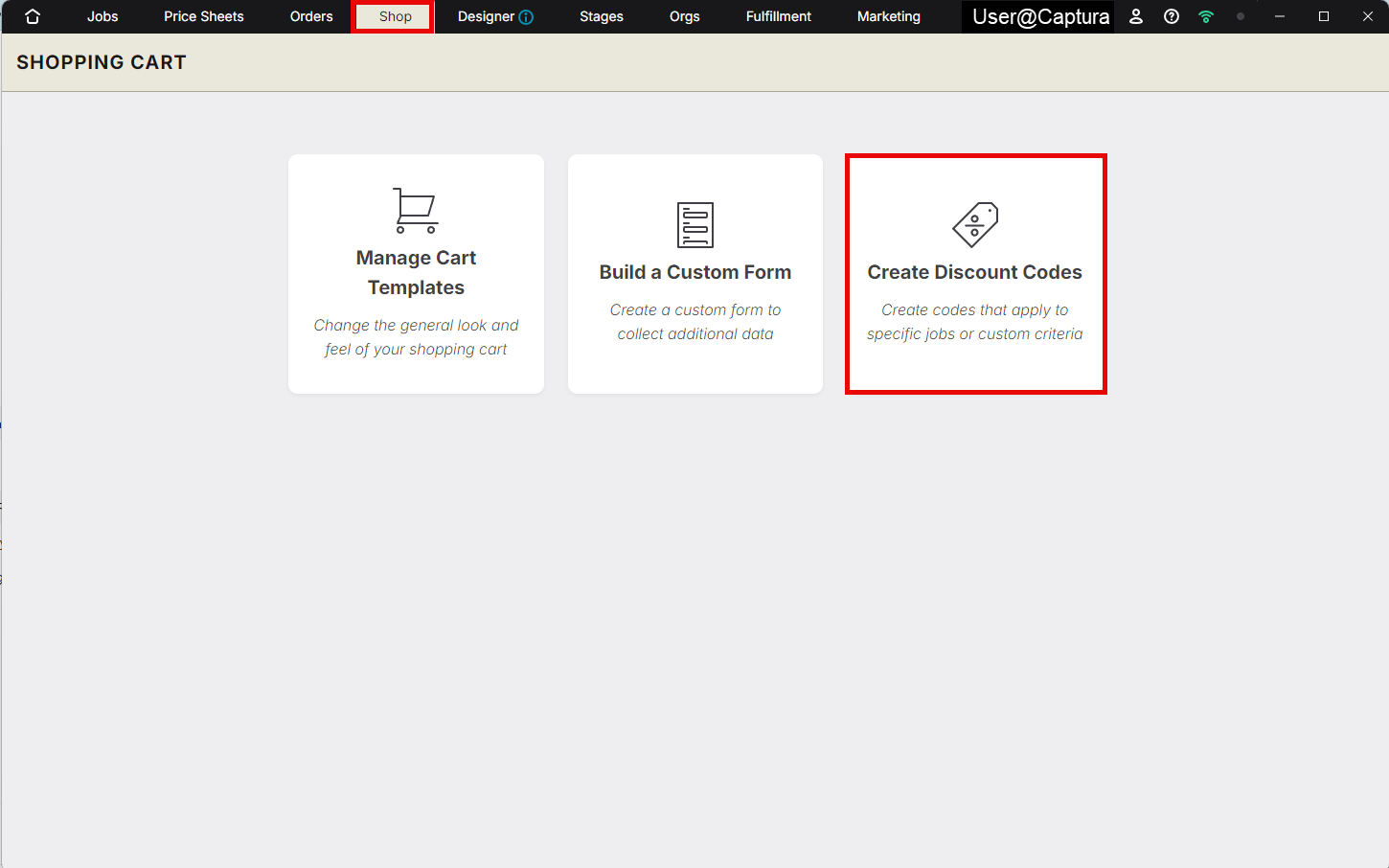
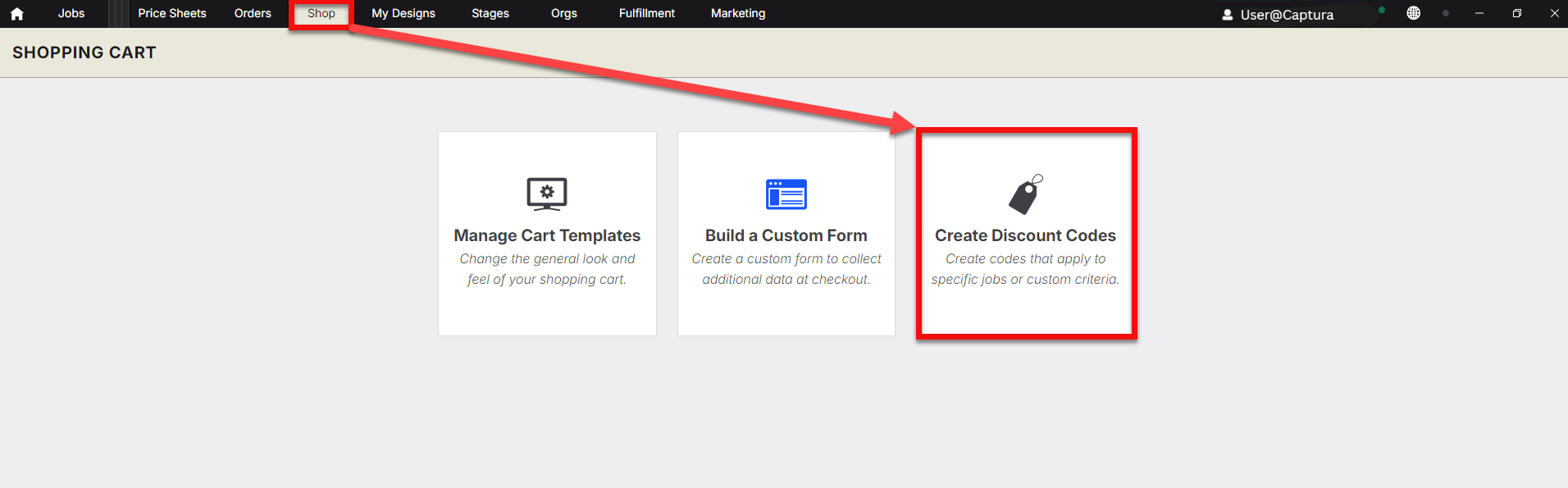
You'll see a list of all Discount Codes created for your studio.
To create a new code, select the blue + New button.
💡 PRO TIP: Use descriptive code names and expiration dates to make promotions easier to manage throughout the season.
Step-by-Step Instructions
Choose a Discount Code Type
Workflow offers three Discount Code types, each designed for a different purpose.

Discount Code Type | Description | Recommended Use |
|---|---|---|
Global | Can be redeemed on any active job or selected job types. | Studio-wide promotions or seasonal sales. |
Job Specific | Can only be redeemed on a selected job. | Promotions for a specific school, event, or gallery. |
Based-on Order | Generates a new Discount Code after a qualifying purchase that can be used on a future order. | Rebates, session fee credits, or encouraging repeat purchases. |
Note: Discount Codes can contain up to 15 characters and are case-sensitive.
Configure Discount Code Settings
After choosing a Discount Code type, customize how it works.
Setting | Description |
|---|---|
Number of Uses Allowed | Choose Single Use or Unlimited. |
Minimum Order Amount | Set the minimum order subtotal required before the code can be redeemed. |
Discount Amount | Choose either a Percentage Off or Dollar Amount Off discount. |
Applied To | Apply the discount to the entire order, shipping, handling, or selected products. |
Expiration Date | Set the date the Discount Code expires. Codes expire at midnight EST on the selected date. |
Batch Create Discount Codes
Need multiple unique codes for a promotion?
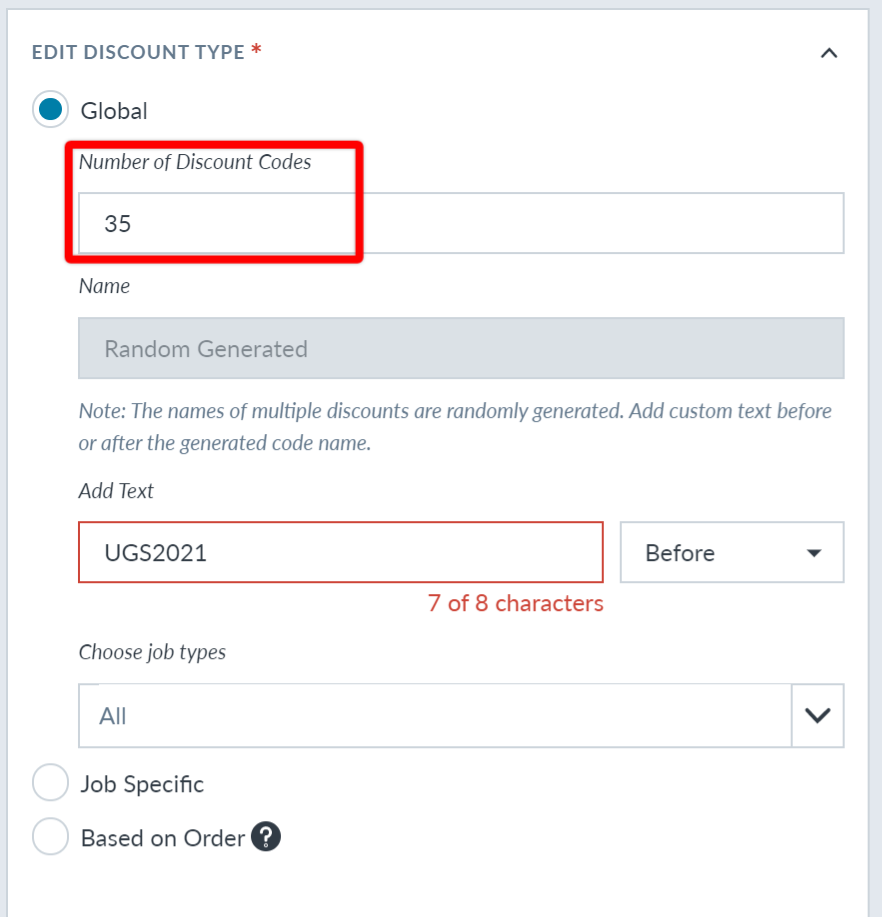
Workflow allows you to generate multiple Global or Job Specific Discount Codes at once.
Enter the desired Number of Discount Codes.
(Optional) Add custom text before or after each randomly generated code.
Create a Based-on Order Discount Code
Based-on Order Discount Codes reward customers after they complete a qualifying purchase.
Once earned, the code can be applied to a future order.
You can configure the code by:
Entering your own code.
Allowing Workflow to generate a random code.
Automatically generating a code using Subject Data.
Automatically applying the discount to the customer's next order.
If Auto-Populate on Next Order is disabled, customers will still see their available Discount Codes during checkout and can choose one manually.
Learn more about: Using Based‑On‑Order Discount Codes for Staff, Coaches, or Special Offers
Option | Description |
|---|---|
Enter Code | Create a custom Discount Code by entering the code exactly as you want customers to use it. |
Auto-Generate Code (Random) | Let Captura Workflow generate a unique, random Discount Code for each qualifying purchase. |
Auto-Generate Code (Configure) | Generate a Discount Code using selected Subject Data fields, with optional custom text added before or after the generated value. |
Auto-Populate on Next Order | Automatically apply the Discount Code to the customer's next eligible order. If disabled, the customer will still see all available Discount Codes during checkout and can choose which one to redeem. |
Attach a Based-on Order Discount Code to a Price Sheet
After creating the Discount Code:
Open the desired Price Sheet.
Select the qualifying product.
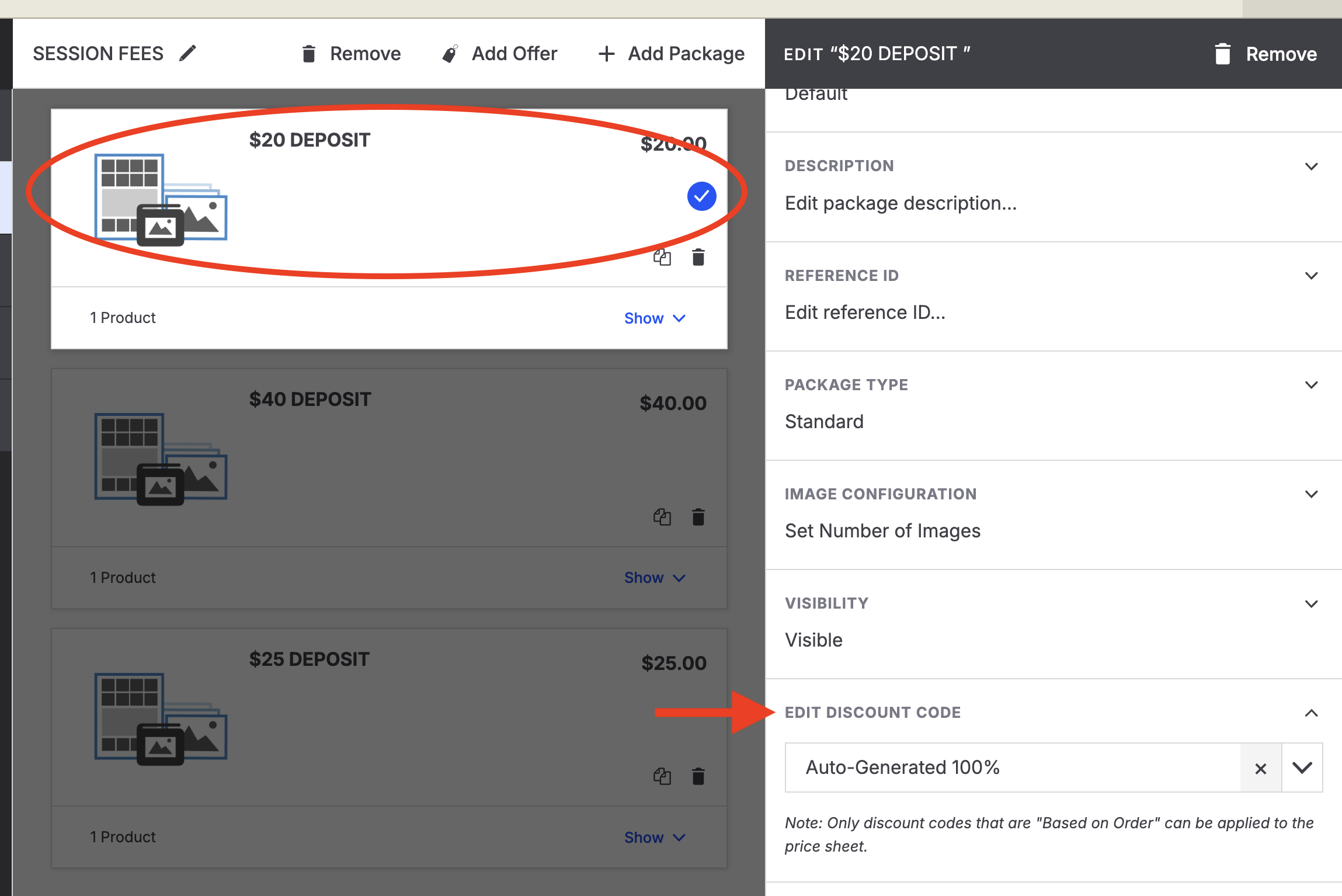
Attach the Based-on Order Discount Code.
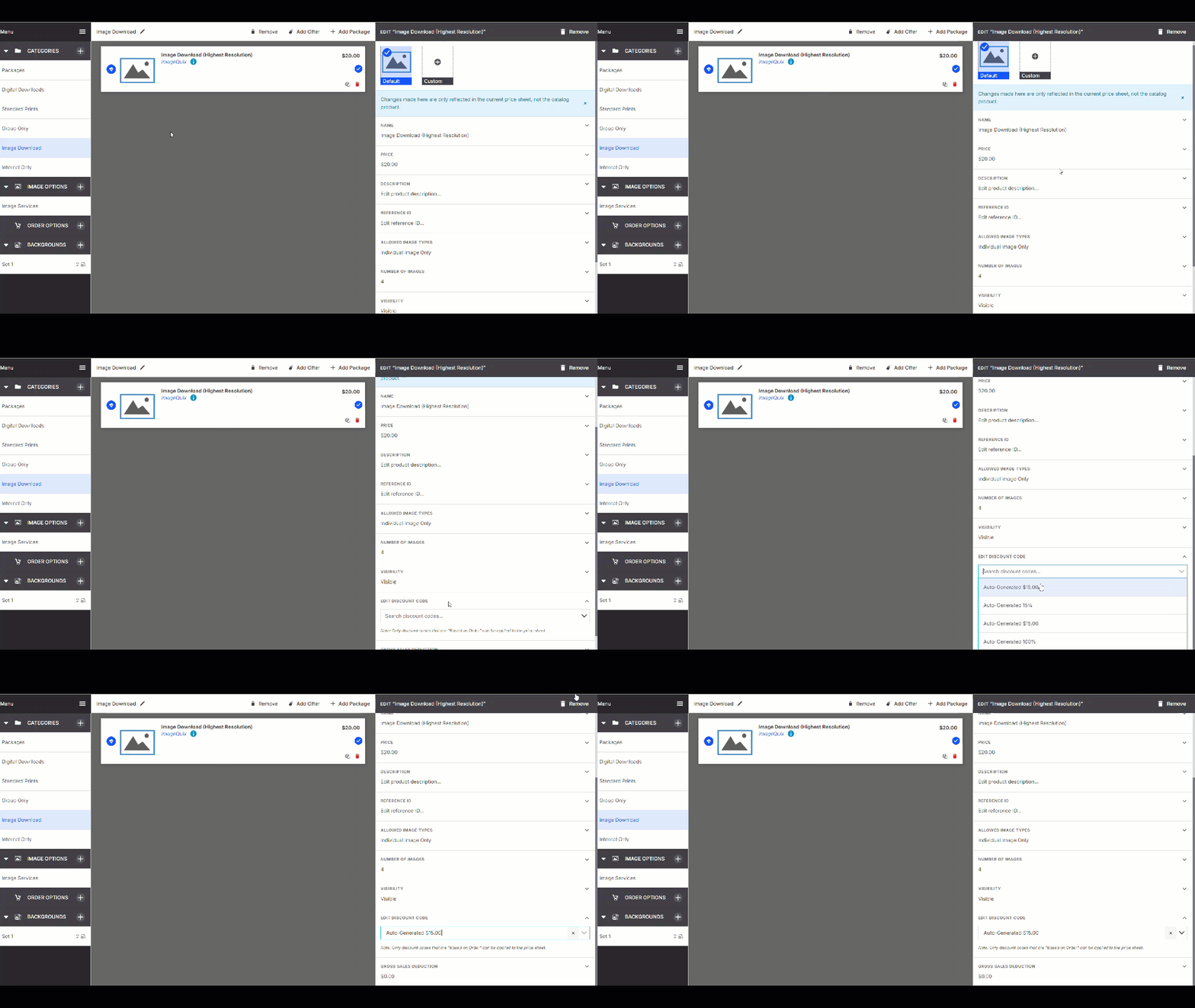
Note: Based-on Order discounts must not be inside a package. Discounts must be built as a stand alone product.
Example of correct set up:
View a Customer's Discount Code
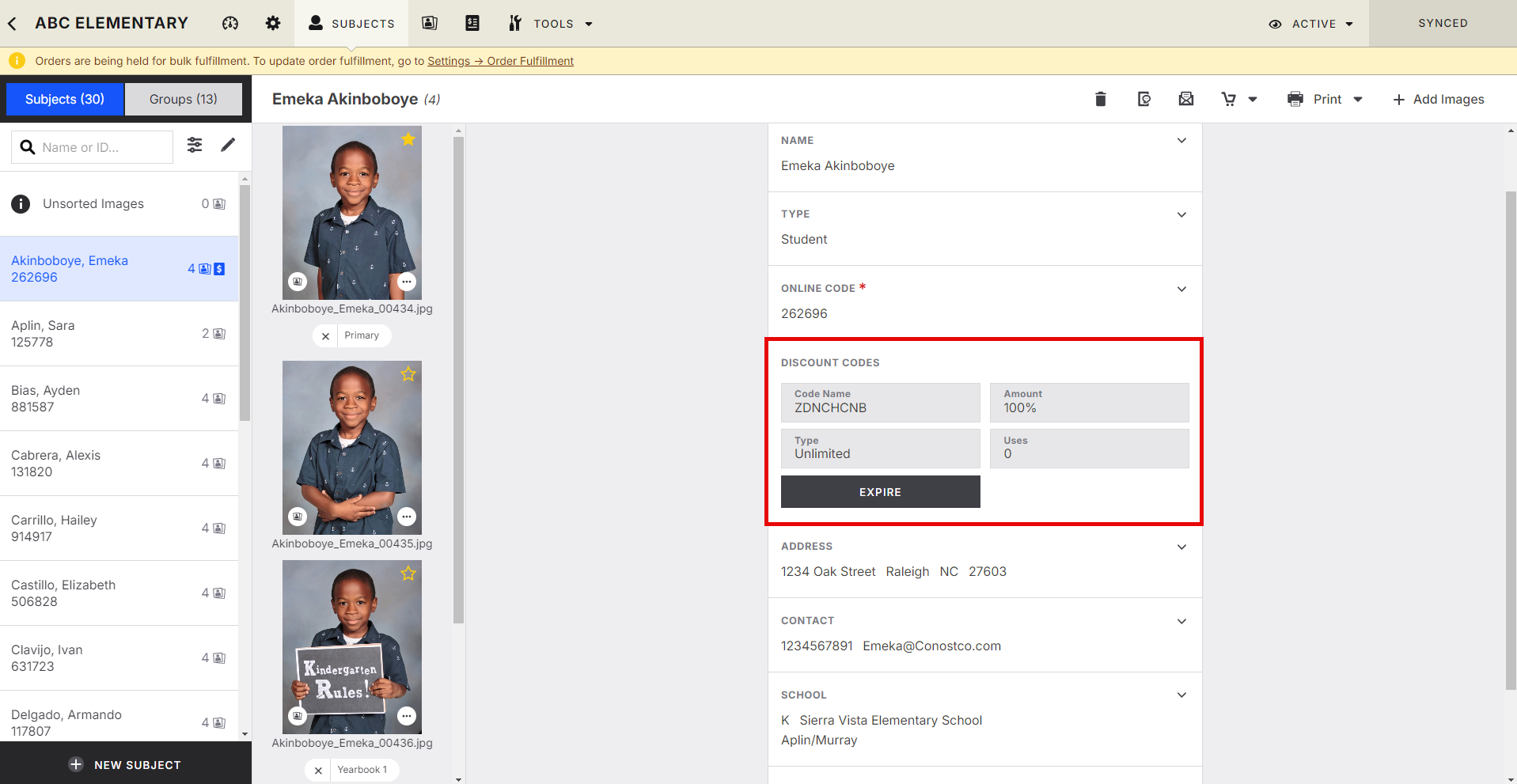
When a customer earns a Based-on Order Discount Code, a new Discount section appears within their Subject Data.
From here, you can:
View available Discount Codes.
Expire a Discount Code before it's used.
Customer Checkout Experience
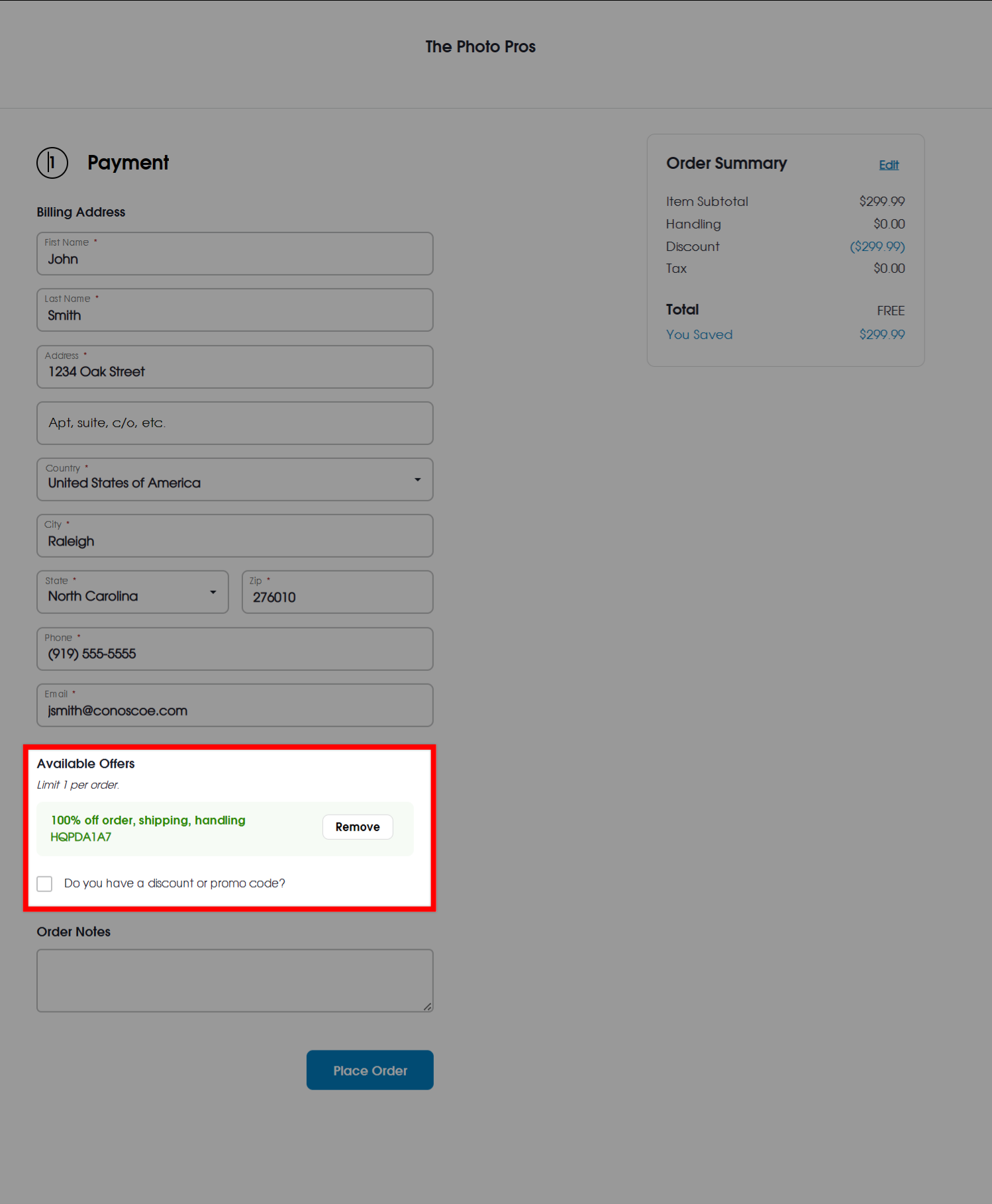
During checkout, customers will see any available Discount Codes before completing their purchase.
If Auto-Populate on Next Order is enabled, the best available Discount Code is automatically applied.
If multiple auto-applied Discount Codes are available, Workflow automatically applies the one that provides the greatest savings.
Apply Discounts to Orders or Products
Discount Codes can apply to either the entire order or specific products.
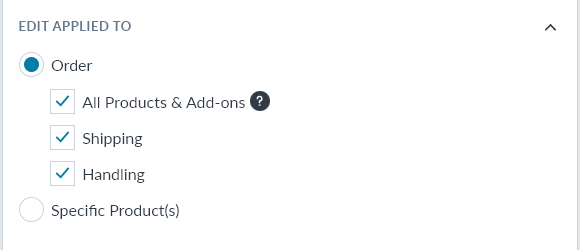
Order Discount
Order Discount Codes can be applied to:
Entire Order
Shipping
Handling
Customers enter the Discount Code during checkout.
Product Discount
Product-specific Discount Codes only apply to selected products from your Price Sheets.
Each Discount Code applies to one qualifying product per order.
For example, if you're offering 50% off Digital Downloads, only one eligible Digital Download receives the discount.
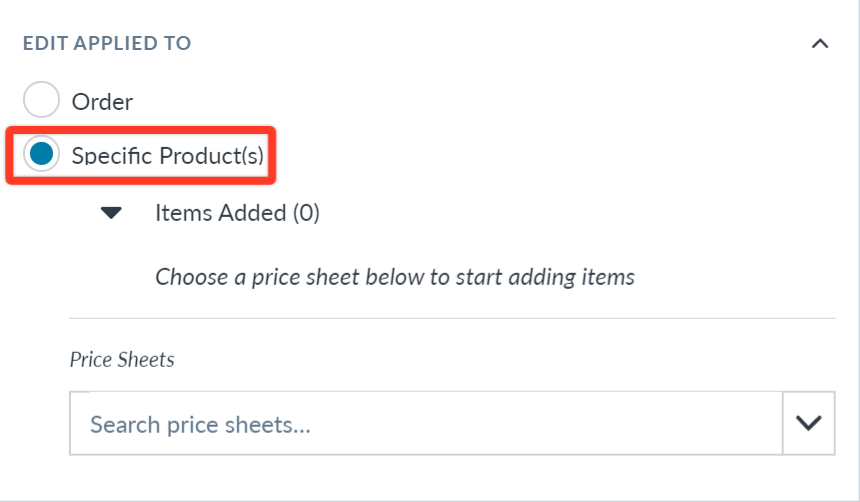
Use the drop-down to choose from your active price sheets. You select multiple items from multiple price sheets for the discount code:
Create a Product-Specific Discount Code
When creating your Discount Code:
Change Applied To from Order to Specific Product(s).
Select the qualifying products from one or more active Price Sheets.
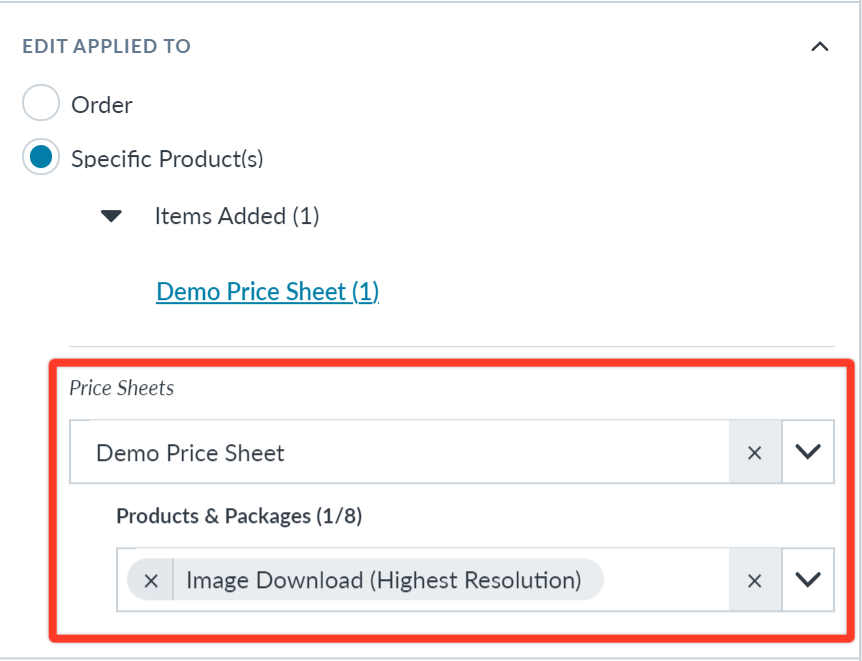
Workflow allows you to select products across multiple active Price Sheets.
View Eligible Products
To see which products a Discount Code applies to:
Open the Discount Code.
Select the associated Price Sheet.
Workflow displays the qualifying items for that Discount Code.
Advanced Options / Additional Rules
Discount Codes are case-sensitive.
Discount Codes can contain up to 15 characters.
Product-specific Discount Codes apply to one qualifying product per order.
Based-on Order Discount Codes must be attached to stand-alone products and cannot be included in packages.
Codes expire at midnight EST on the selected expiration date.
If multiple auto-applied Based-on Order Discount Codes are available, Workflow automatically applies the one that provides the greatest value to the customer.
Common Questions
Q: What's the difference between Global and Job Specific Discount Codes?
A: Global Discount Codes can be used across multiple jobs or job types, while Job Specific Discount Codes only work on the job you assign them to.
Q: Can I create multiple Discount Codes at once?
A: Yes. Batch creation allows you to generate multiple unique Global or Job Specific Discount Codes with optional custom prefixes or suffixes.
Q: Can I use a Based-on Order Discount Code inside a package?
A: No. Based-on Order Discount Codes must be attached to a stand-alone product and cannot be included in a package.
Q: What happens if a customer has more than one automatic Discount Code?
A: Workflow automatically applies the Discount Code that provides the greatest savings to the customer.
Q: Can I limit a Discount Code to specific products?
A: Yes. Select Specific Product(s) when creating the Discount Code and choose the eligible products from your active Price Sheets.