Using Based‑On‑Order Discount Codes for Staff, Coaches, or Special Offers
Brief Overview
Learn how to create dummy orders to apply Based‑on‑order discount codes to allow studios to automatically provide free or discounted items—such as complimentary digitals for teachers, coaches, or staff—without requiring customers to manually enter a code. Once configured, the discount appears directly in the subject’s online gallery, creating a seamless checkout experience.
Overview & Objective
In this article, you’ll learn how to set up a based‑on‑order discount code, attach it to a hidden product, create orders to apply it to all subjects or selected subject groups in a job. This workflow is especially useful when you want certain groups (e.g., teachers, coaches, staff) to receive free or discounted items without needing to remember or enter a code. It also helps maintain consistency and reduces customer confusion.
Setup / Configuration
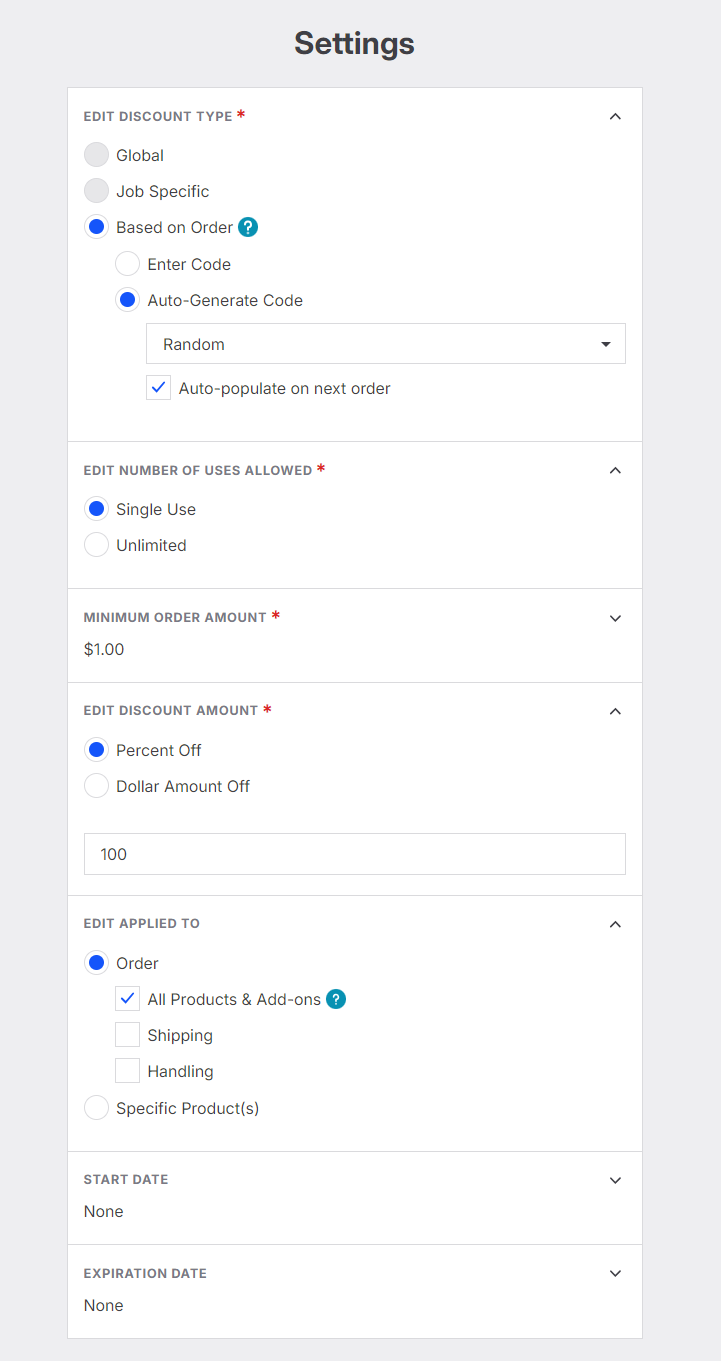
Create the Based‑On‑Order Discount Code
Go to Create Discount Code.
Select Based on Order.
Name the code or allow it to auto‑generate.
Enable Auto‑populate on next order so the discount appears automatically in galleries.
Set the code to Single Use.
Choose the discount amount (e.g., 50% off or 100% or dollar amount off).
Choose if the discount will be applied to All products, Shipping or specific products.
For specific products select the price sheet containing the product you want to discount (e.g., digital downloads).
Save the discount.
Add a Hidden Product to Your Price Sheet
Open your Price Sheets.
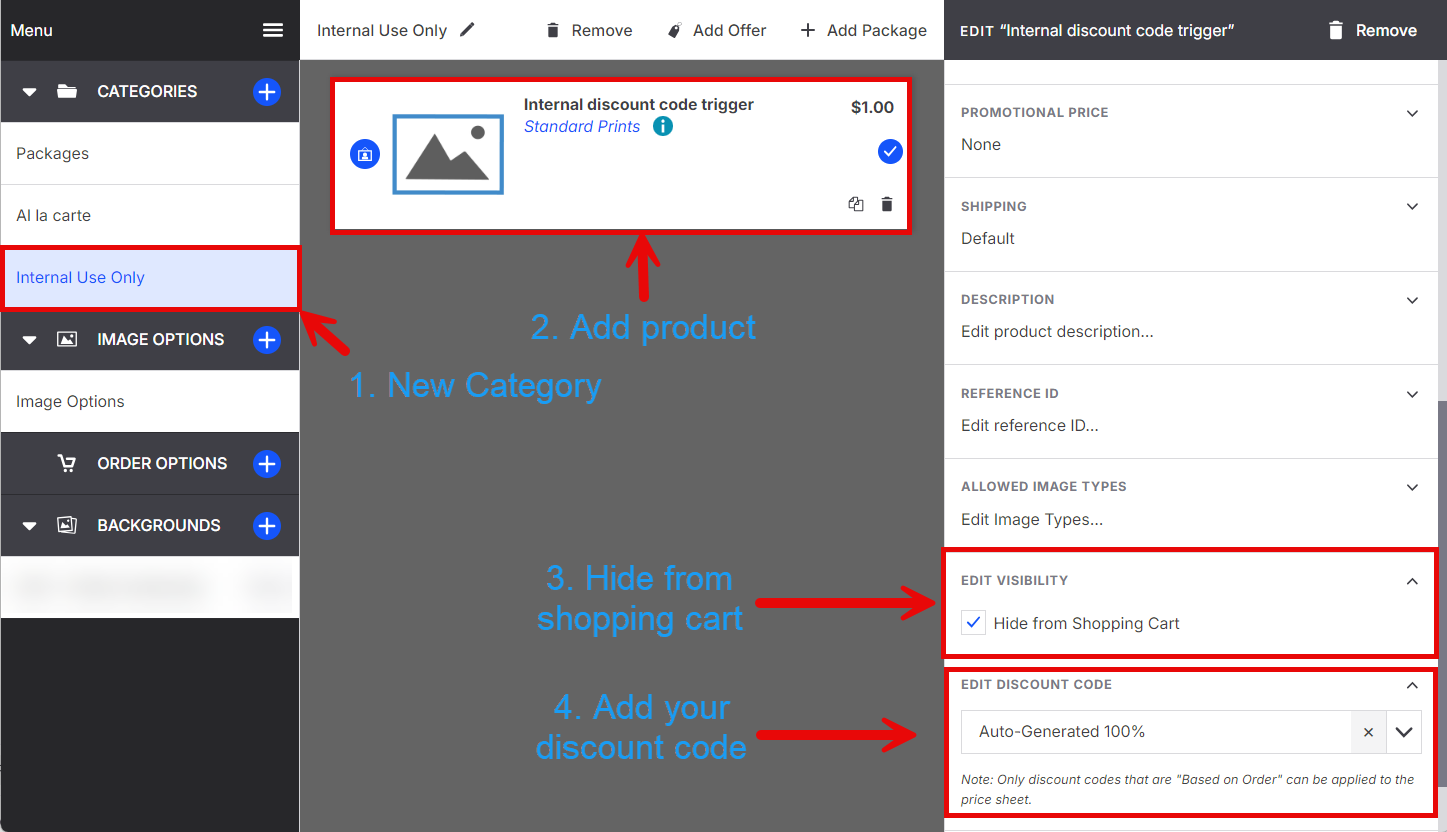
Create a new category (e.g., Internal use Only).
Add a product:
Use a standard print or
Create a dummy product under My Designs.
Set the Minimum Order Amount to match your discount requirement.
Set the product’s Visibility to Hidden.
Assign the discount code you created to the product in the price sheet.
Save and Sync the price sheet to the job.
💡 PRO TIP
Use a dummy product or a standard print with no mapping to avoid accidental customer visibility. Always double‑check that the product is hidden before syncing.
Apply the Discount to All subjects
Apply the discount code
Open the job where subjects should receive the discount.
Go to the Orders tab.
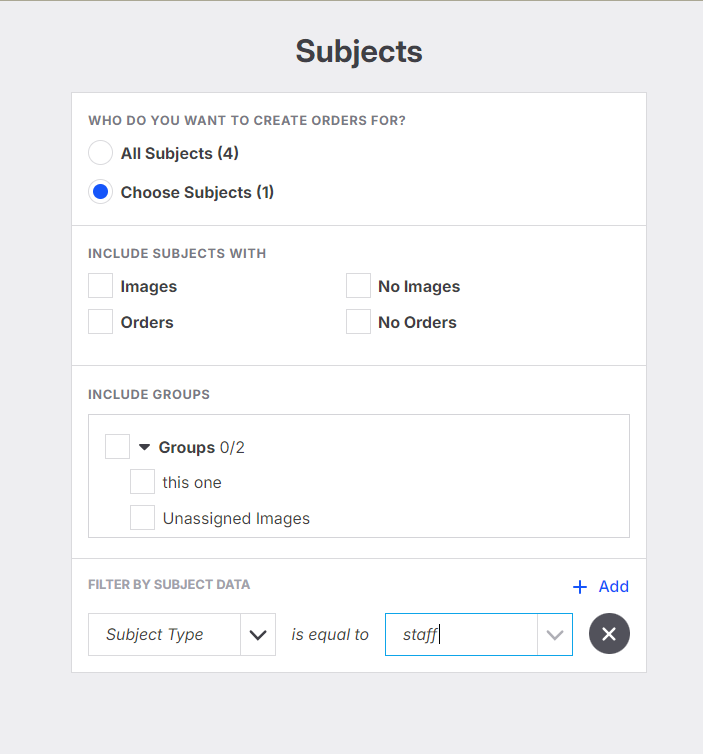
Select Tools → Add Bulk Order for All Subjects.
Choose to apply to all subjects or filter for subjects
Choose the hidden product with the discount code attached.
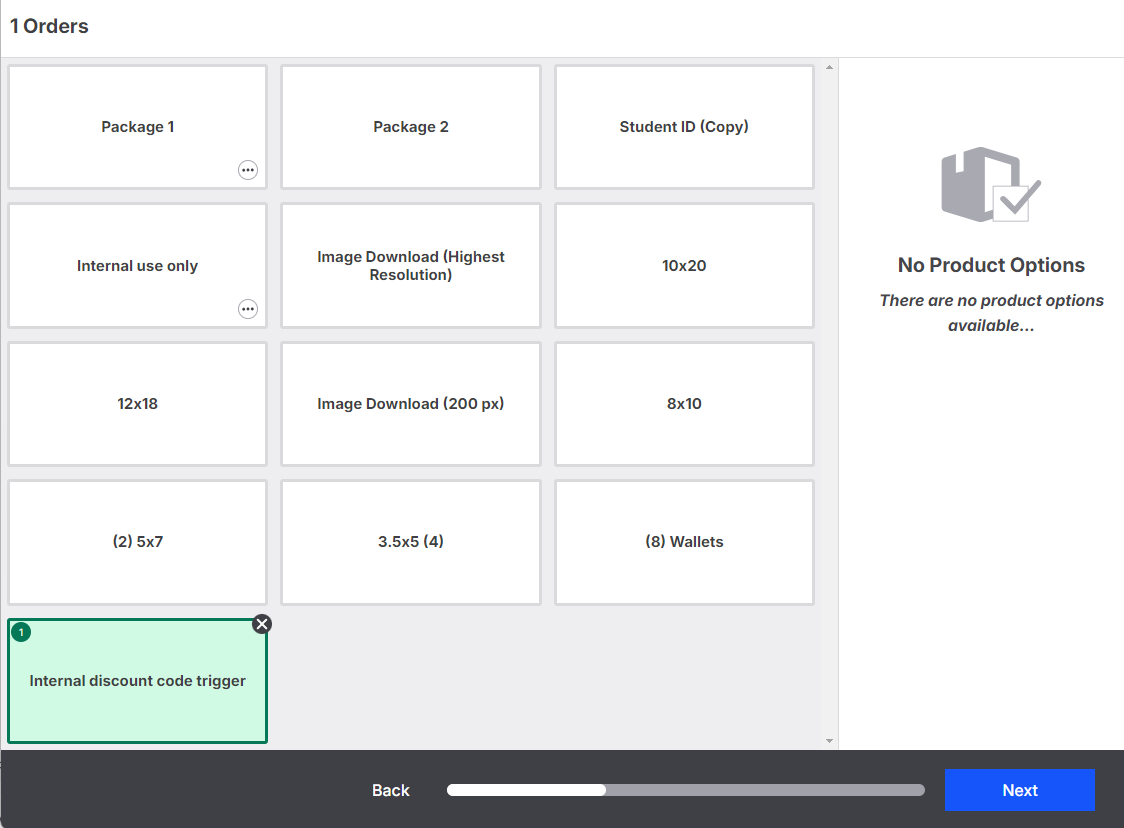
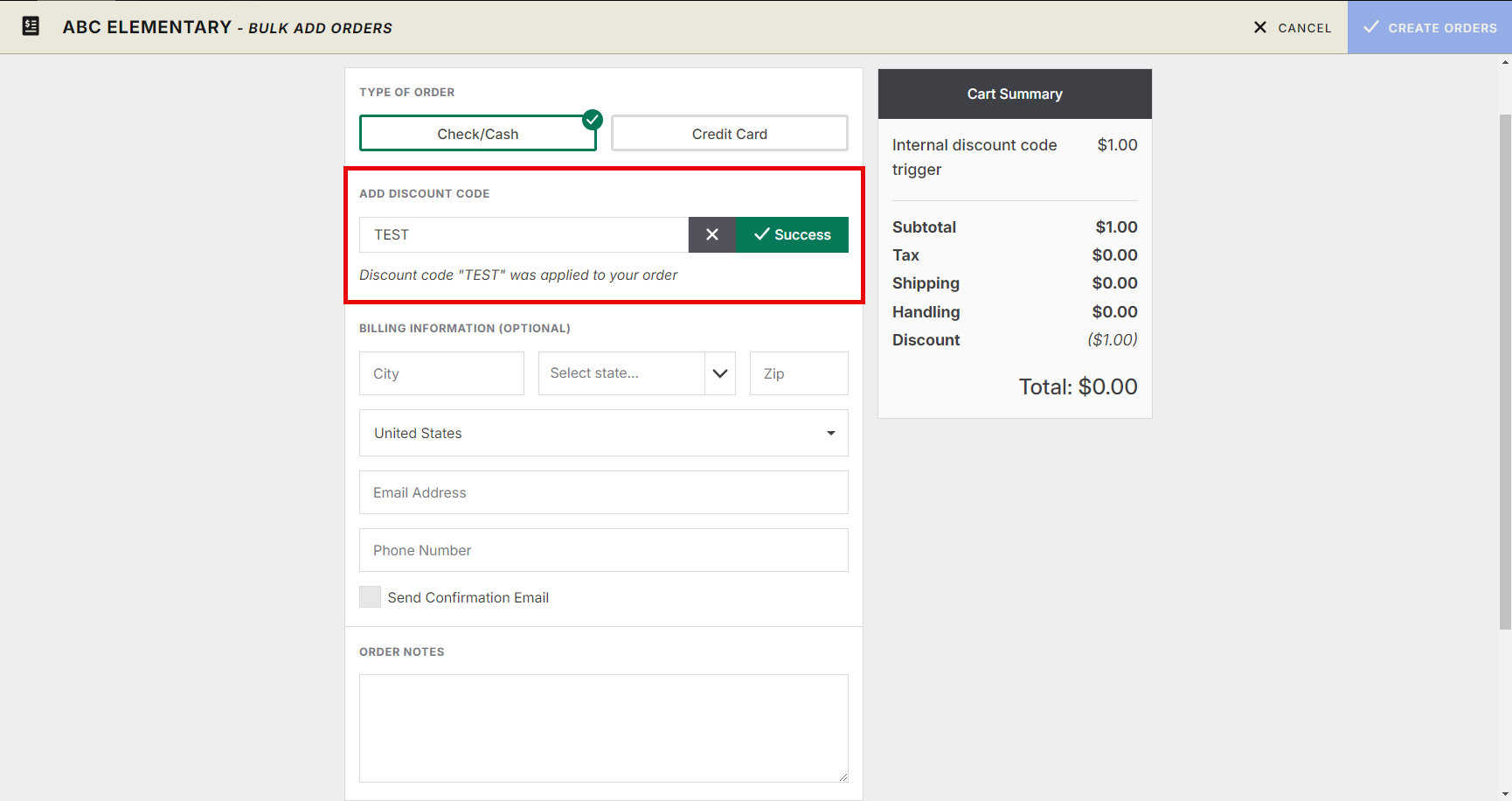
Proceed through checkout (these orders are Cash & Check, so no payment is required).
If needed, apply a 100% off test code to bring the total to $0
Complete the order and Sync the job.
Learn more about how to create a test discount code here: Getting Started with Discount Codes
Verify the Discount
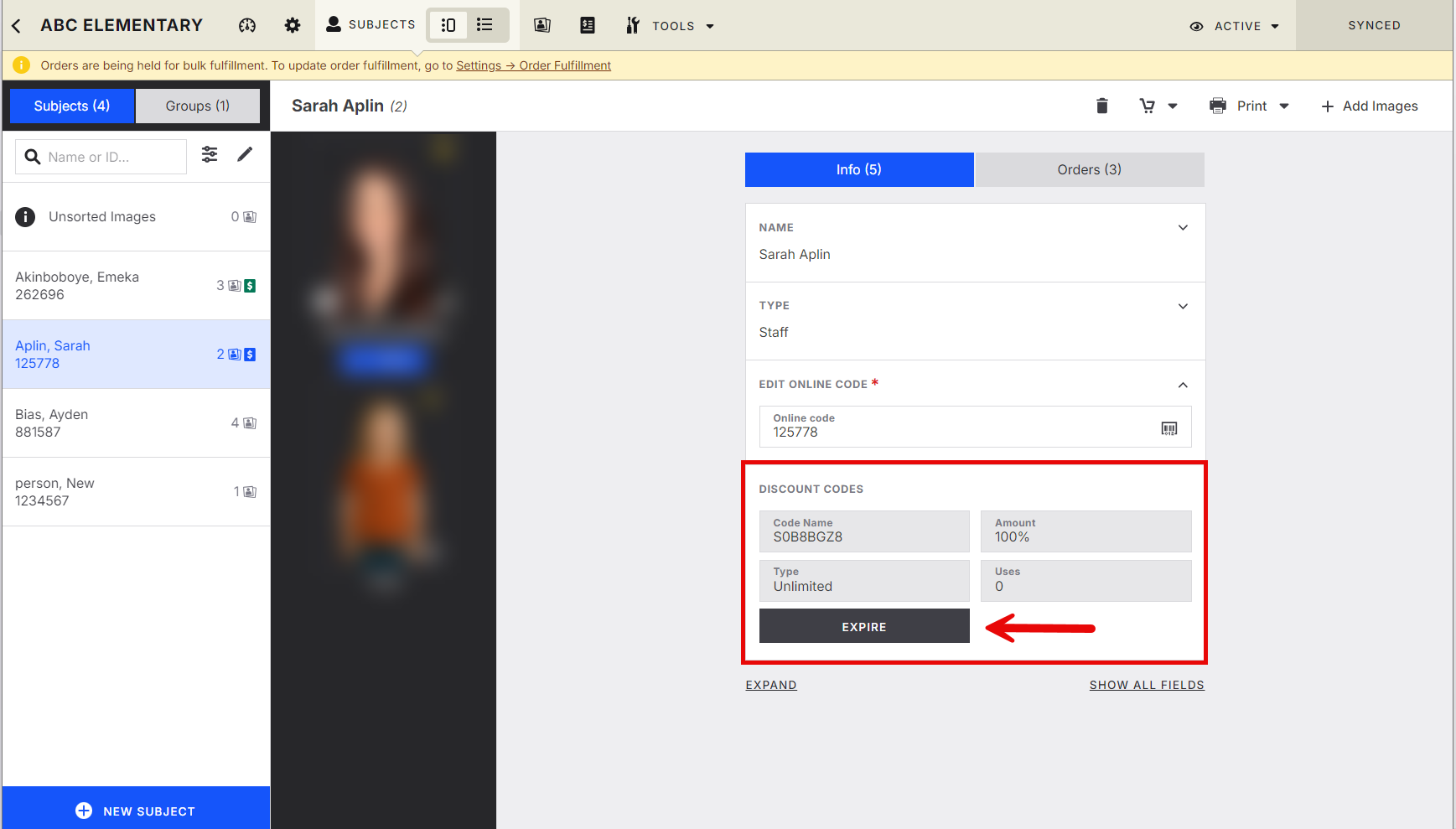
Open any subject in the job that had the discount applied.
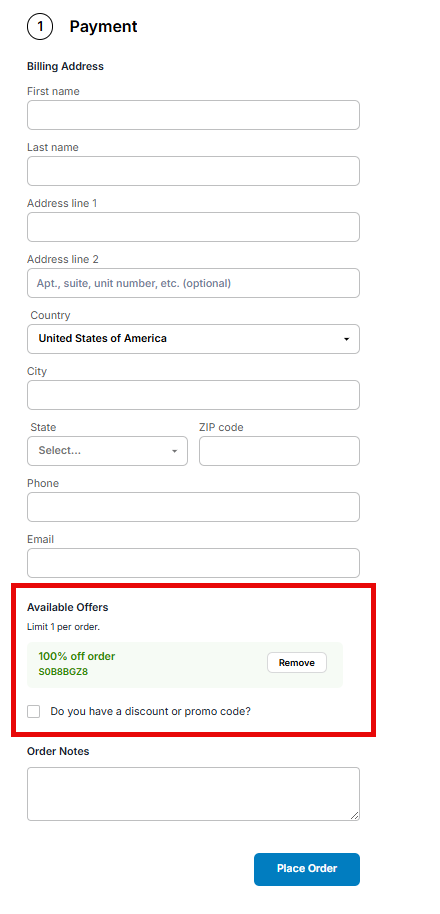
Confirm that the discount code now appears in their gallery.
💡 PRO TIP:
If you do not see the discount code, Clear your local job storage: Jobs tab → Tools → Clear local job storage
Learn more here: Clear Local Job Storage (without losing your settings)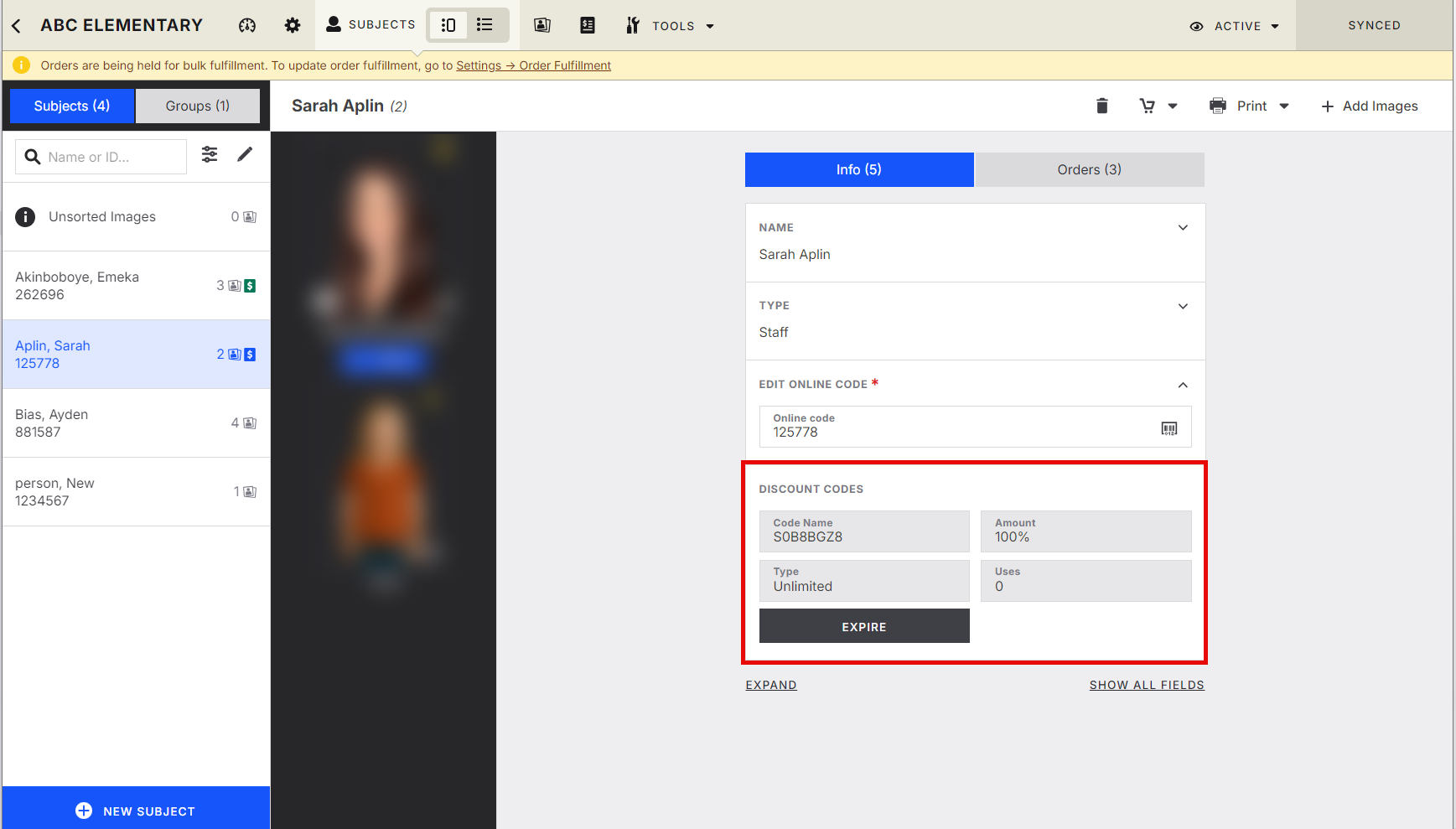
Advanced Options / Additional Rules
Multiple Discounted Products:
You can attach the discount to multiple products if needed.Different Discount Types:
Discounts can apply to:A specific product
The entire order
A percentage or fixed amount
Existing Discount Codes:
If you already have a 100% off test code, you can use it during the bulk order to ensure the total is $0.Visibility Control:
Hidden products never appear to customers but still trigger the discount logic.
Common Questions
Q: Will customers see the hidden product in their gallery?
A: No. As long as visibility is set to Hidden, only the studio can see it.
Q: Can I reuse the same discount code for multiple jobs?
A: Yes, but ensure it is set to Single Use so each subject can only redeem it once.
Q: What if I want to give different discounts to different groups (e.g., teachers vs. coaches)?
A: Create separate discount codes and separate hidden products, then run bulk orders for each group.
Q: Do I need to sync after each step?
A: Yes. Syncing ensures the price sheet and discount logic update correctly in the job.
Q: If I make a mistake, can I remove the discount?
A: Yes, Got to the subject and click on the discount code and click "Expire". This will stop the discount code from being able to be used.