
Scheduling a Job Expiration Date
Brief Overview
A Job Expiration Date lets you set a deadline for online ordering. Once the deadline passes, customers can no longer place orders through the gallery and will instead see your configured Gallery Expired Message.
Setting an expiration date helps you keep your ordering schedule on track while clearly communicating deadlines to your customers.
Setup / Configuration
You can configure a Job Expiration Date when creating a new job or update it at any time from the job's settings.
When setting an expiration date, you'll specify:
Date
Time
Time Zone
After the expiration date and time have passed:
Online ordering is no longer available for the job.
Customers who sign in to the gallery will see the Gallery Expired Message configured in the job's Shopping Cart Template.
💡 PRO TIP: Remember to Sync and Save after making changes. Your expiration date won't be applied until both actions are complete.
Step-by-Step Instructions
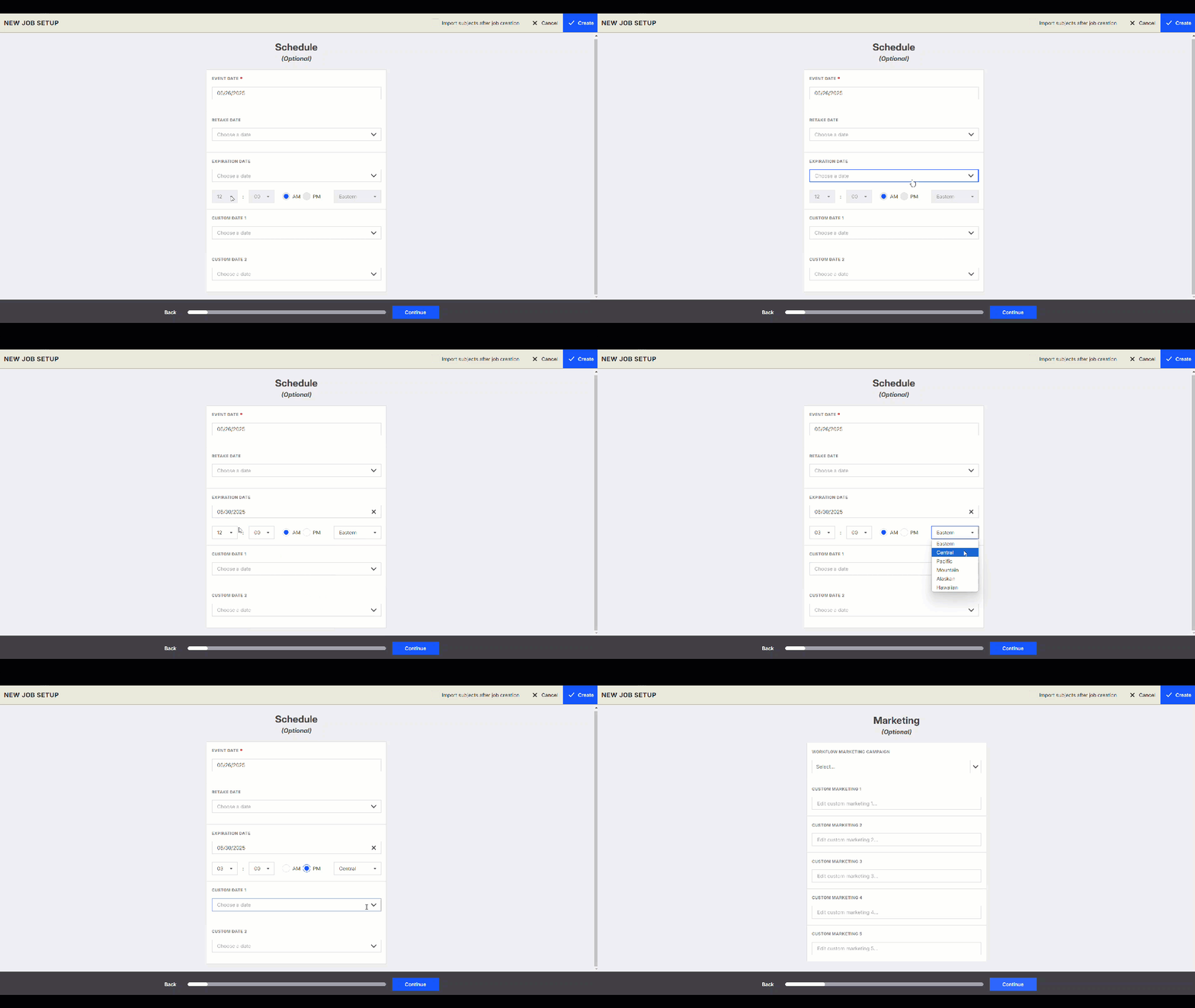
Set an Expiration Date During Job Creation
Create a new job.
Expand the Schedule section under the optional job settings.
Enter the:
Expiration Date
Time
Time Zone
Continue configuring your job.
Sync and Save your changes.
Update an Existing Job
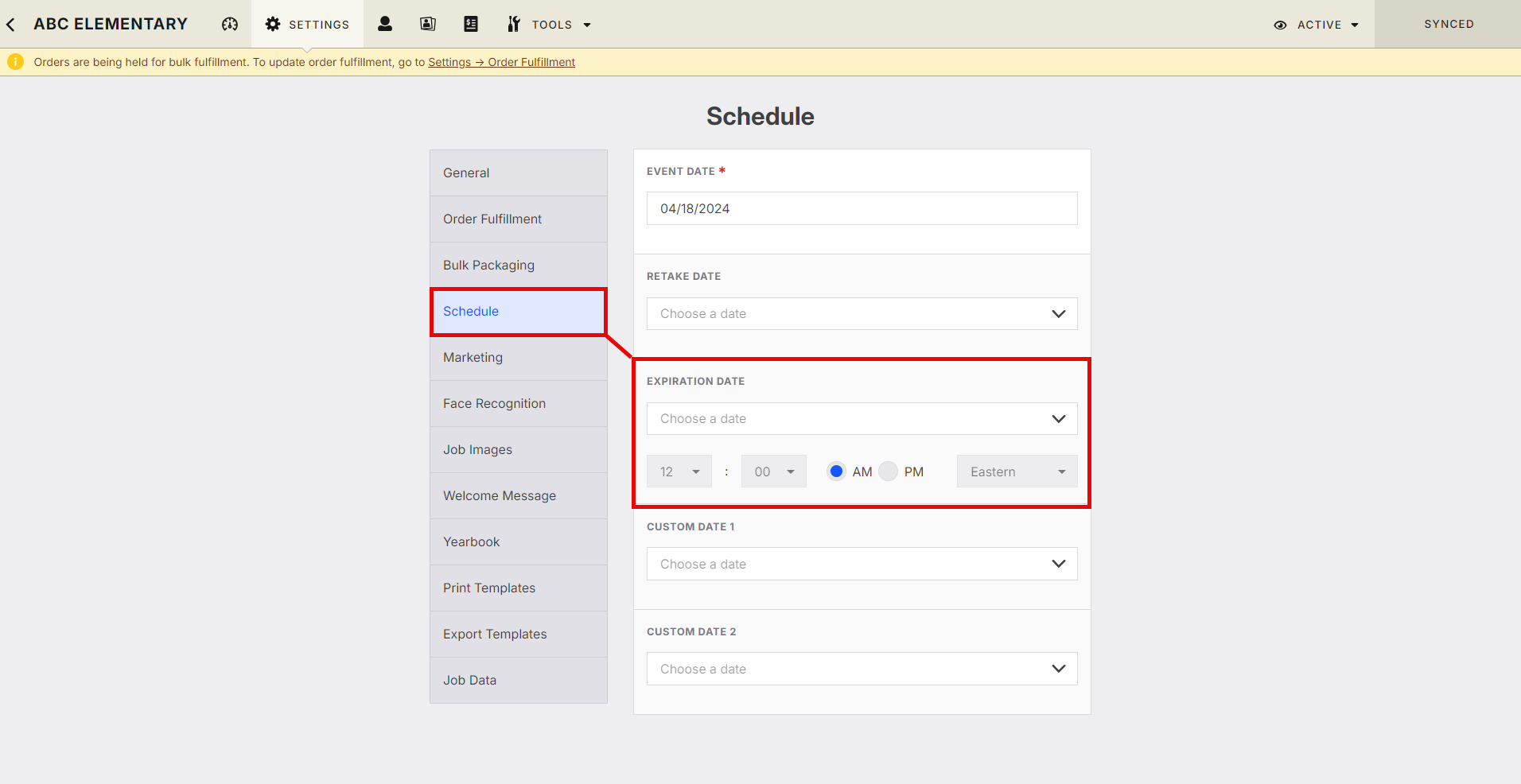
Open the job you want to edit.
Select Job Settings.
Open the Schedule section.
Update the expiration Date, Time, and Time Zone.
Sync and Save your changes.
Advanced Options / Additional Rules
Customers can continue placing online orders until the exact expiration date, time, and time zone you've configured.
After the expiration occurs, the gallery remains accessible, but ordering is disabled.
The message customers see after expiration is controlled by the Gallery Expired Message in the job's Shopping Cart Template.
Common Questions
Q: Can I change a Job Expiration Date after the job has been created?
A: Yes. Open the job, go to Job Settings > Schedule, update the expiration date, then Sync and Save your changes.
Q: What do customers see after a job expires?
A: Customers who sign in to the gallery after the expiration date will see the Gallery Expired Message configured in the job's Shopping Cart Template, and they won't be able to place online orders.