
How do I undo my changes and start fresh?
Learn how to restore a Job to the latest version synced to the cloud.
Undo local changes to a Job
Sometimes things don't go as planned. Whether you made changes by accident or simply want to start over, you can restore your Job to the last version synced to the cloud.
Important: This only works if your changes haven't been synced yet. Once changes are synced, they can't be undone.
To restore a Job
Open Job Settings.
Select Job Data.
Click Revert.
Select Yes! Revert Job.
In the confirmation window, click Revert again to permanently remove all local changes and restore the latest synced version.
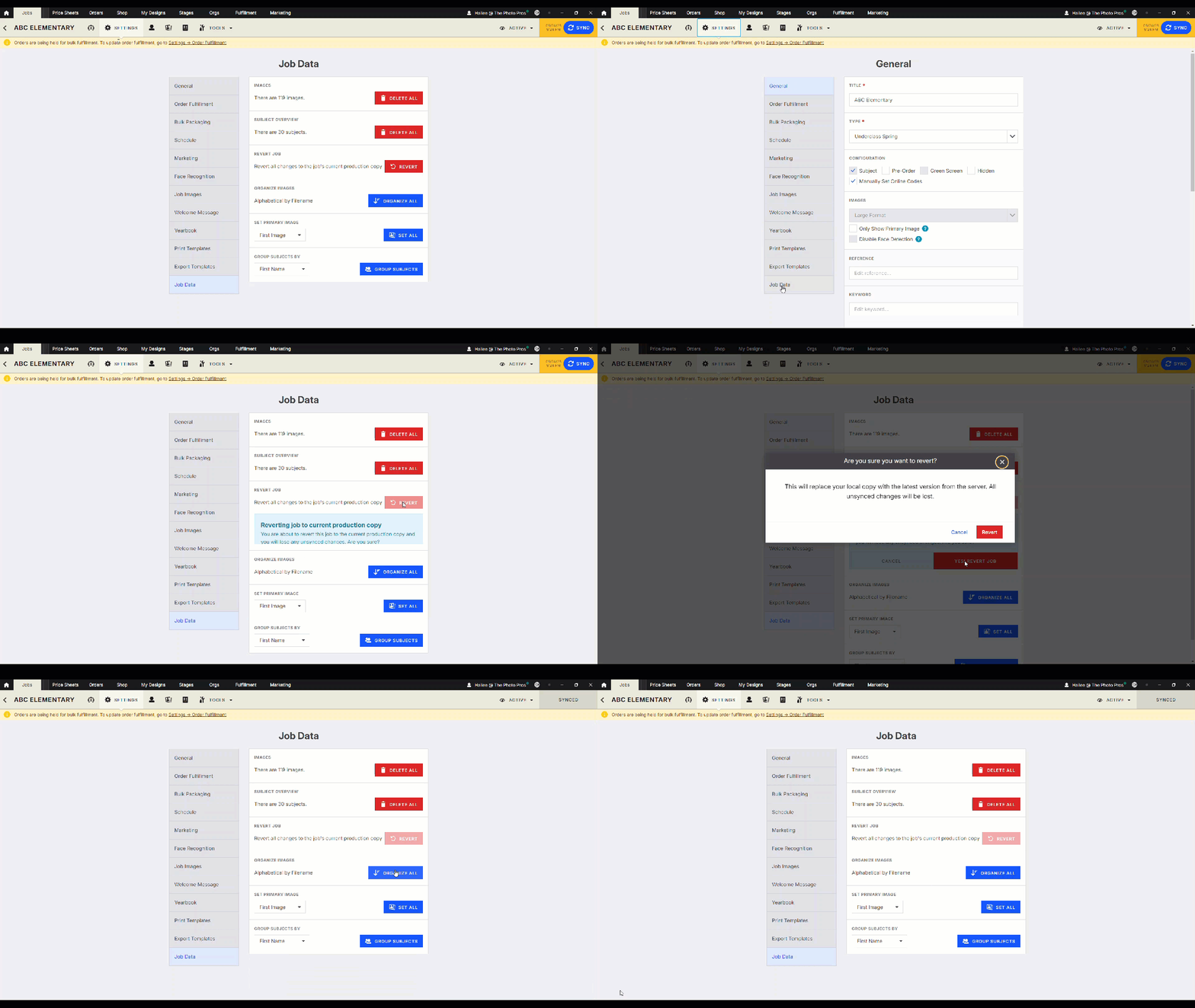
Note: If Revert is unavailable, there are no local changes to restore.
Why use Revert?
Revert lets you quickly return to a known good version of your Job without manually undoing changes. It can save valuable time when something goes wrong.
We recommend syncing your Jobs regularly. The more often you sync, the more recent your restore point will be.
Already synced your changes?
Once changes have been successfully synced to the cloud, they can't be reverted. If you synced by mistake, you'll need to manually make any required changes.