
Letting Subjects select the Yearbook Pose
Overview & Objective
The Yearbook Selection feature allows subjects to choose their own yearbook pose directly from their online gallery.
By allowing subjects to make their own selection, studios can reduce administrative work while ensuring each subject has the opportunity to choose their preferred image before yearbook production.
Once the selection deadline has passed, studio staff can review any remaining subjects and complete outstanding selections within Captura Workflow.
Setup / Configuration
Yearbook Selection is enabled at the Job level.
Once enabled, you can choose:
The number of poses each subject can select
A custom message displayed during the selection process
A selection deadline
Recommended Workflow
Captura recommends the following workflow for managing Yearbook Poses:
Upload images with Yearbook Selection enabled.
(Premium Memberships) Send a marketing campaign to notify subjects.
Subjects select their Yearbook Pose through their online gallery.
After the due date, studio staff complete any remaining selections.
Filter subjects who still need a Yearbook Pose.
(Smart Workflow) Filter images for subjects without Yearbook Poses.
Export the completed selections for yearbook production.
Note: The Yearbook Selection Tool allows both subjects and studio staff to select up to two Yearbook Poses, depending on the Job configuration.
💡 Pro Tip: Set a clear due date and include helpful instructions in your custom message to encourage subjects to complete their selections before the deadline.
Supports Popular Yearbook Exports: Captura Workflow supports popular Yearbook export formats, including PSPA and PowerSchool.
Step-by-Step Instructions
Step 1: Open the Yearbook Settings
Within your Job, navigate to:
Job Settings > Yearbook
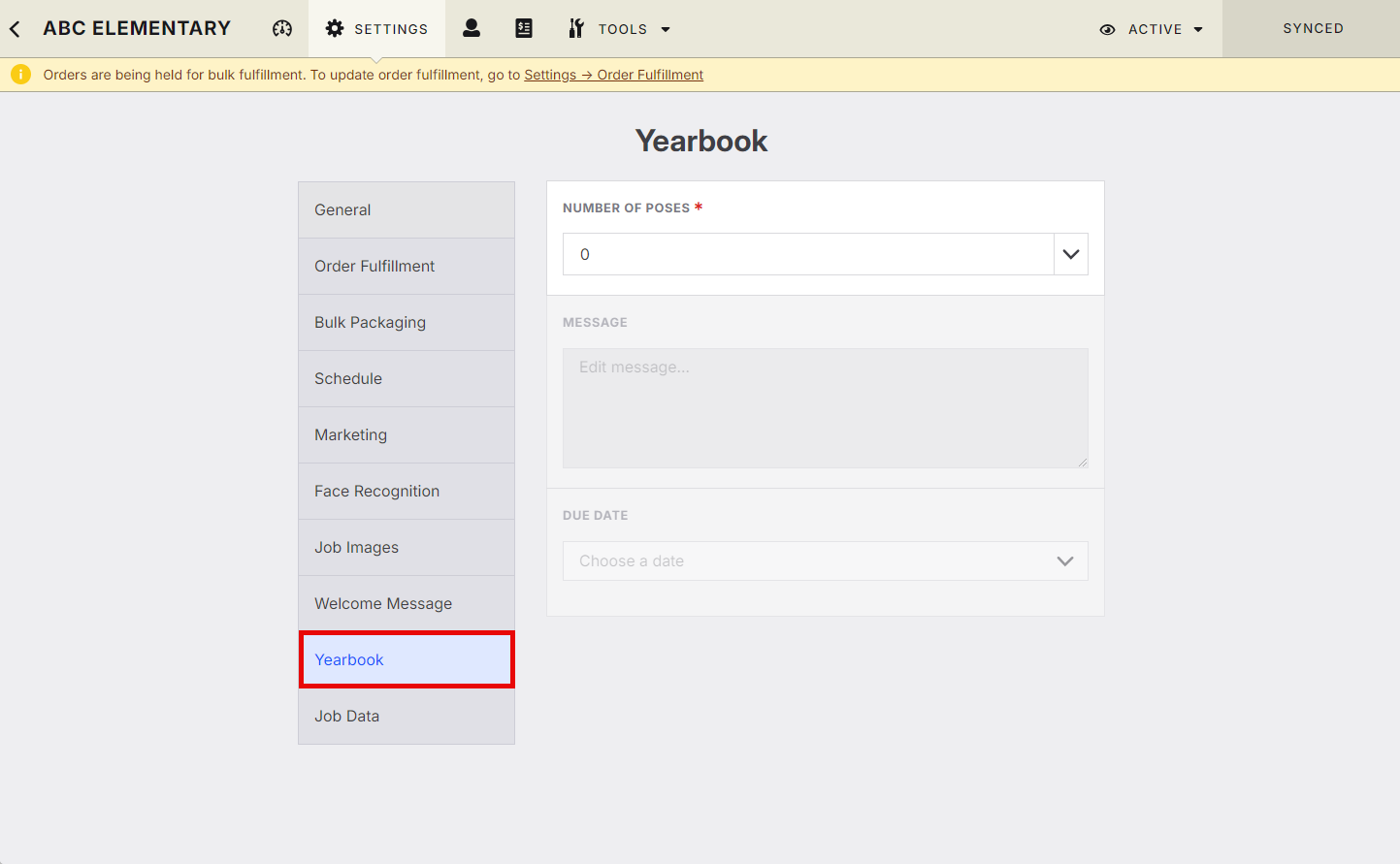
Step 2: Configure Yearbook Selection
Choose the settings that best fit your workflow.
Setting | Description |
|---|---|
Number of Poses | Select how many poses each subject can choose (1 or 2). Select 0 to disable the Yearbook Selection tool. |
Message | Enter a custom message that subjects will see while making their selection. Use this to provide instructions or important information. |
Due Date | Set the final date subjects can submit their selections. Selections close at midnight EST on the selected date. Studio users can continue making selections after the deadline. |
Step 3: Save Your Changes
Once Yearbook Selection is configured, save the Job settings.
Subjects will now be able to select their Yearbook Pose from their online gallery.
Step 4: Subject Selection Experience
When Yearbook Selection is enabled, subjects will see a Choose Yearbook Pose option above their gallery images.
From there they can:
Click Change Photo to choose a different image and confirm their selection.
Keep the current image as their selected Yearbook Pose.
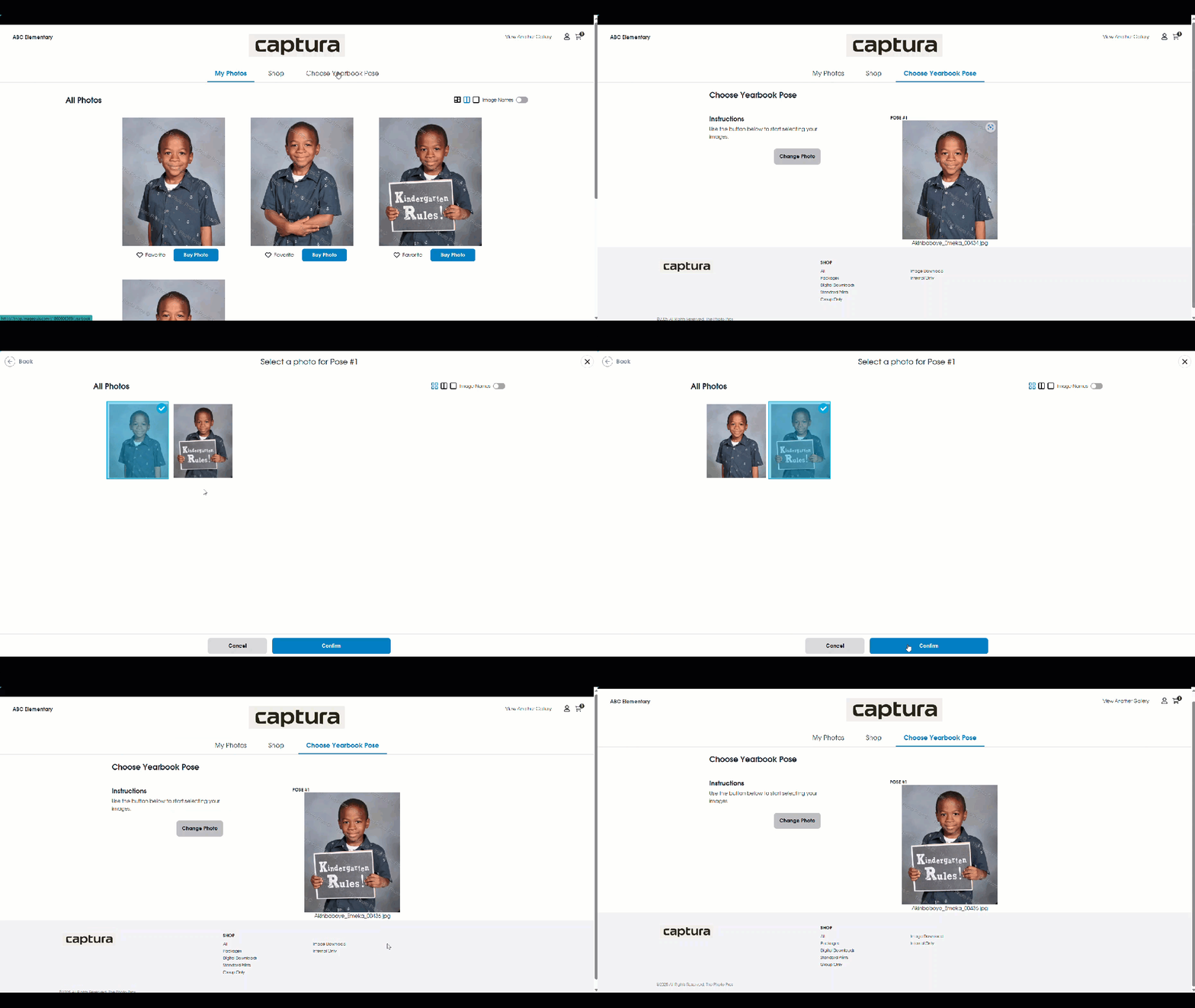
Step 5: Review Outstanding Selections
Captura Workflow provides filters to help you track Yearbook selections.
Available filters include:
Subjects without a Yearbook Pose
Images for subjects without Yearbook Poses (Smart Workflow required)
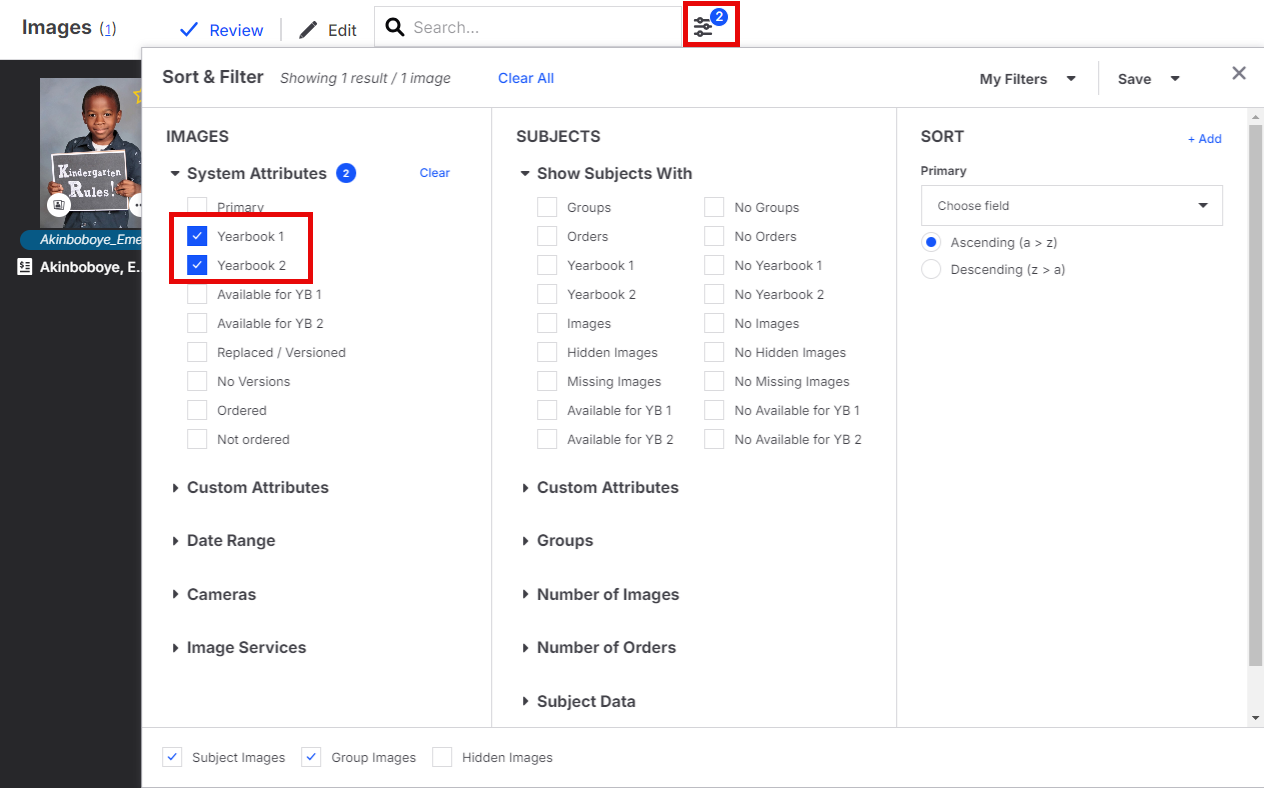
Note: All memberships can filter for subjects without Yearbook Poses. Filtering images by Yearbook Pose requires Smart Workflow.
Step 6: Export Yearbook Data
Once all selections have been completed, use the Subject Data + Images Export to generate a dataset for your Yearbook administrator.
Smart Workflow members can save this export as a Custom Export for future use.
Advanced Options / Additional Rules
Yearbook Selection Workflow
Stage | Action |
|---|---|
Upload Images | Enable Yearbook Selection before subjects begin viewing their galleries. |
Notify Subjects | Premium Memberships can send a marketing campaign encouraging subjects to make their selection. |
Subject Selection | Subjects choose their preferred Yearbook Pose online. |
Studio Review | After the deadline, studio staff complete any remaining selections. |
Export Data | Export the completed subject and image data for yearbook production. |
Selection Deadlines
Before the Due Date | After the Due Date |
|---|---|
Subjects can select or change their Yearbook Pose. | Subjects can no longer make selections. |
Studio users can make selections. | Studio users can continue making selections within Captura Workflow. |
Common Questions
Q: How many Yearbook Poses can a subject choose?
A: You can configure the Job to allow one or two Yearbook Poses. Setting the value to 0 disables the feature.
Q: Can subjects change their selection after the due date?
A: No. Subjects can only make selections until the configured due date. Studio users can continue making selections after the deadline.
Q: Can studio staff make Yearbook selections?
A: Yes. The Yearbook Selection Tool allows both subjects and studio users to make selections directly within Captura Workflow.
Q: Can I see which subjects still need a Yearbook Pose?
A: Yes. Captura Workflow includes filters to identify subjects who have not yet made a Yearbook Pose selection. Smart Workflow also includes image-based filtering.
Q: What export formats are supported?
A: Captura Workflow supports popular Yearbook exports, including PSPA and PowerSchool.
Q: Can I reuse my Yearbook export?
A: Yes. Smart Workflow members can save the Subject Data + Images Export as a Custom Export for future use.
Need Help?
If you need assistance creating or customizing a Yearbook export, chat with a Product Support Specialist. They can help you recreate the export that best fits your yearbook workflow: support@captura.io