
Getting your Device Logs
Send Your Logs to the Captura Support Team
Sending your Workflow logs gives the Captura Support team additional information about what was happening in Workflow when you experienced an issue. These details can help our team investigate the problem and get you moving again faster.
To send your logs:
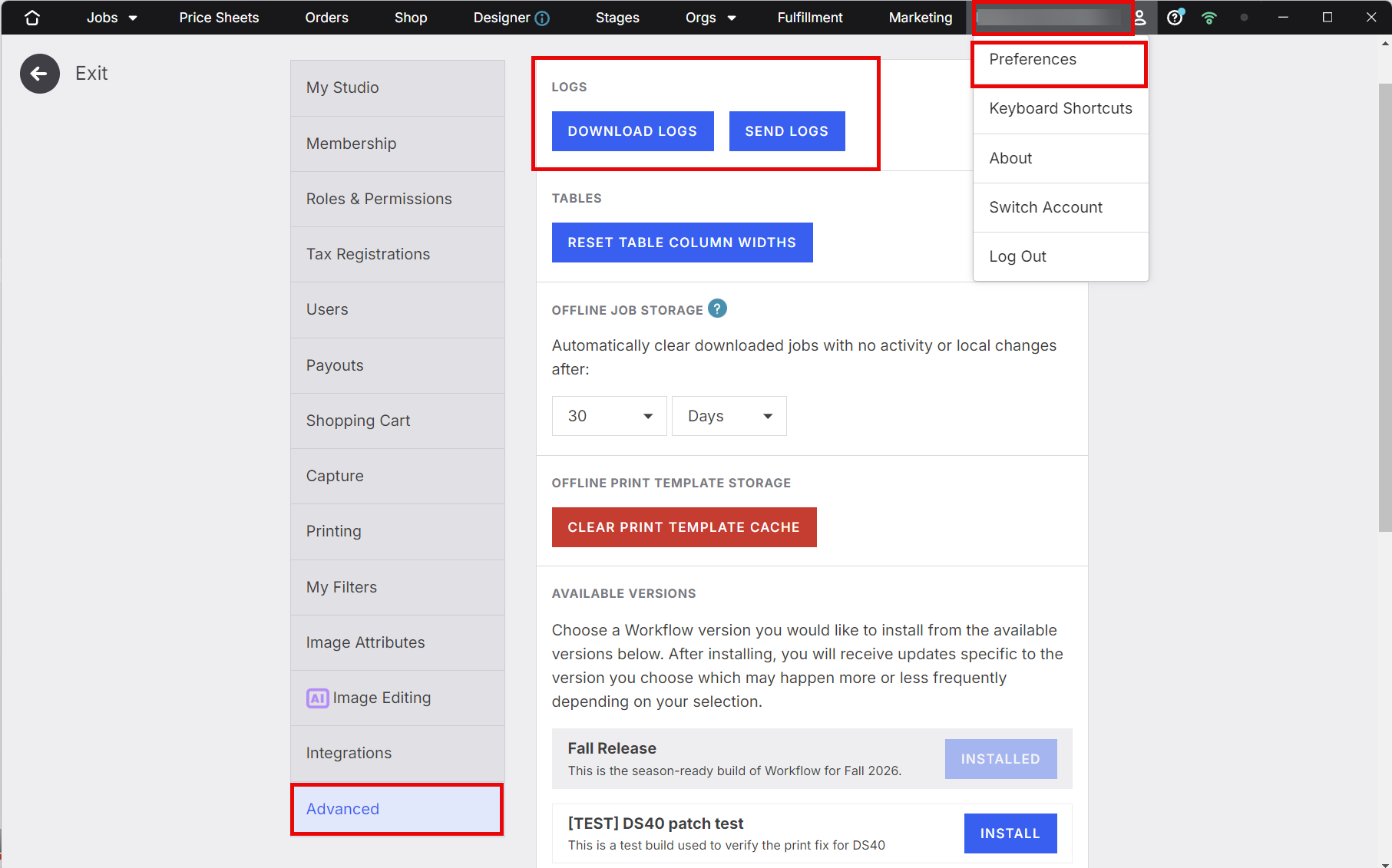
In Captura Workflow, go to the top-right corner of the screen.
Click Name @ Studio to open the menu.
Select Preferences.
Open the Advanced tab.
Click Send Logs.
Workflow will send the relevant log information to the Captura Support team for review.
💡 PRO TIP: Send your logs as soon as possible after experiencing the issue. When contacting Support, include a brief description of what happened and what you were doing when the issue occurred. This gives our team more context to use alongside the logs.
What happens when I send logs?
The Send Logs button sends the Captura Support team a folder of diagnostic information that can help with troubleshooting. Sending logs does not automatically open a Support request, so if you haven’t already contacted our team, reach out to Support and let them know you’ve sent your logs.