
Setup automatic holding of job orders for bulk fulfillment
Brief Overview
Overview & Objective
By default, customer orders are automatically released to the lab for fulfillment. If you prefer to review orders before they're sent, you can configure a Job to hold orders for manual release.
This is ideal for studios that want to perform quality assurance (QA), correct order details, or release multiple orders together for bulk fulfillment.
Setup / Configuration
Automatic order holding is configured at the Job level. Once enabled, every new order placed for that Job will remain on hold until your studio manually releases it to the lab.
Holding orders allows you to:
Review orders before production
Correct pose selections, crops, backgrounds, or filters
Batch multiple orders together
Coordinate bulk shipping or event deliveries
Improve quality control before fulfillment
💡 Pro Tip: Enable order holding for large school, sports, or seasonal Jobs where reviewing multiple orders together can help reduce errors and shipping costs.
Step-by-Step Instructions
Step 1: Open or Create a Job
Navigate to Jobs.
Click + New Job to create a new Job, or
Open an existing Job you want to modify.
Step 2: Open Fulfillment Settings
Within the Job settings, locate the Order Fulfillment section.
Here you'll find the options that control how customer orders are released to the lab.
Step 3: Enable Manual Order Holding
Select Hold Orders for Manual Release.
With this option enabled:
Customer orders will not be sent automatically to the lab.
Every order will remain on hold until your studio reviews and manually releases it.
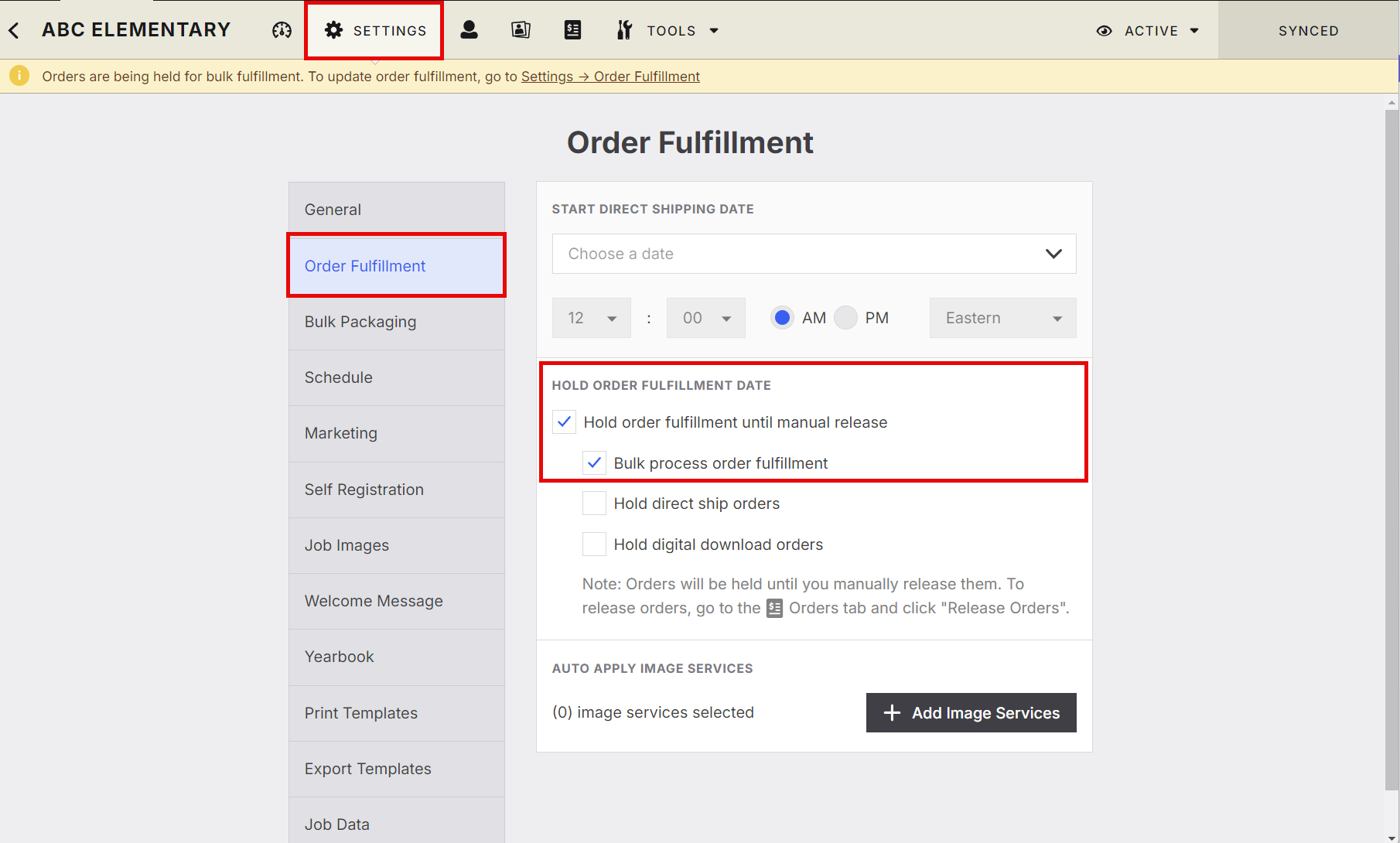
Step 4: Save the Job
Click Save to apply your changes.
New orders placed for this Job will now be held until they are manually released for fulfillment.
Advanced Options / Additional Rules
When to Use Automatic Order Holding
Automatic order holding is recommended when you need additional control over fulfillment, including:
Scenario | Benefit |
|---|---|
Quality Assurance (QA) | Review orders before printing to catch mistakes. |
Pose or Crop Changes | Update image selections before production. |
Green Screen Orders | Verify backgrounds before sending to the lab. |
Bulk Fulfillment | Release multiple orders together to simplify production and shipping. |
Large Events | Manage high order volumes more efficiently. |
What Happens When Orders Are Held?
Held Orders | Automatic Release |
|---|---|
Orders remain pending until manually released. | Orders are immediately sent to the lab after purchase. |
Studio staff can review and edit orders before production. | No review step before fulfillment. |
Ideal for bulk fulfillment and QA workflows. | Best for smaller Jobs or immediate production. |
Common Questions
Q: Why would I hold orders instead of releasing them automatically?
A: Holding orders gives your studio time to review customer orders, make corrections, and release multiple orders together for more efficient fulfillment.
Q: Can I edit an order while it's being held?
A: Yes. Held orders provide an opportunity to review and make any necessary adjustments before they're sent to the lab.
Q: Does enabling this affect existing orders?
A: This article does not specify how existing orders are handled. It only explains that orders placed while the setting is enabled will be held for manual release.
Q: Who should use automatic order holding?
A: Studios managing large events, school photography, sports photography, or any workflow that benefits from quality checks or bulk fulfillment typically benefit from this setting.
Need Help?
If you need assistance setting up automatic order holding or have questions about releasing orders, our Support Team is here to help.
Start a chat with us or email support@captura.io.