Themes, Backgrounds & Clip Art
Captura Yearbooks offers book themes, backgrounds and clip art collections to embellish your books.
Tip: Generate a catalog of the design elements included in the software – learn more about this dashboard feature.
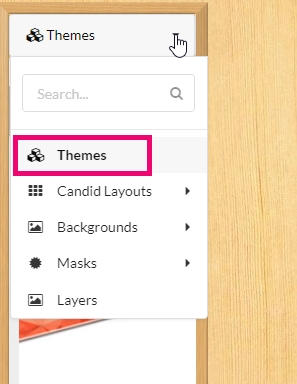
ThemesThemes are available on the left-side pane in the editor. |
|
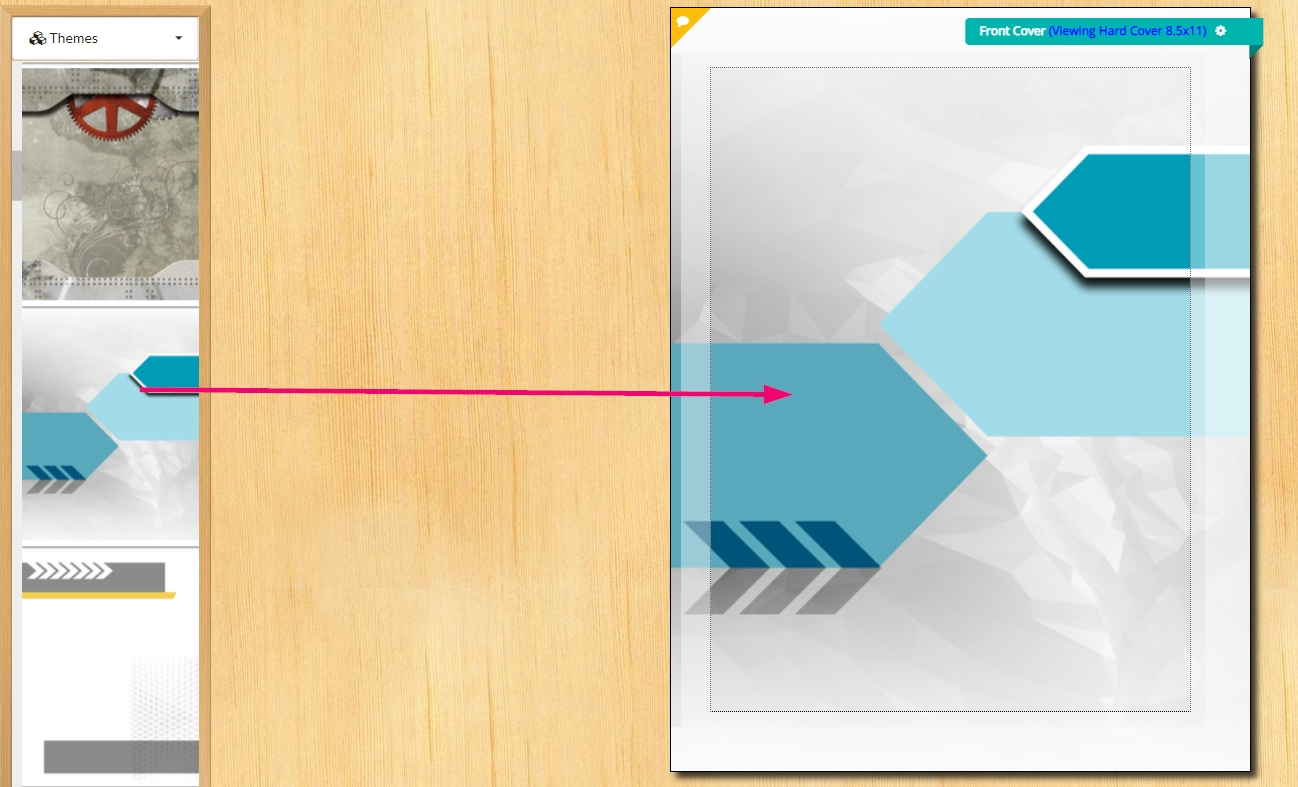
To add a theme, navigate to your cover page, then drag one of the designs to your cover. |
|
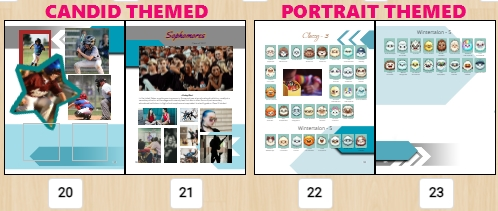
Once applied, the cover background and interior page backgrounds will update. Candid pages will feature one style of background, and portrait pages another. Theme backgrounds always apply to the bottom layer of your canvas. Custom backgrounds may be added on top of a theme background - simply drag the background to a page to drop it on top of the theme background. |
|
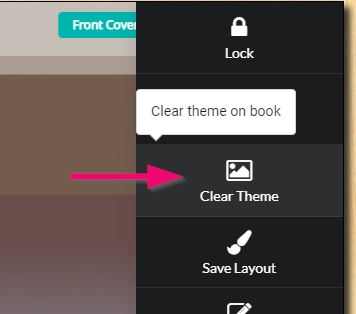
To remove a theme from your book, access the cover page. Click on the page menu gear in the top outside corner. Choose Clear Theme. |
|
BackgroundsCaptura Yearbook offers a collection of backgrounds on the left-side content pane of the editor.
|
|
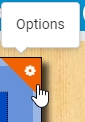
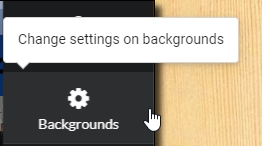
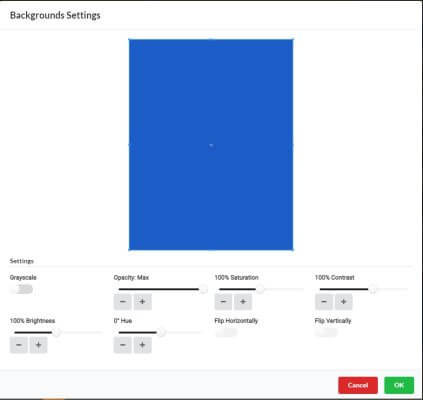
Plain color backgroundsTo add a plain color to your background, click on the Options gear wheel in the top corner of the page. Choose the Backgrounds settings tab to view the color settings options for the selected page. |
|
Change the hue setting to adjust the color, then adjust the saturation, contrast and brightness options to change the intensity/shade of the color. The opacity option will make the background translucent. |
|
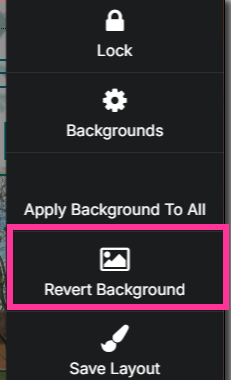
To remove color from the page, return to the Options gear in the top corner of the page, and choose Revert Background. |
|
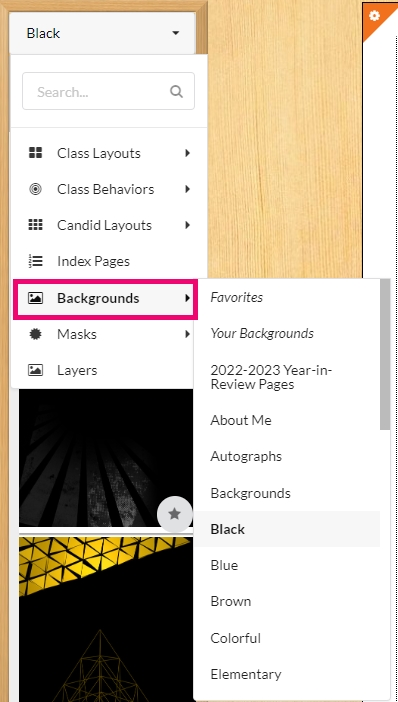
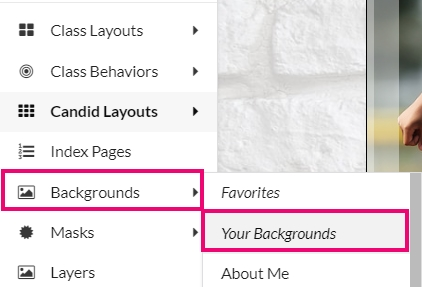
Adding your own backgroundsTo add a custom background to the collection, access the Backgrounds option on the left-side pane, then choose Your Backgrounds. Click on Add Backgrounds at the bottom of the pane to upload a jpg file that you wish to use as a full page background. |
|

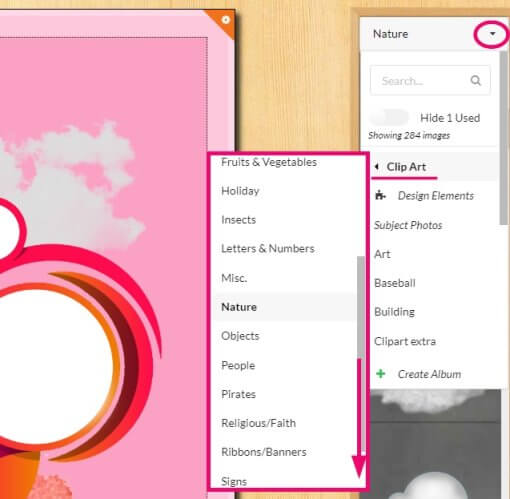
Clip ArtCaptura Yearbooks includes a collection of clip art in the right-side content pane, organized into thematic categories. Simply drag-and-drop any clipart onto your canvas, and resize it as you would any other image. |
|
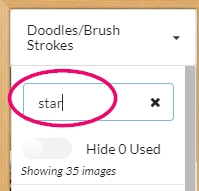
Use the Search option at the top of the right-side content pane to search for particular types of images (eg. star, flower, football). Click the Hide Used button to only show content that is not already on a page in your book. |
|