
Using the Job Dashboard and Settings Tabs
Overview & Objective
After creating a Job, you'll use the Job Dashboard and Job Settings to manage it throughout its lifecycle.
This guide explains how to open a Job, navigate the Dashboard, update Job settings, and sync your changes back to the Captura Cloud so they're available on all of your devices.
Setup / Configuration
When you open a Job for the first time on a device, Captura Workflow automatically downloads a local copy to your computer.
This allows you to:
Continue working while offline
Make changes locally
Sync your updates back to the Captura Cloud when you're online
The Job Dashboard also provides a quick overview of important Job information, including configuration, revenue, and synchronization status.
💡 Pro Tip: Sync your Job regularly, especially after making changes in the Job Settings tab. This ensures your latest updates are available on every device and immediately reflected where applicable.
Step-by-Step Instructions
Step 1: Open a Job
From the Jobs list, click the Job Title you want to open.
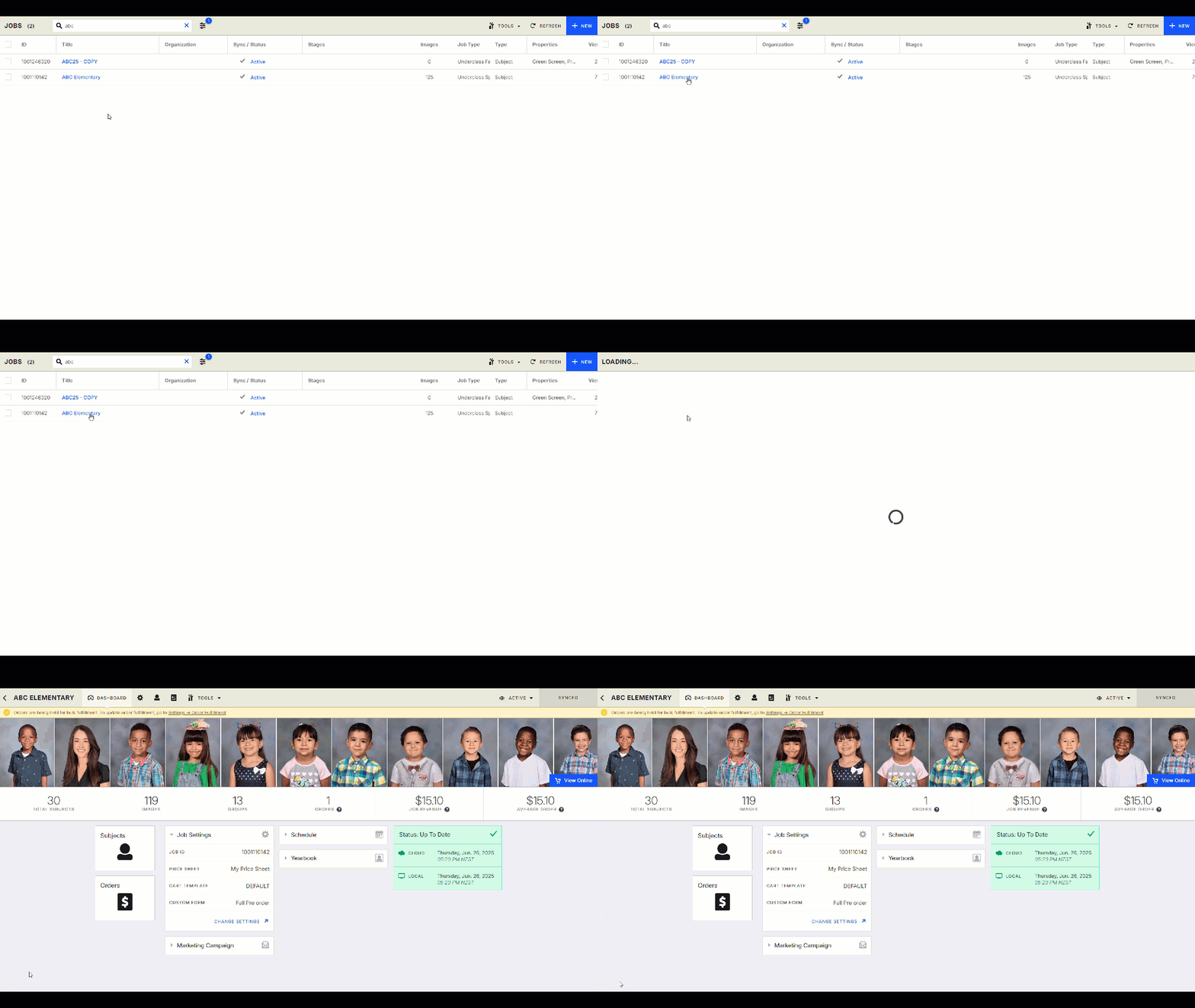
The first time a Job is opened on a device, a local copy is downloaded automatically.
Note: Working from a local copy lets you continue making changes even without an internet connection. When you're back online, simply sync your changes to save them to the Captura Cloud.
Step 2: Explore the Job Dashboard
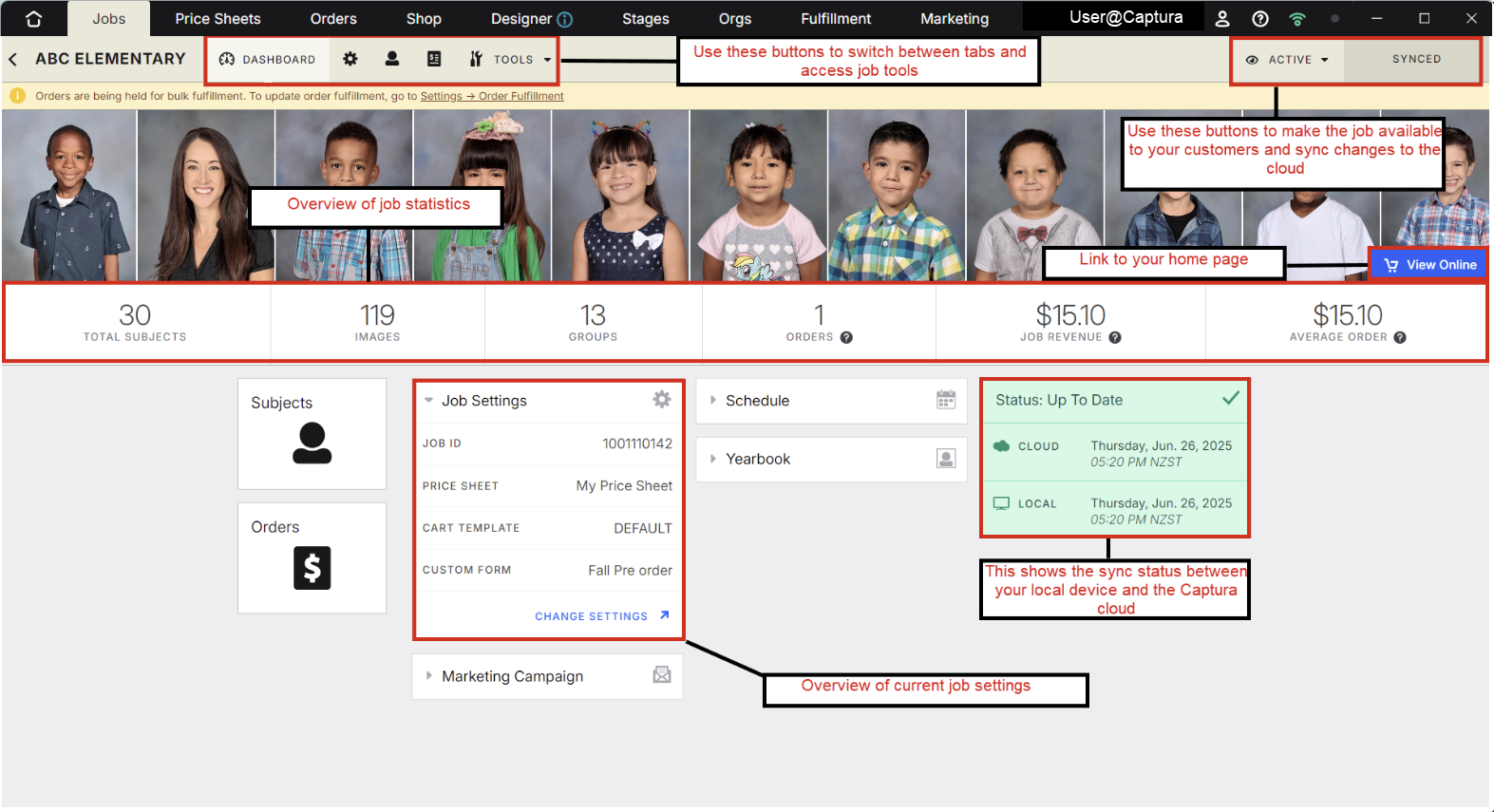
After opening a Job, you'll be taken to the Job Dashboard.
The Dashboard provides a quick overview of your Job, including:
Job configuration
Revenue information
Synchronization status
Shortcuts to commonly used areas
You can quickly navigate to the Subjects or Orders tabs using the buttons on the Dashboard, or switch between sections using the blue navigation bar at the top of the window.
Step 3: Check the Job Status
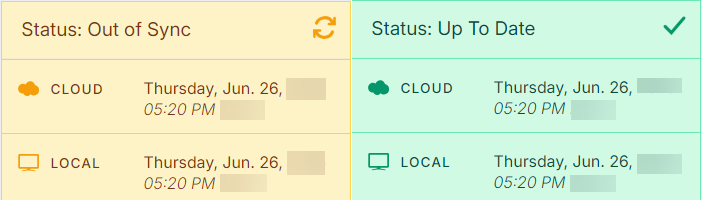
The Status section shows whether your local copy matches the version stored in the Captura Cloud.
Possible statuses include:
Status | Meaning |
|---|---|
Up To Date | Your local copy matches the cloud version. |
Out of Sync | Changes exist locally or in the cloud that need to be synchronized. |
Step 4: Open the Job Settings
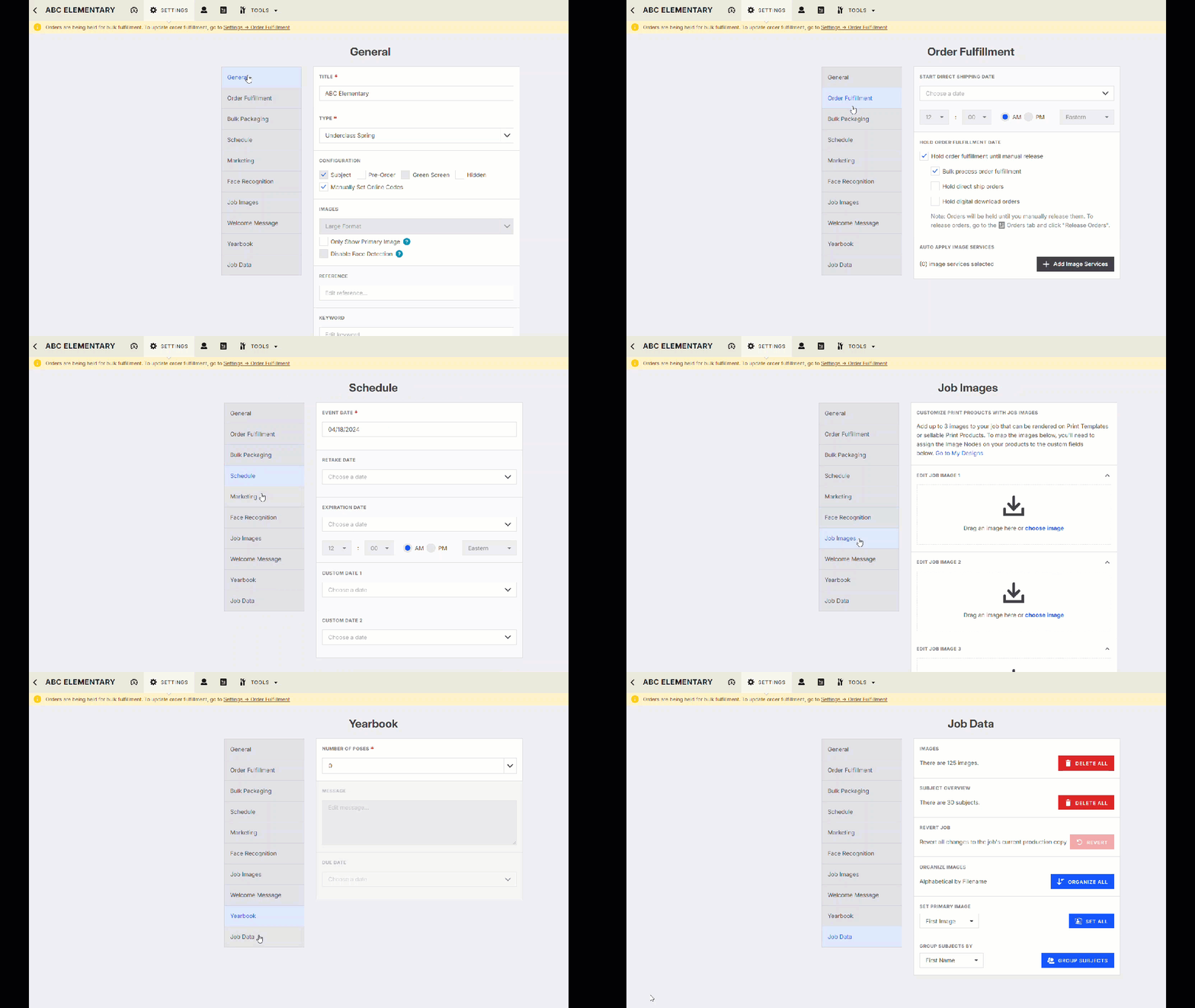
Click the Settings (Gear) icon in the navigation bar to open the Job Settings tab.

From here you can update many of your Job's settings after creation, including:
Switching from Pre-Order to Full Order
Setting a Retake Date
Changing the Expiration Date
Updating other available Job settings
Most sections match the configuration pages you used during New Job Setup, making it easy to find the settings you need.
Step 5: Sync Your Changes
After making changes, click Sync to upload your updates to the Captura Cloud.
Syncing ensures:
Your latest changes are available on other devices.
Online gallery updates are applied where applicable.
Your local copy stays aligned with the cloud version.

Note: The Sync button is only active when Captura Workflow detects changes in your local copy of the Job.
Advanced Options / Additional Rules
Working Offline
Because a local copy of the Job is stored on your device, you can continue working even without an internet connection.
When you're back online:
Open the Job.
Click Sync.
Your changes will be uploaded to the Captura Cloud.
What Can Be Changed in Job Settings?
Many settings remain editable after a Job has been created.
Examples include:
Setting | Available After Job Creation |
|---|---|
Pre-Order / Full Order | ✔ |
Retake Date | ✔ |
Expiration Date | ✔ |
Other Job Settings | ✔ (where applicable) |
Some settings remain locked after Job creation or after images have been added. Refer to Getting Started with Jobs for details on these restrictions.
Common Questions
Q: Why does opening a Job download it to my computer?
A: Captura Workflow stores a local copy of the Job so you can continue working while offline and sync your changes later.
Q: What does "Out of Sync" mean?
A: It means your local copy and the version stored in the Captura Cloud are different. Syncing will update the cloud with your local changes.
Q: Why is the Sync button disabled?
A: The Sync button is only enabled when Captura Workflow detects changes that need to be uploaded.
Q: Can I work without an internet connection?
A: Yes. Once a Job has been downloaded to your device, you can continue making changes offline and sync them later when you're connected to the internet.
Q: Can I change Job settings after creating a Job?
A: Yes. Many settings remain editable from the Job Settings tab, although some options become locked after Job creation or once images have been added.