
FAQs on Captura Digital Downloads
Digital Downloads FAQ
Everything you need to know about Captura's Digital Download Delivery service.
This guide answers the most common questions about digital downloads, including delivery, troubleshooting, product setup, and pricing.
If you can't find the answer you're looking for, start a chat with our team—we're happy to help.
Receiving Digital Downloads
How long does delivery take?
Digital downloads are usually delivered by email immediately after the order is completed.
If the order includes image services such as retouching or blemish removal, delivery is held until those services have been completed. Once the order is released, the customer automatically receives their download email.
Download links remain active for 90 days from the time they are created.
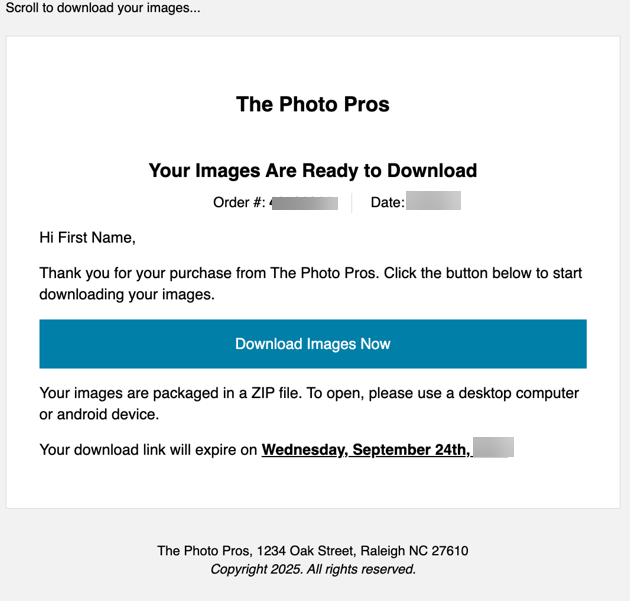
After clicking Download Images Now, the customer's browser downloads a compressed .ZIP file containing their images.
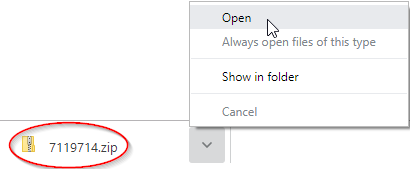
Downloading Images on Mobile Devices
Most modern iPhone and Android devices can download and extract ZIP files without installing additional software.
iPhone (iOS)
Tap the ZIP file.
Tap Share.
Select Save to Files.
Choose where to save the file.
Open the Files app and tap the ZIP file to extract it.
Screenshot: iPhone Files app extracting ZIP
Android
Most Android devices include built-in ZIP extraction.
Files by Google
Open Files by Google.
Browse to the Downloads folder.
Select the ZIP file.
Tap Extract.
Tap Done.
Samsung My Files
Open My Files.
Open Downloads.
Select the ZIP file.
Tap Extract.
Screenshot: Android ZIP extraction
Troubleshooting
The customer didn't receive their download email
If a customer doesn't receive their email, check for the following:
The email address entered during checkout is incorrect.
The email was filtered into spam or junk mail.
The order is being held by your Order Fulfillment settings.
The order is waiting for image services to be completed.
The download link has expired.
In most cases, resending the download resolves the issue.
If you still need help, start a chat with us and include the order number.
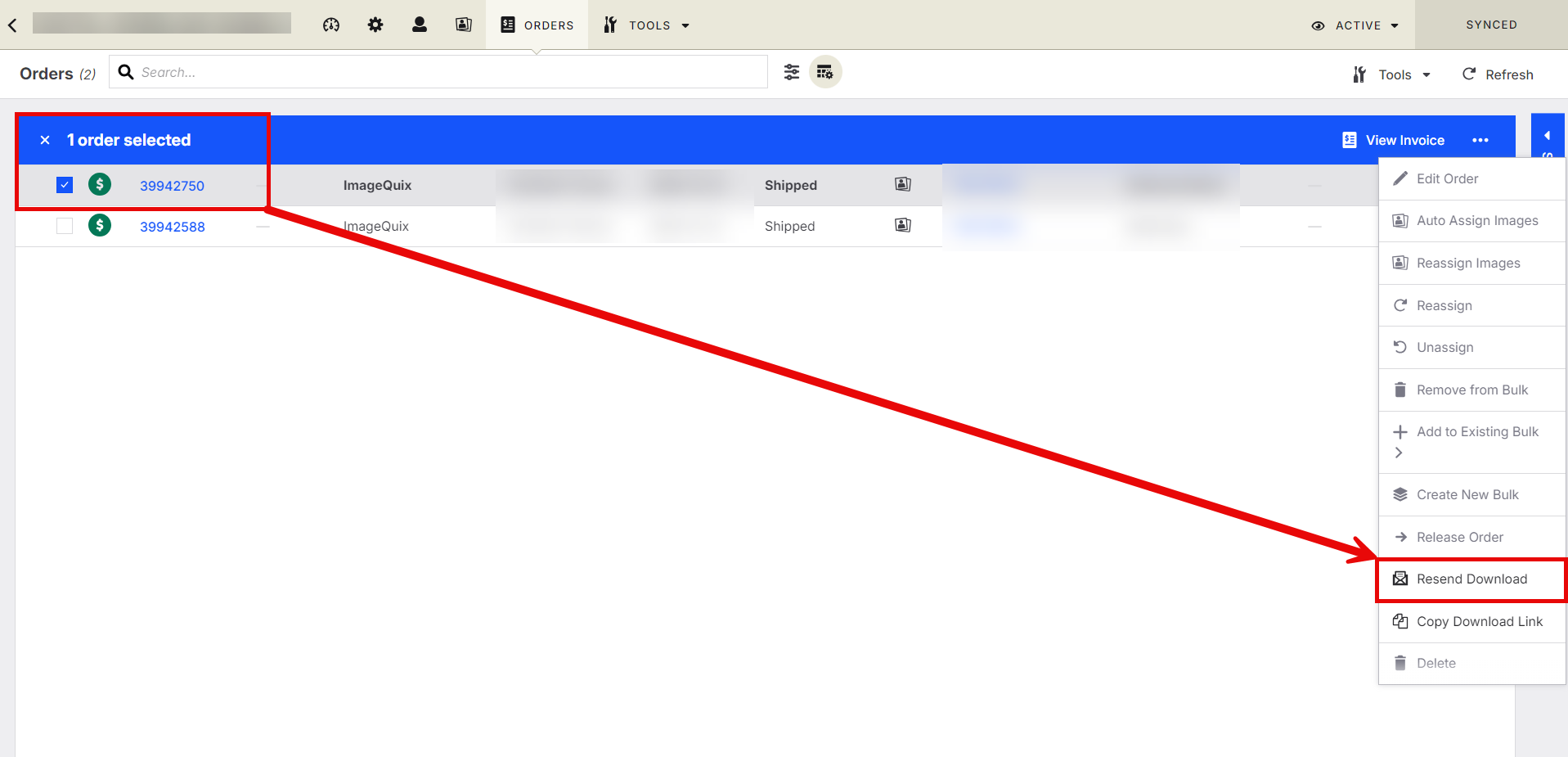
Resend a digital download
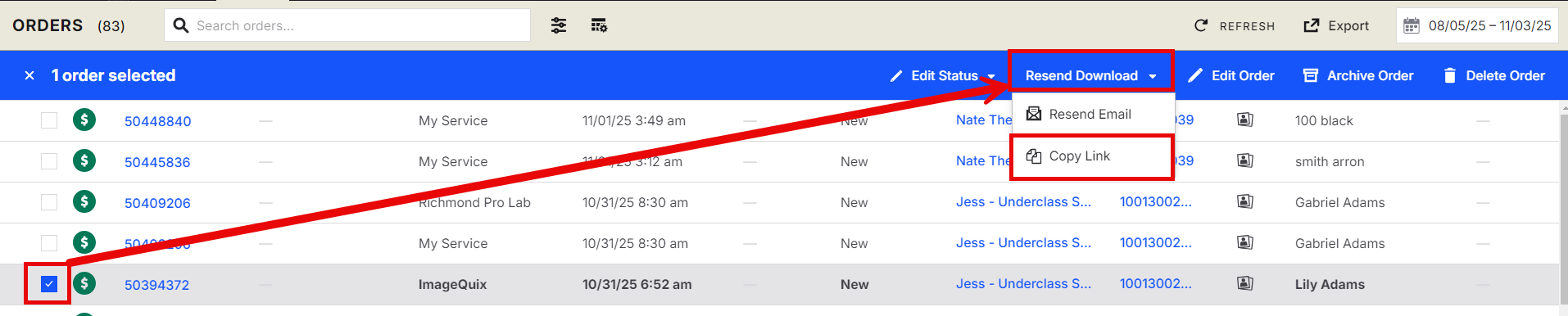
You can resend a digital download from either location:
The Job Orders tab
The main Orders page
Click Resend Download to send a new download email to the email address stored on the order.

The customer entered the wrong email address
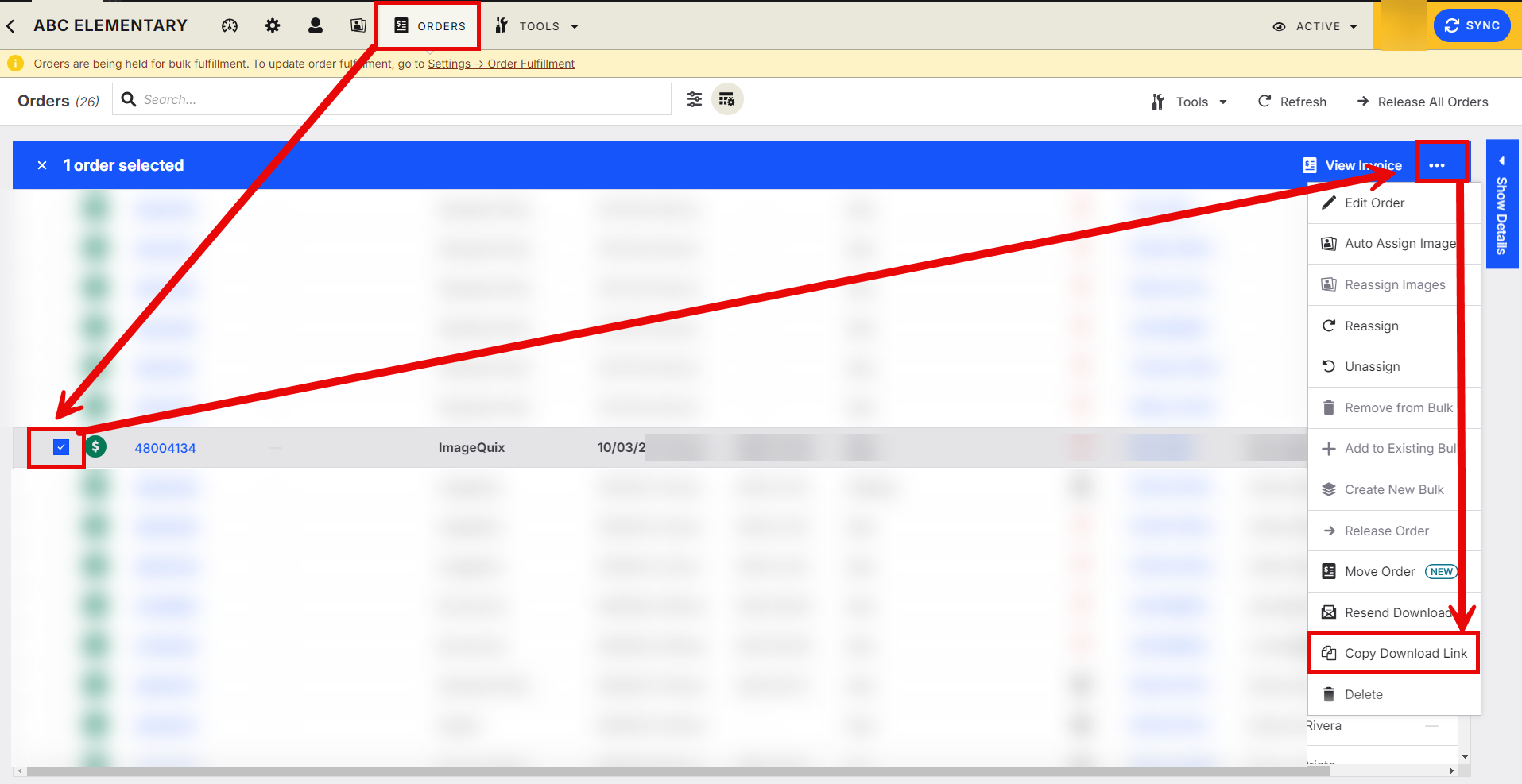
If the customer used an incorrect email address during checkout, you can copy the download link and send it directly.
Select Copy Download Link from either the Job Orders page or the main Orders page.
The customer says the images are too small
File size and image dimensions are two different things.
Captura compresses image files to reduce download size while preserving the original image dimensions unless a lower download resolution was purchased.
For example:
A smaller file size does not mean the image has fewer pixels.
Customers can verify the image dimensions by viewing the image properties (or Get Info on macOS).
You can learn more about image resolution in our Image Size guide.
Configuring Digital Download Products
Can I offer image services?
Yes.
If a customer purchases image services such as retouching, the digital download is automatically held until the image service has been completed.
The customer then receives the updated image.
Note: Image Options cannot be purchased with All Image Digital Download products.
Learn more about configuring Image Services: How do I offer self-fulfillment image services?
Can one product include multiple images?
Yes.
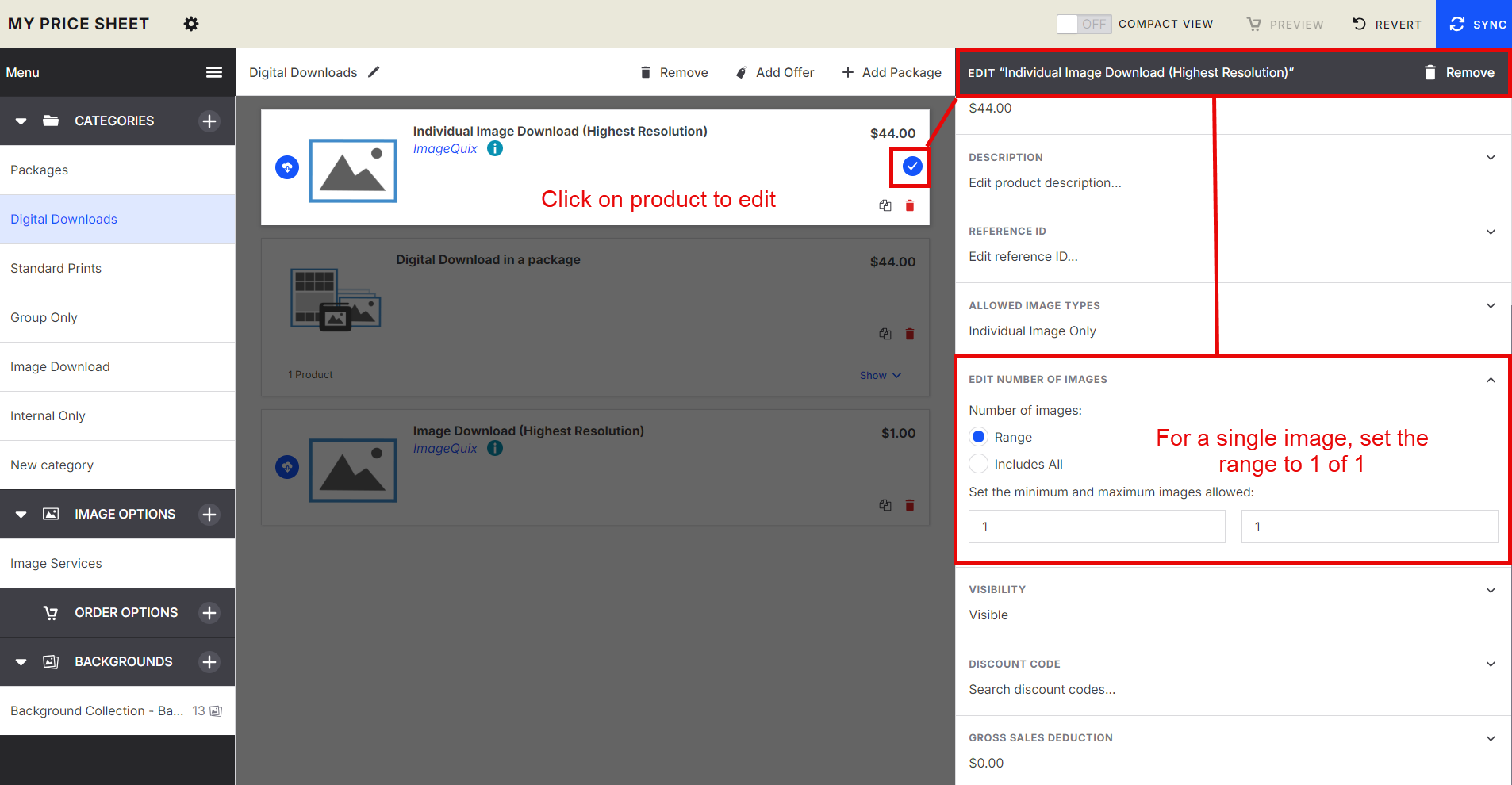
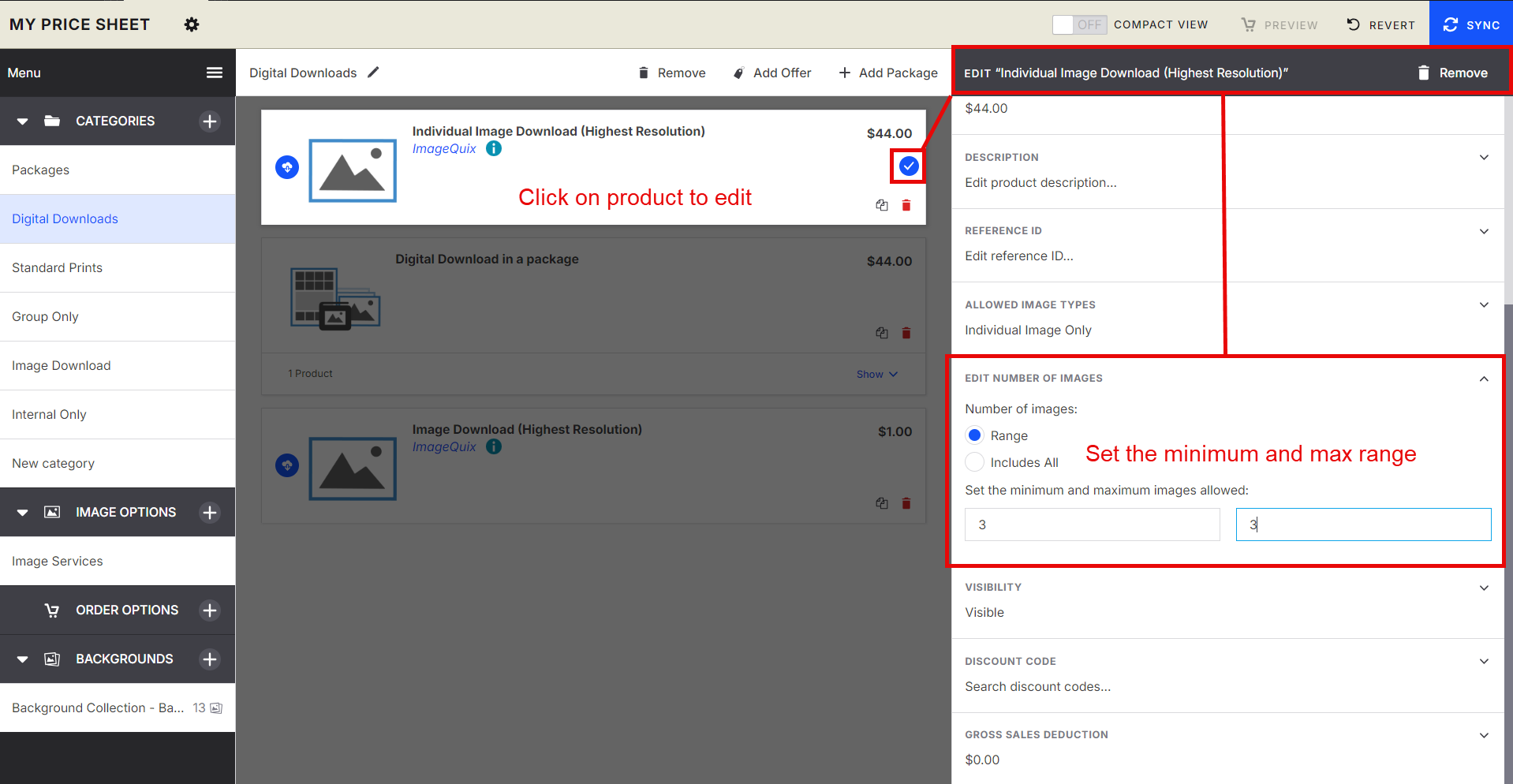
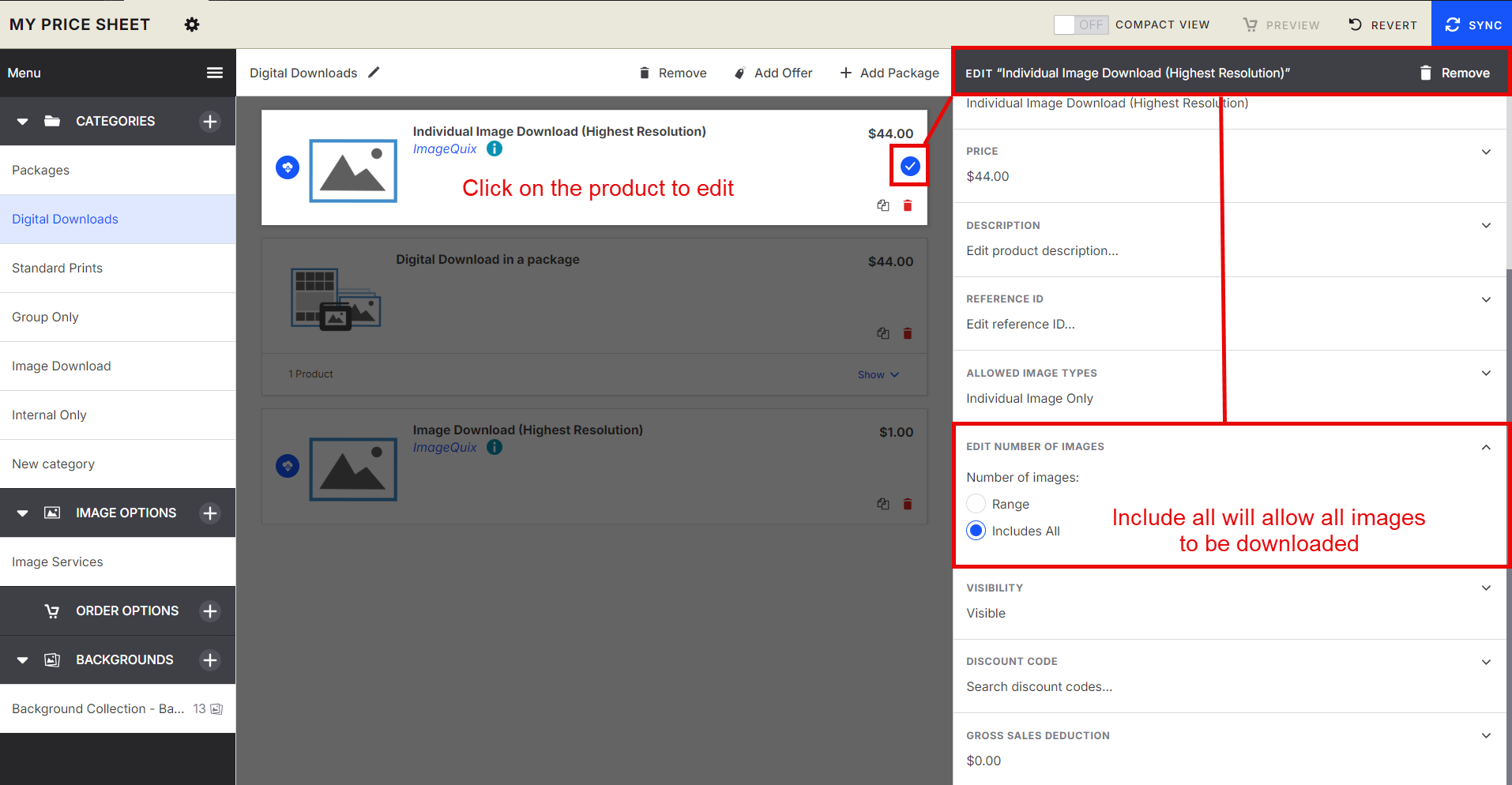
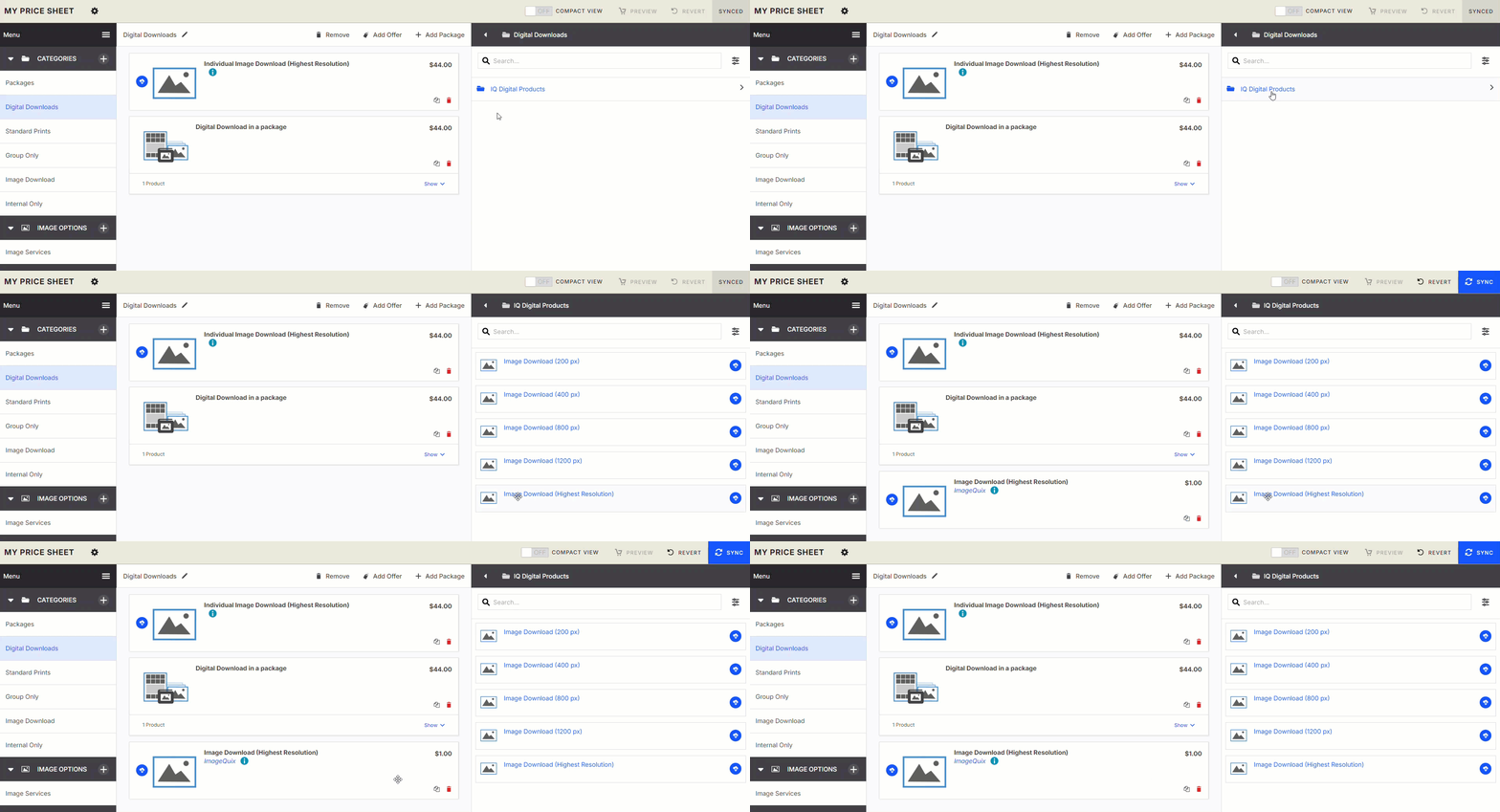
Use the Number of Images setting to choose how many images the customer can download.
Options include:
Single image
Fixed number of images
Image range
Entire gallery
Note: We recommend keeping the minimum and maximum values the same when selling a fixed number of images.
Note: Image services are not available for All Image Digital Download products.
Number of Images (Click to View) | Additional Information |
| This is the default behavior for every image download added. |
| Recommended to keep both minimum and maximum values the same. |
| Sends every image in the gallery to the customer** Customers cannot purchase image services with this configuration. Note: If you're selling an All Image Digital Download, customers cannot choose a green screen background. The download will always use the first background in your price sheet. If you want customers to choose their own background, configure the product to allow a range of images instead of All Images. Learn more about offering multiple images in packages: https://support.captura.io/en/articles/6639169#offering_multiple_images_in_packages |
Can I sell different download resolutions?
Yes.
Digital downloads can be sold in the following resolutions:
200 px
400 px
800 px
1600 px
Highest Resolution (up to 6000 px on the longest edge)
Captura automatically creates the correct download size based on the product purchased.
Can I prevent group photos from being downloaded?
Yes.
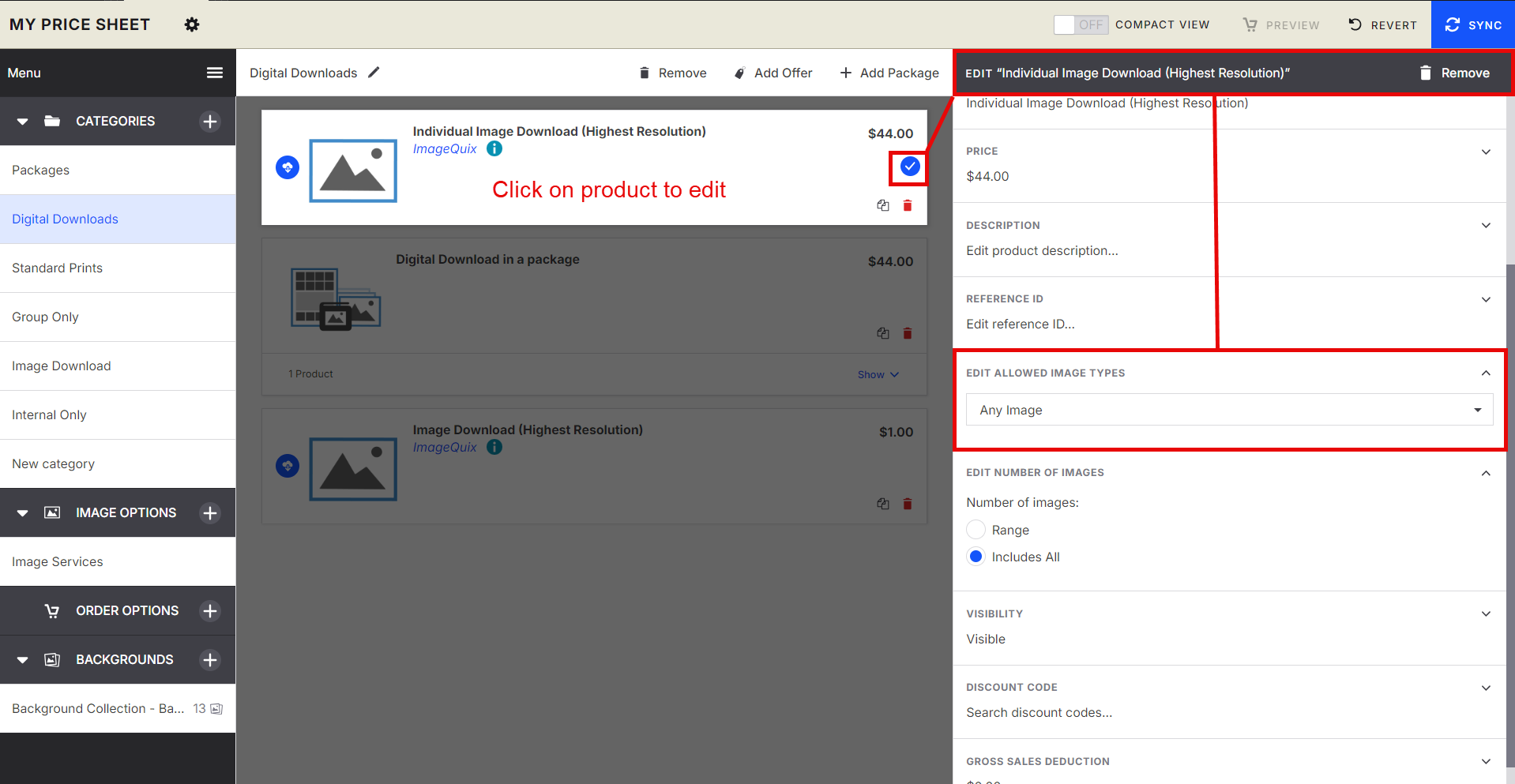
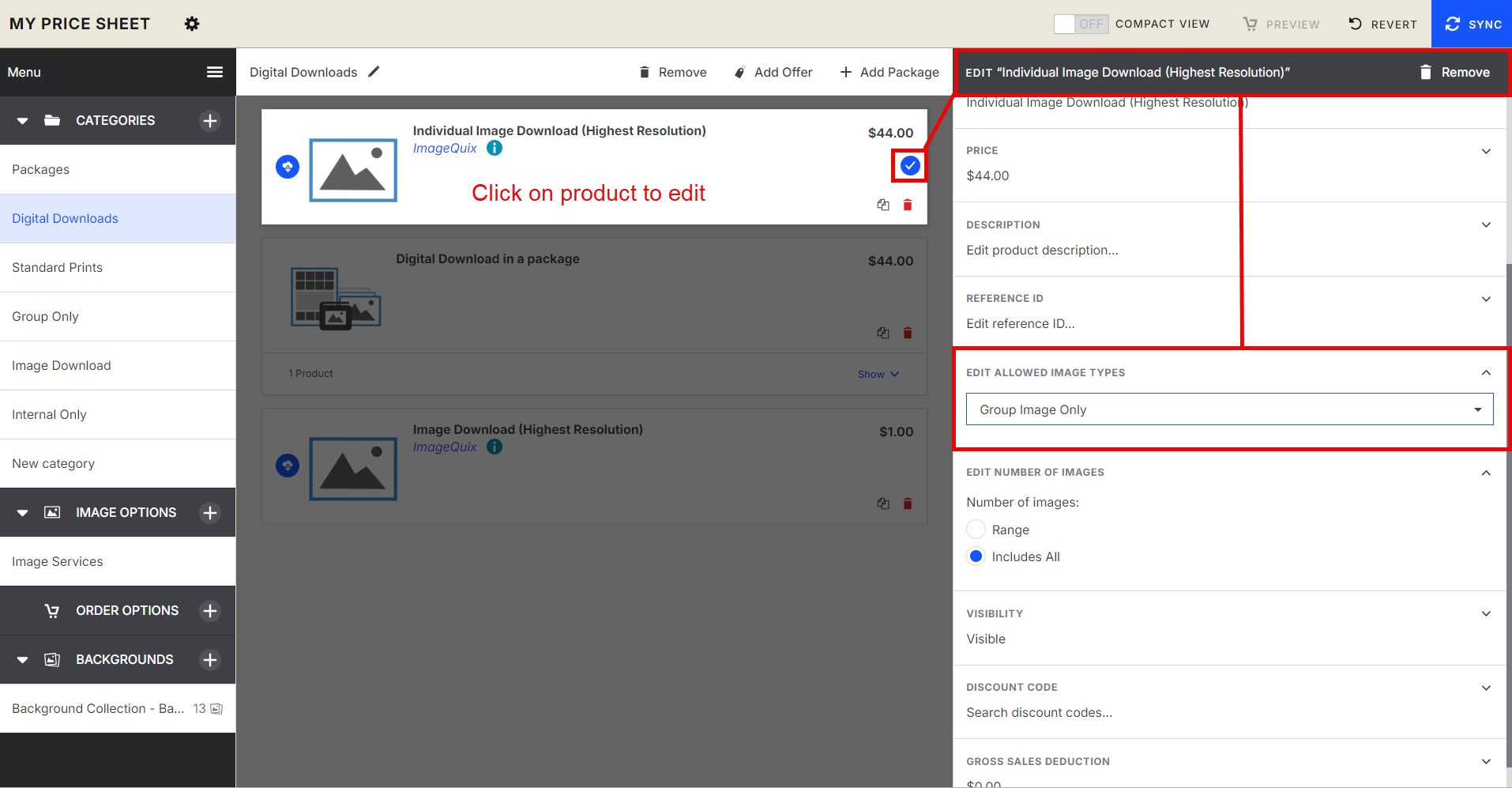
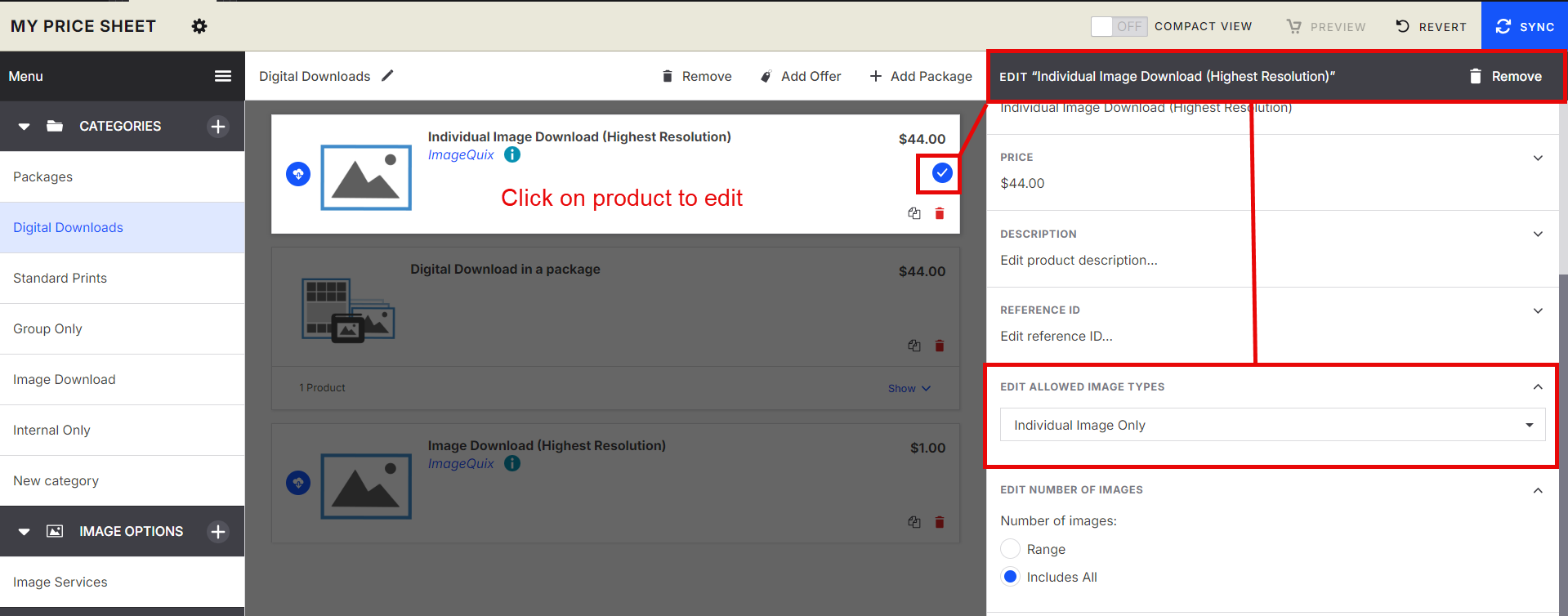
Use Allowed Image Types to control which images customers can select.
Available options include:
Any image (default)
Group images only
Subject images only
Note: This setting is only available for subject-based jobs.
Allowed Image Types (Click to View) | Additional Information |
| This is the default behavior for every product added. |
| Only allows images assigned to the group the subject is a member of. |
| Only allows images assigned to the subject. |
Can I include a copyright release?
Yes.
Send the Captura Product Support team a PDF copy of your copyright release and we'll automatically include it with every digital download purchased from your account.
Managing Digital Downloads
Check whether a download has been used
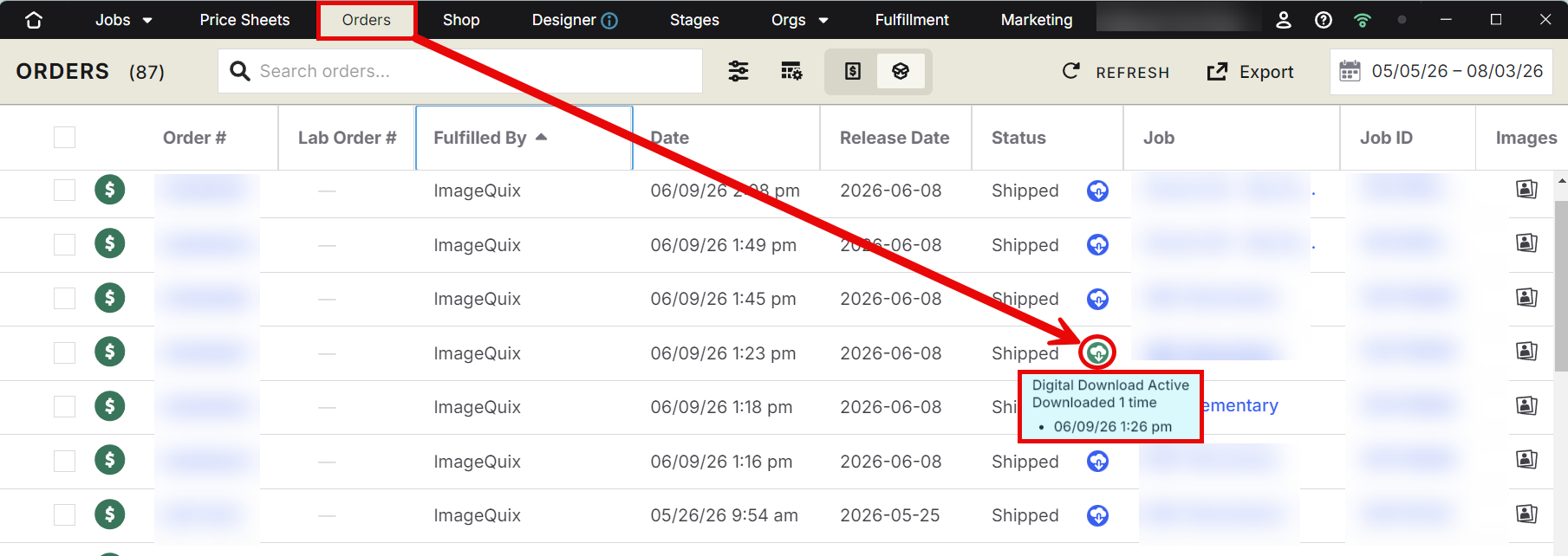
When a customer downloads their images, a Downloaded icon appears in the order status.
Hover over the icon to see the date and time the download occurred.
Digital Download Status
You can quickly see the status of a digital download from the Status column in the Orders tab.
🟢 Downloaded – The customer has downloaded their digital files. Click the Downloaded icon to view how many times the files have been downloaded, along with the date and time of each download. Times are displayed in the user's local time zone.
🔵 Ready – The digital download is available and ready for the customer to download.
⚪ Disabled – The download link has been disabled and can no longer be used. This is typically done after an order has been refunded or when access to the download needs to be removed or the download has expired.
Download link expiry
Digital download links remain active for 90 days after they are created.
After this time, you'll need to resend the download to generate a new link.
Disable a download
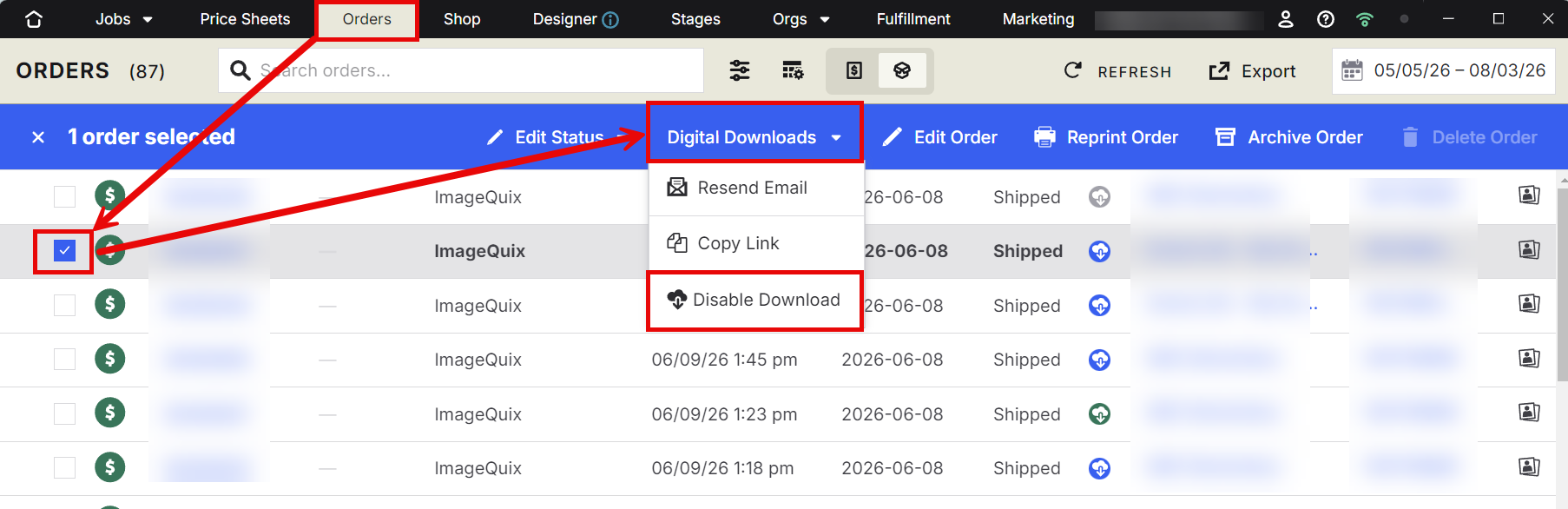
If you refund an order, you can disable the customer's download link.
Open the order.
Select the Digital Download menu.
Choose Disable Download.
This immediately prevents any future downloads using that link.
Pricing
How much does Digital Download Delivery cost?
Premium Membership:
$1 per order containing a Captura Digital Download product.
Standard Membership:
$1 per image
Maximum charge of $10 per order
Scenario | Behavior |
The client orders a digital download of all 30 images in their gallery. |
|
The client orders a digital download for a range of 1 to 5 images in their gallery. |
|
The client orders a digital download of a single image from their gallery. |
|