
How do I offer self-fulfillment image services?
Set Up Self-Fulfilled Image Services
Offer image services such as retouching or brace removal directly through your online shop. When a customer purchases one of these services, your studio is responsible for completing the work before the order is fulfilled.
Before you begin
Make sure you have:
Decided which image services you'll offer (for example, retouching or brace removal).
Set pricing for each service.
Planned how your studio will complete and fulfil these services.
Create an Image Options category
From the Welcome dashboard, select Designer.
Select Options.
Open Image Options.
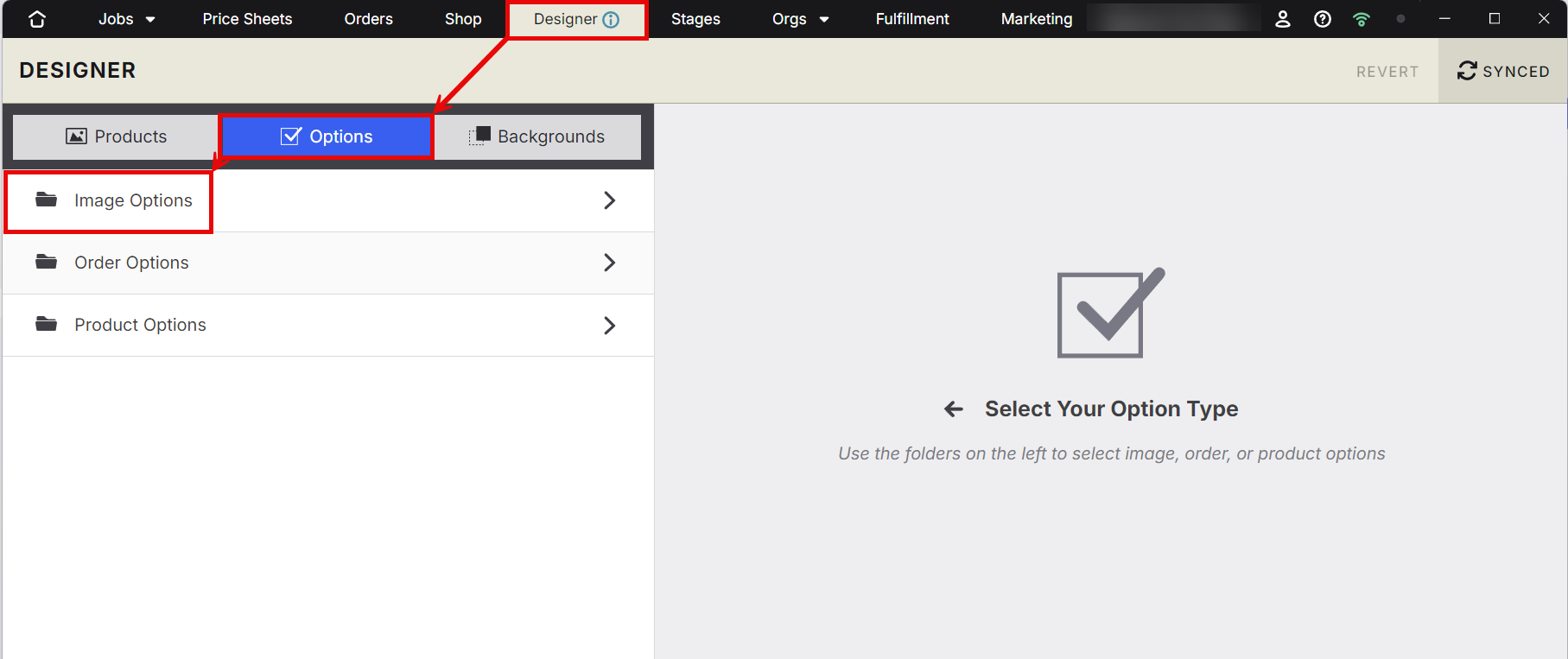
Click Create Category.
Enter a name for the category, such as Retouching.
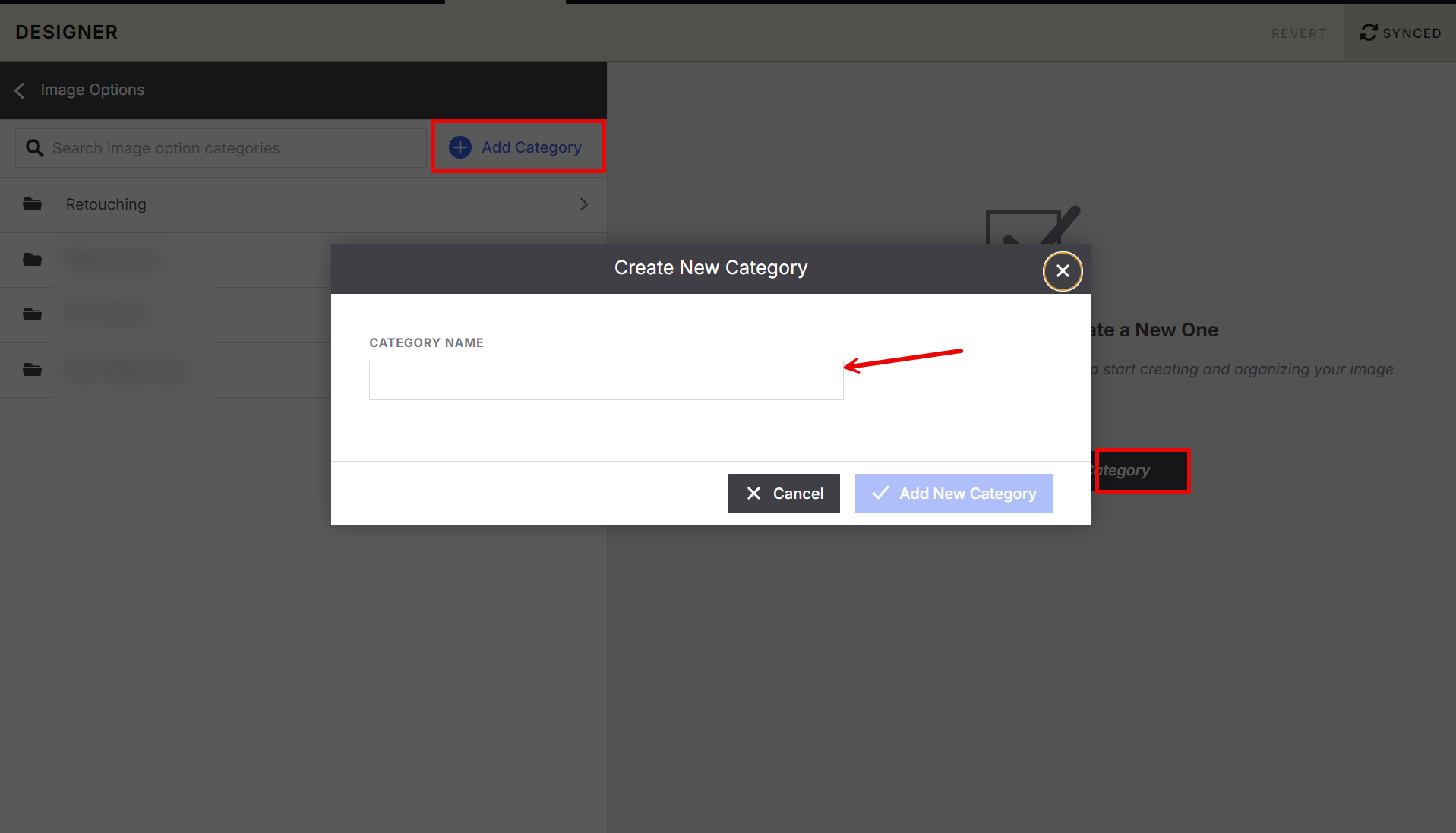
Add your image services
You can present your services in one of two ways, depending on how you'd like customers to make their selection.
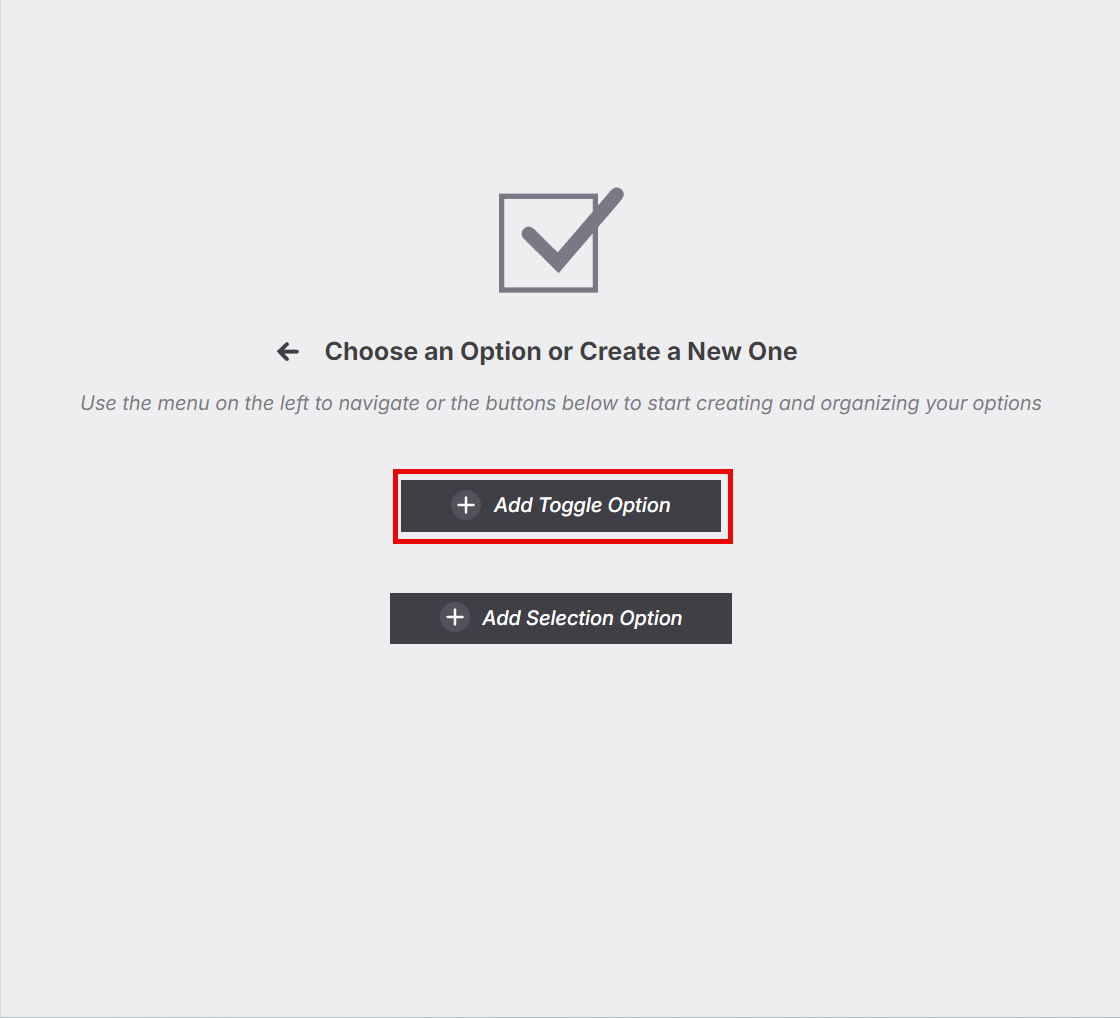
Option 1: Toggle option (Yes/No)
A Toggle option is best when you're offering a single service and only need the customer to answer Yes or No.
For example:
Would you like retouching?
To create a Toggle option:
Open your Image Options category.
Click Add Option.
Select Toggle Option.
Enter a name for the option.
Set the price.
Click Sync to save your changes.
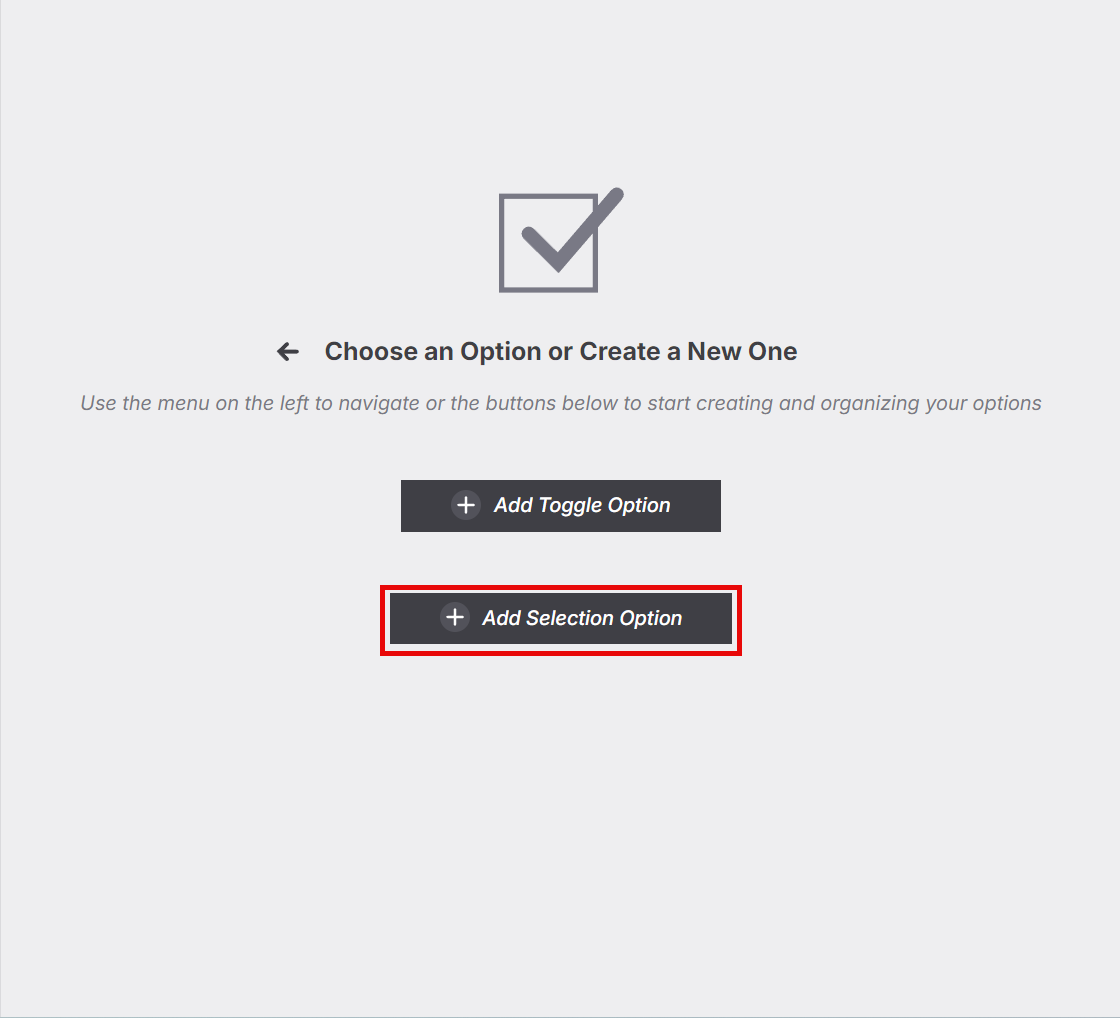
Option 2: Selection option (Multiple choices)
A Selection option is ideal when you're offering several services for customers to choose from.
For example:
Please select your retouching service
No, thank you
Basic Retouching
Brace Removal
Basic Retouching + Brace Removal
To create a Selection option:
Open your Image Options category.
Click Add Option.
Select Selection Option.
Enter a name for the option.
Choose whether the selection is Required or Optional.
Add each service and assign its price.
Click Sync to save your changes.
Download the original image
If your workflow requires you to edit the original image after the order is received, enable Download Original Image.
This downloads the original image with the order so you can complete the requested image service before fulfilment.
Learn more: Designer: Image Options
Next steps
Once your Image Options have been created, you're ready to start fulfilling image service orders.
Continue to to learn how to process and complete image service orders.
Getting Started with Image Service Fulfillment in Captura Workflow