
Designer - Formally My Designs - Overview
What Is Designer?
Designer is your creative studio within Captura Workflow. It gives you the tools to build, customize, and manage all Design templates and assets used throughout your photography workflow.
By combining your design elements with subject data, job data, and image assets, Designer allows you to create personalized products that can be Automatically generated at scale.
Whether you're building print products, digital assets, product options, or green screen backgrounds, Designer is the central place to create and manage all of your studios designs.
Why Use Designer?
Designer helps studios create consistent, professional products while reducing manual work.
With Designer, you can:
Create personalized products at scale
Build reusable templates and designs
Manage all product offerings in one place
Offer image and product upgrades
Support green screen workflows
Automate product generation using subject data
Designer is the foundation for creating and managing the products and experiences your customers purchase throughout Captura Workflow.
Getting Started
Before you start building products in Designer, take a moment to set up your categories and sub‑categories.
Organizing your Designer workspace helps keep your products structured and easy to manage. Each Designer tool includes the ability to create categories and sub‑categories, allowing you to group related items and maintain a clear, efficient workflow.
Create Your Top‑Level Category Start by setting up your main category to organize your Designer workspace. You can name these categories based on product type, school, sport, or any structure that makes sense for your studio’s workflow.
Go to Designer → Products → Add Category →Name → Click Top-level Category → then select Create
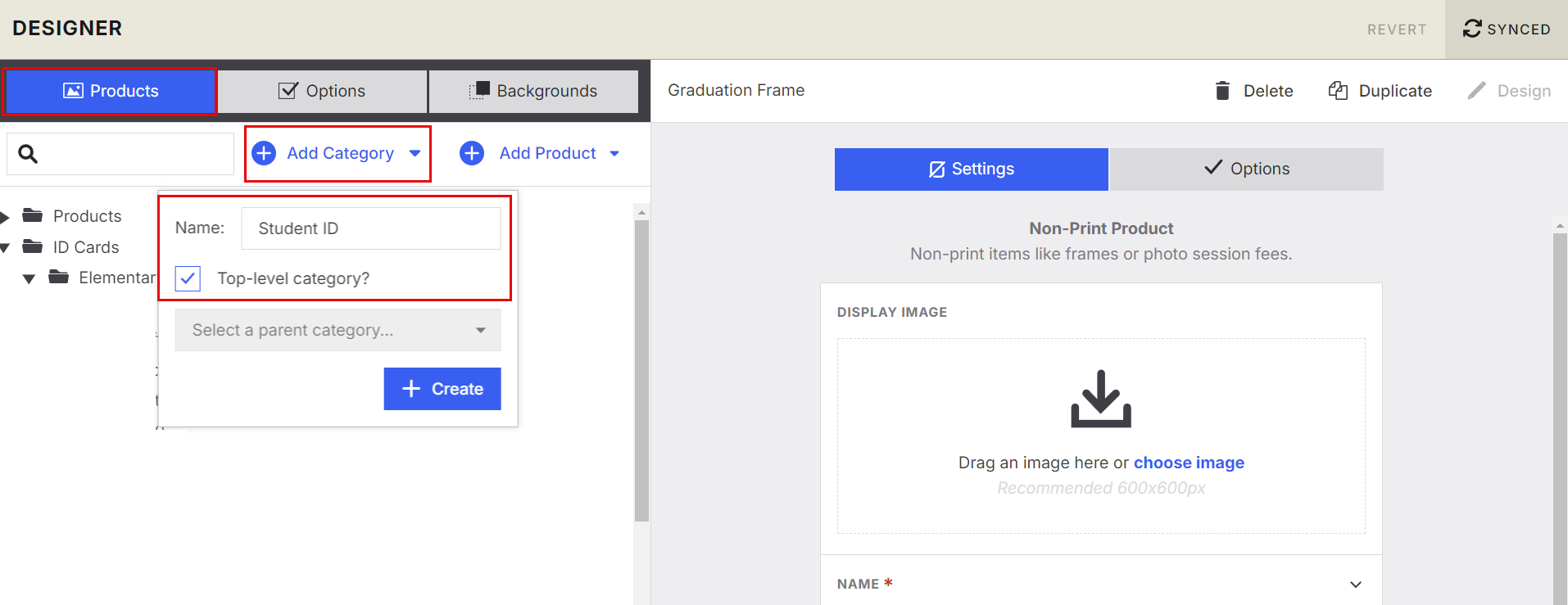
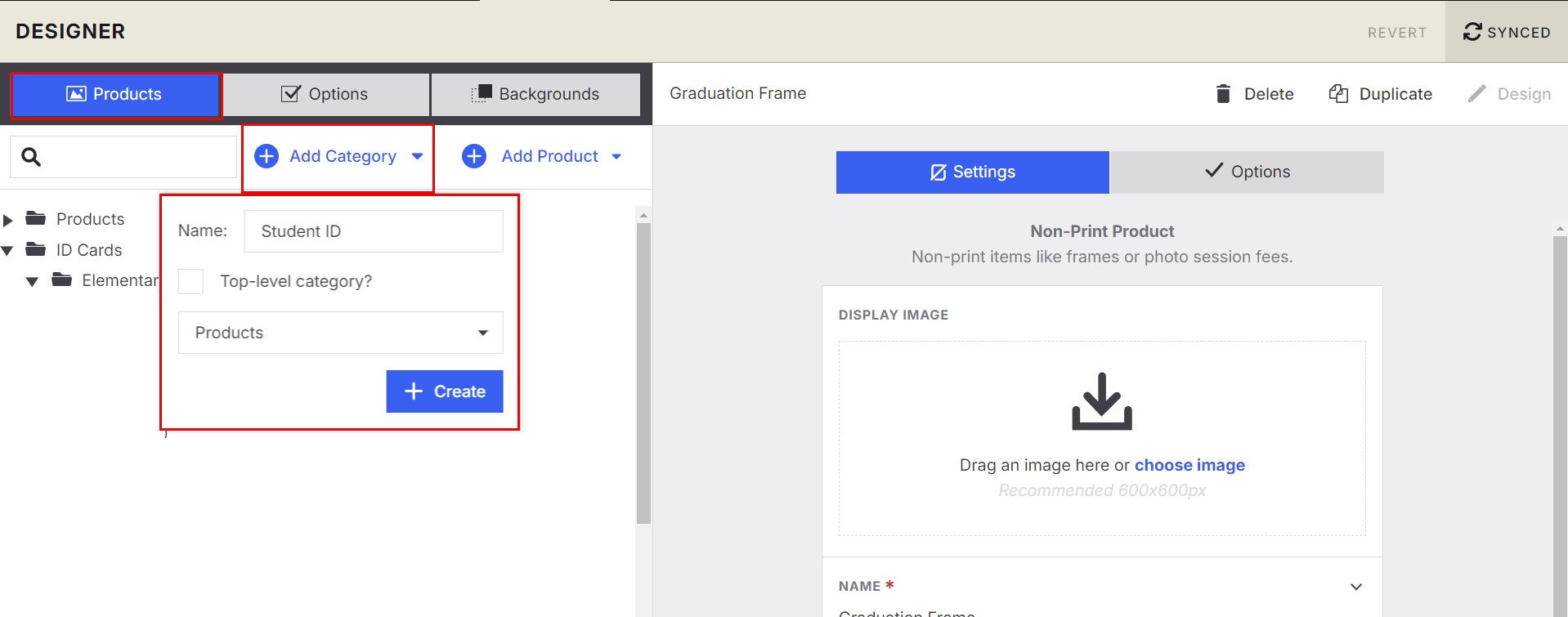
You can then create Sub-Categories:
Go to Designer → Products→ Add Category → Enter a category name → choose a parent category from the dropdown, then select Create.
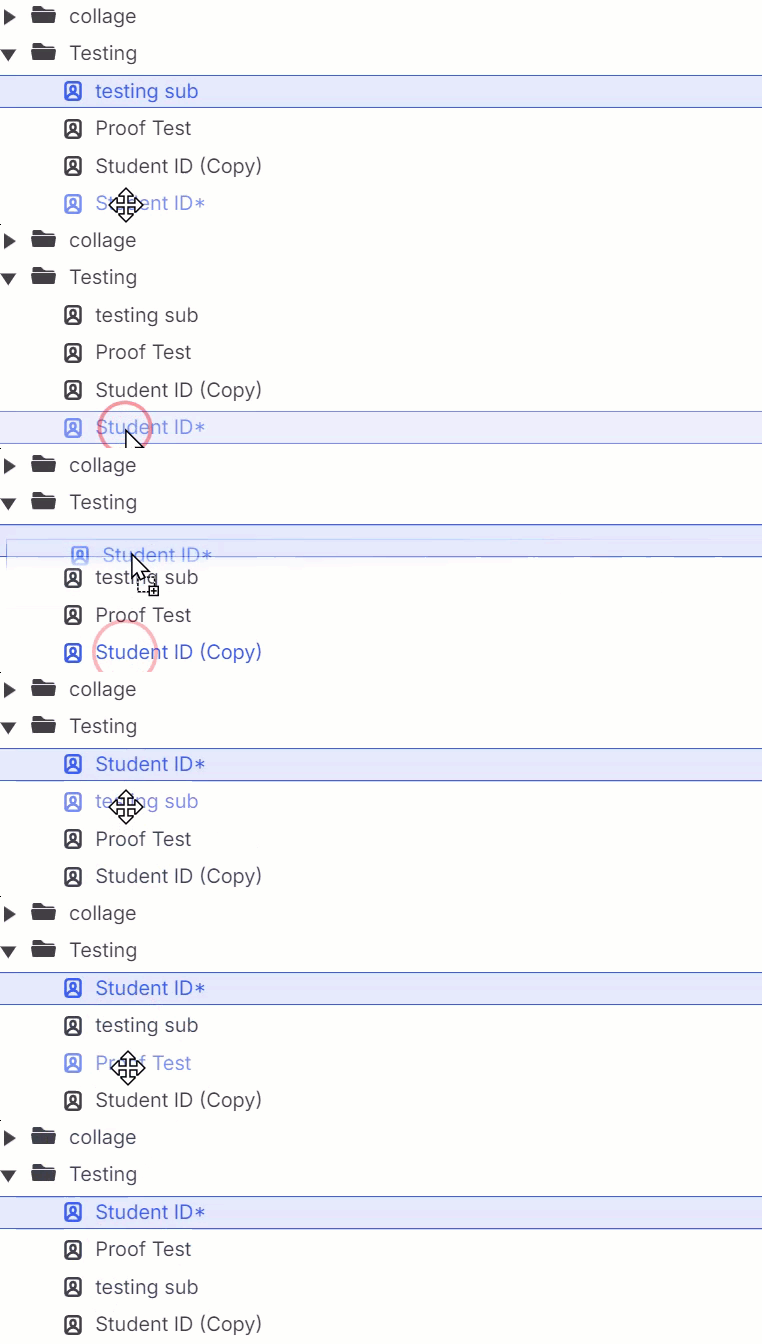
💡Quick Tip: You can drag your products to different categories
Products
Products represent everything your studio sells, both physical and digital. This includes simple items like prints as well as fully designed templates that merge with subject data.
Product Types You Can Build
Print Products
These are items that require at least one image and can use custom layouts, subject data, and external assets.
💡Quick Tip: Print products can also be purchased with product and image options.
Examples include:
Prints
Magnets
Keychains
Digital Downloads
Specialty Products
ID Cards
Memory Mates
Sports Trader Cards
Personalized Prints
Graduation Products
Event Graphics
👉 How to build a Print Product: Designer - Print products
Non-Print Products
These are offerings that don’t require a design but can be sold alongside traditional photography items.
Examples include:
Frames
Session Fees
👉 How to build Non‑Print Products: Designer: Non-Print Product
Proof Sheets
Proof Sheets display multiple images on a single page for review and selection. Proof Sheets cannot be added to Price Sheets.
Common uses:
School Photography
Sports Photography
Event Photography
Client Image Selection
👉 How to build a Proof Sheet: [Coming soon]
Collections
Collections group images together for use in multi‑image products or specialty workflows.
Examples include:
Wedding Albums
Graduation Books
Sports Yearbooks
👉 How to build a Collection: Designer: Collections
Options in Designer
Options allow you to offer customizations and additional services during the ordering process. See our different options below.
Image Options
Image Options provide editing and enhancement services applied to photos.
Examples include:
Retouching
Blemish Removal
Brace Removal
Teeth Whitening
Background Enhancements
👉 How to build Image Options: Designer: Image Options
Product Options
Product options are a great way to create product "add-ons," like a frame for a print.
👉 How to build Product Options: Designer: Product Options
Order Options
Order Options provide additional services or fulfillment choices at checkout.
Examples include:
Boutique Packaging
Shipping Methods
Order Acknowledgements
Rush Processing
Special Handling
👉 How to build Order Options: Designer: Order Options
Background Sets
Background Sets allow you to offer multiple background choices within your Green Screen workflows. Customers can preview and select their preferred background, creating a simple upsell opportunity that can help increase average order value.
Common uses:
School Photography
Sports Photography
Dance Photography
Seasonal Events
Special Promotions
Background Sets can be assigned to specific products, jobs, or workflows to streamline production.
👉 How to build Background Sets: Designer: Backgrounds